Restoring files on a virtual machine

This guide describes how to restore individual files or folders from a virtual machine backup. The restoration is performed using the Acronis Ventoo Backup console and is suitable for specifically deleted or damaged files within a VM.


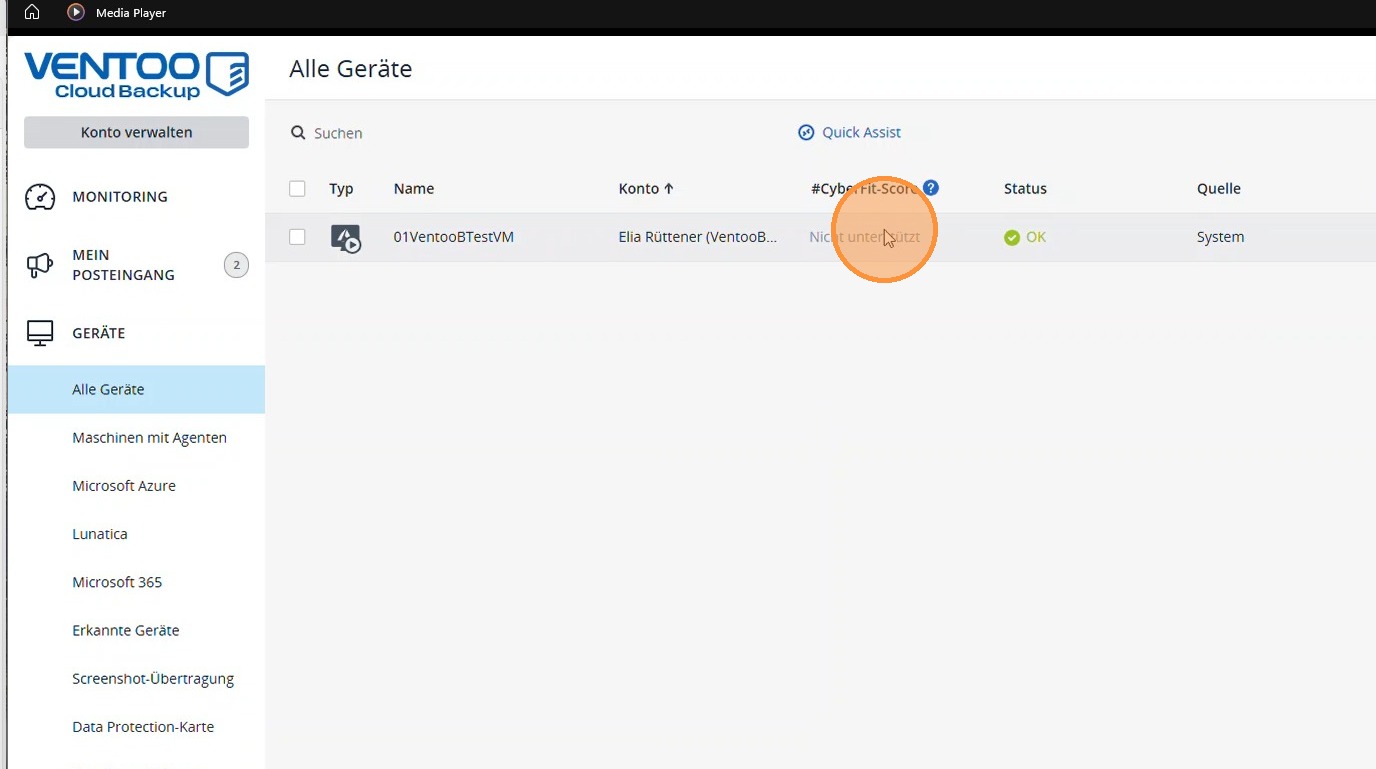
1. Select the correct virtual machine under All Devices.
https://colony-recorder.s3.amazonaws.com/files/2026-01-27/473cb39e-ef70-4421-b0d9-95c040817b91/ascreenshot_2ab2587d72f24a1fb0da30b67106a121_text_export.jpeg

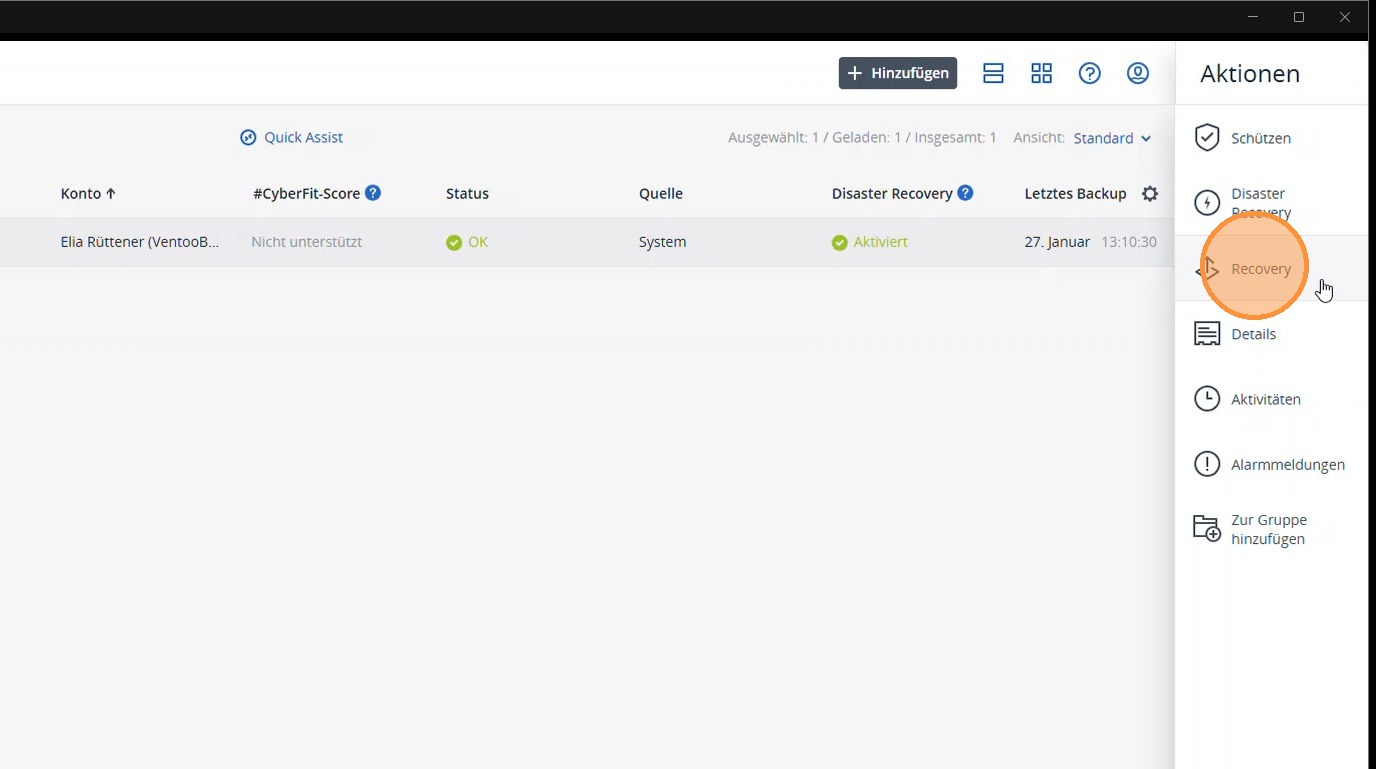
2. Select the Recovery section.

https://colony-recorder.s3.amazonaws.com/files/2026-01-27/e60bc161-dabe-402f-873c-be667541a0ee/ascreenshot_994f389de4634cffba21b077900181b7_text_export.jpeg

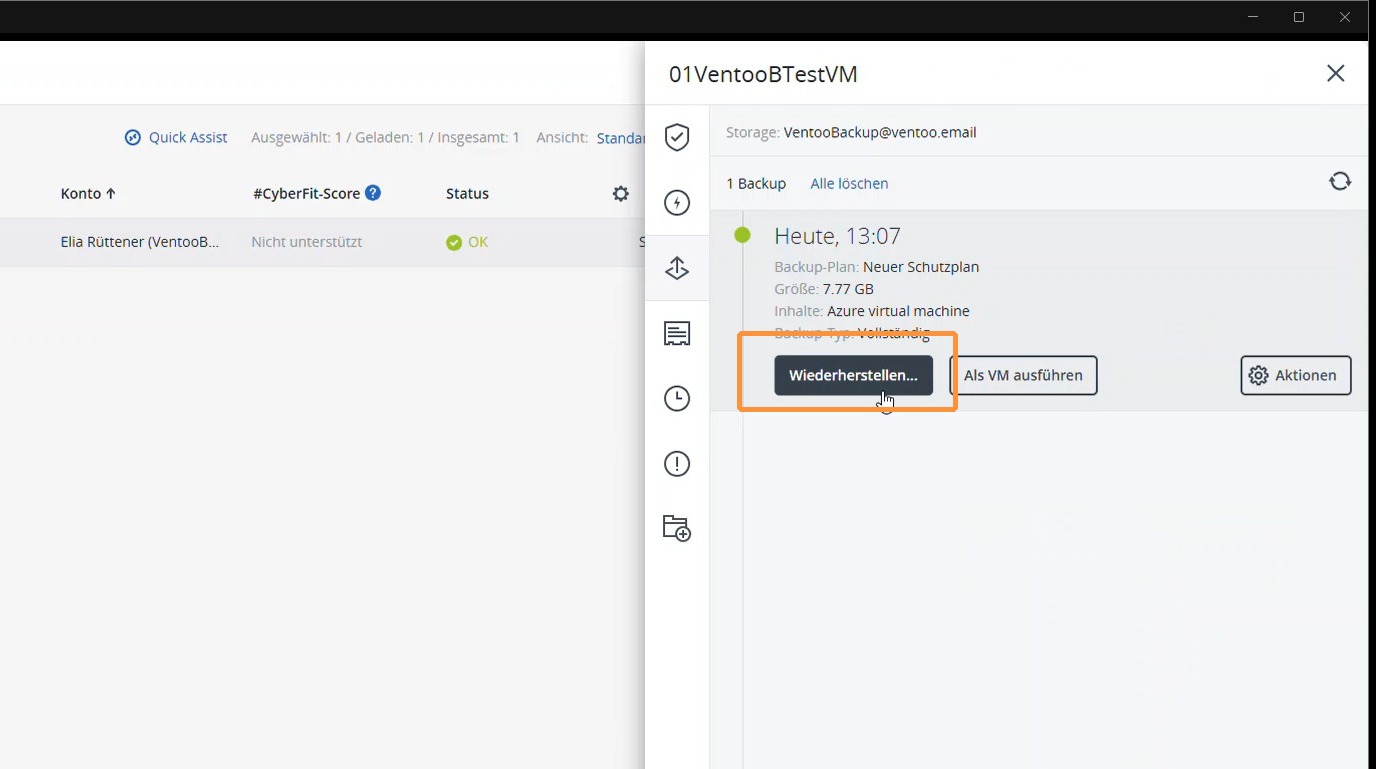
3. Restore and select the desired backup period.
https://colony-recorder.s3.amazonaws.com/files/2026-01-27/af0b5908-ec33-43f7-88de-e1eac041faf6/ascreenshot_e30cbcca08664c97ba12e09ca5d3e877_text_export.jpeg

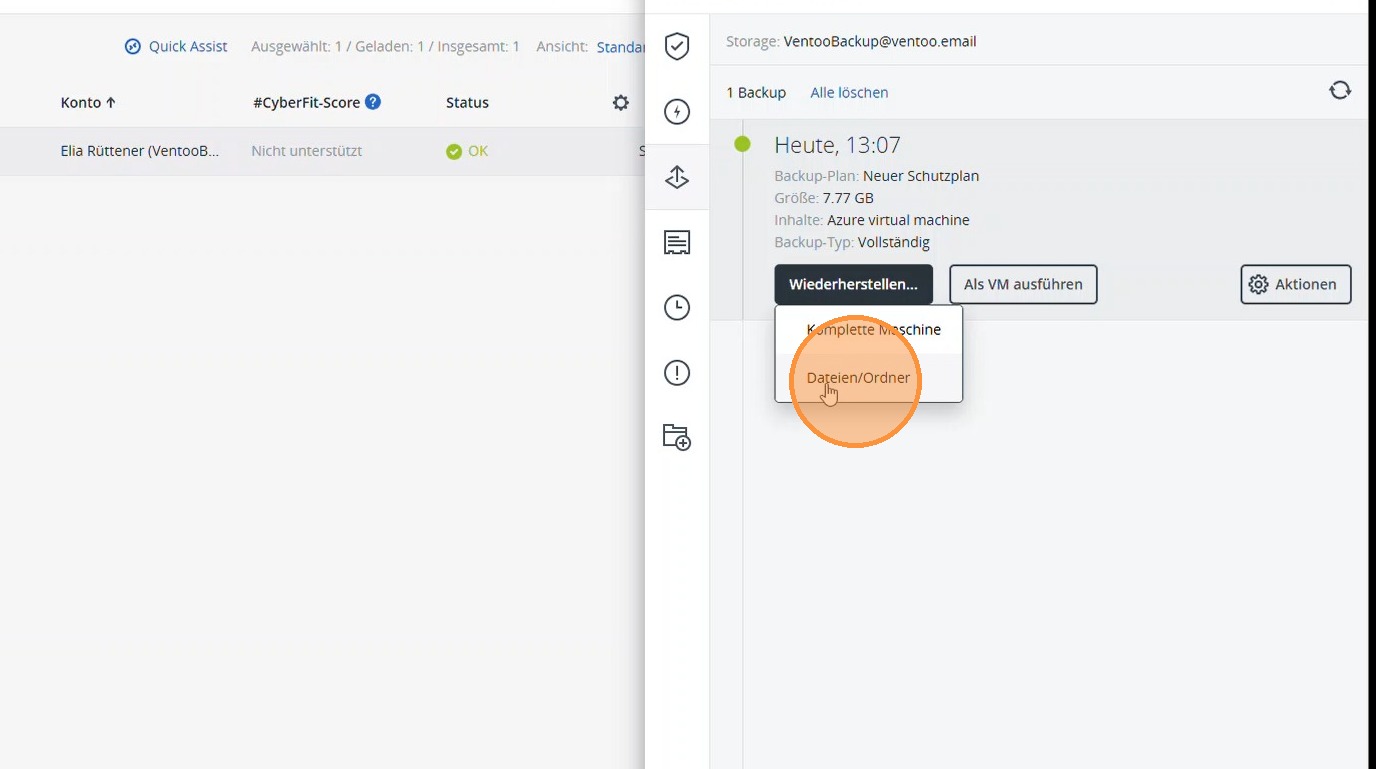
4. Select Files/Folders to restore individual data.
https://colony-recorder.s3.amazonaws.com/files/2026-01-27/49ea03fa-5edf-4168-bec4-1ec400e17e9c/ascreenshot_43cdaef4d11743429a5cc96830c7797b_text_export.jpeg

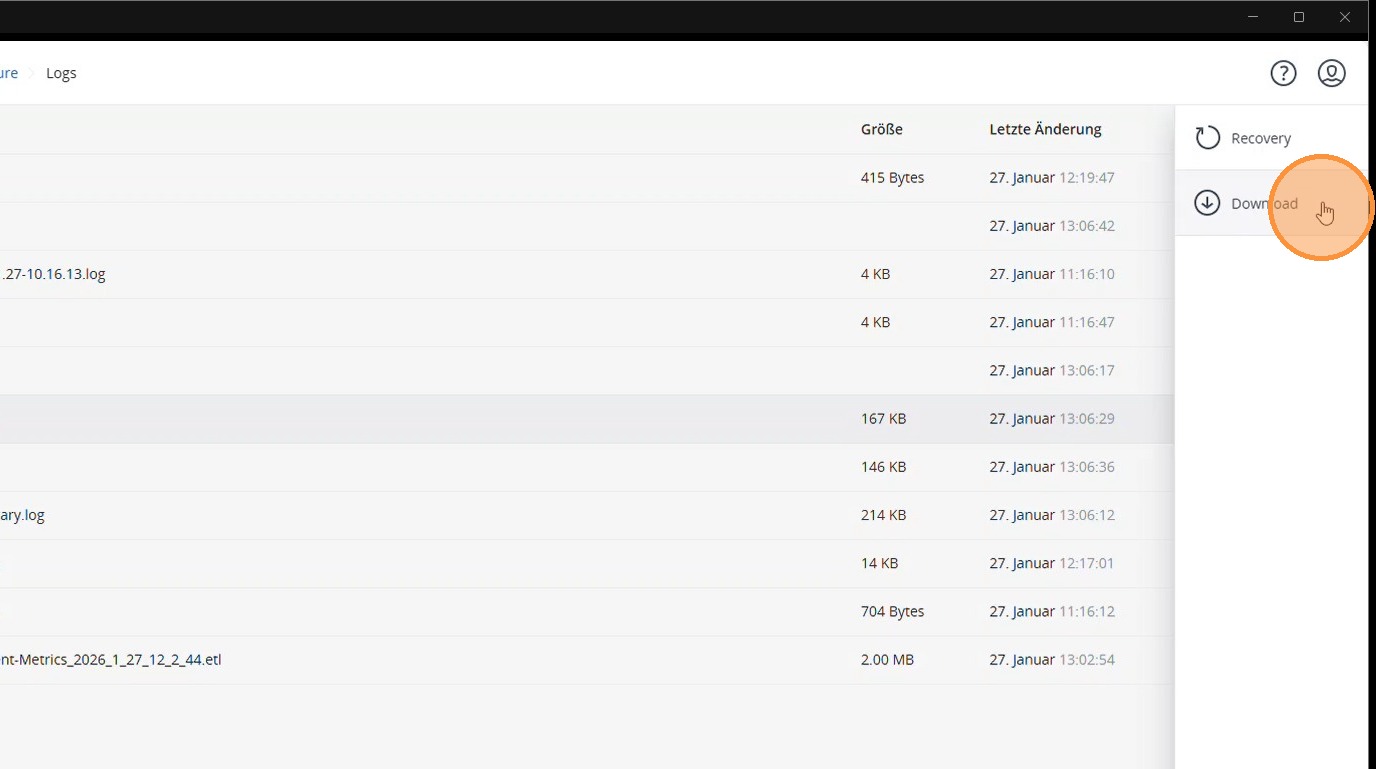
5. Select the desired file and choose Recovery or Download as needed.
https://colony-recorder.s3.amazonaws.com/files/2026-01-27/259533ee-122d-4ac6-afc0-d466f9966bc1/ascreenshot_ff9c6c85188b469a85ab2c4d9f28c2e8_text_export.jpeg

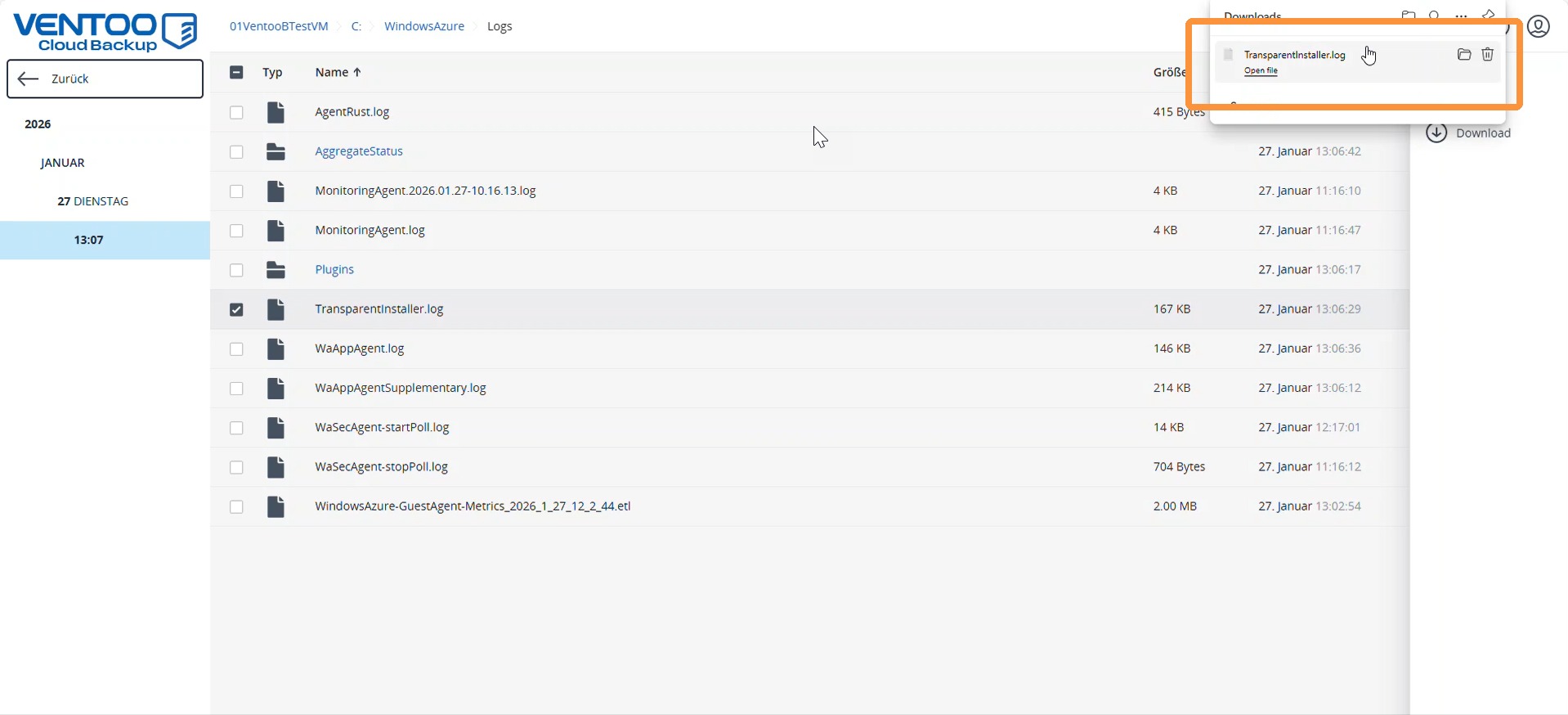
6. The file is downloaded and can be checked. It can then be restored directly on the virtual machine if necessary.
https://colony-recorder.s3.amazonaws.com/files/2026-01-27/7ec976a0-29bf-46a9-b384-ce5c897067f9/screenshot_86b940180fcf4ab995ec1ba4ea6cba02_text_export.jpeg