
Create reports and evaluations

In this area, you can create reports and evaluations to get an overview of the status of your backups and general data protection. This allows you to maintain transparency over your backup environment at all times.


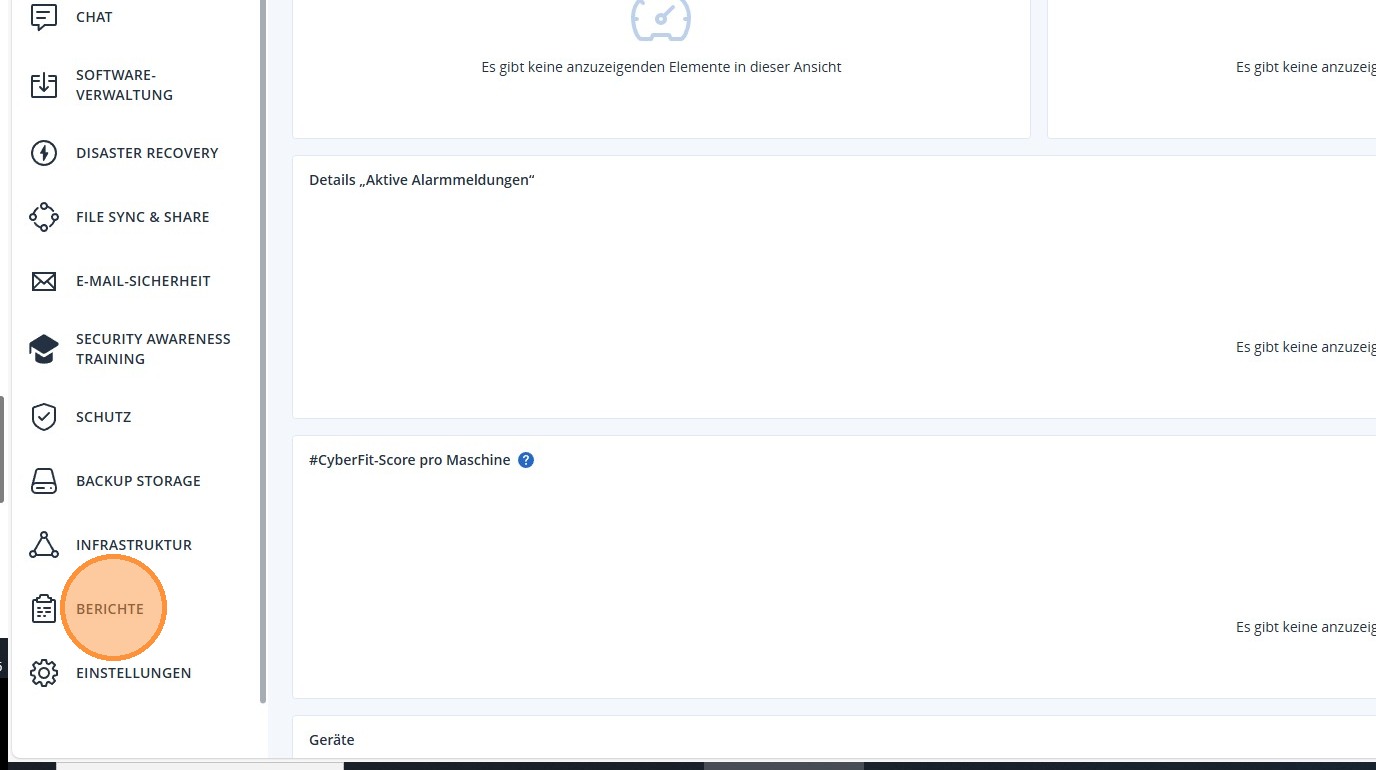
1. Select Reports from the left menu bar.
https://colony-recorder.s3.amazonaws.com/files/2026-01-16/41b5f40f-f1e9-478e-b96a-3cb32f6d8f41/ascreenshot_58c395f754bf415380145a4e30cb0f39_text_export.jpeg

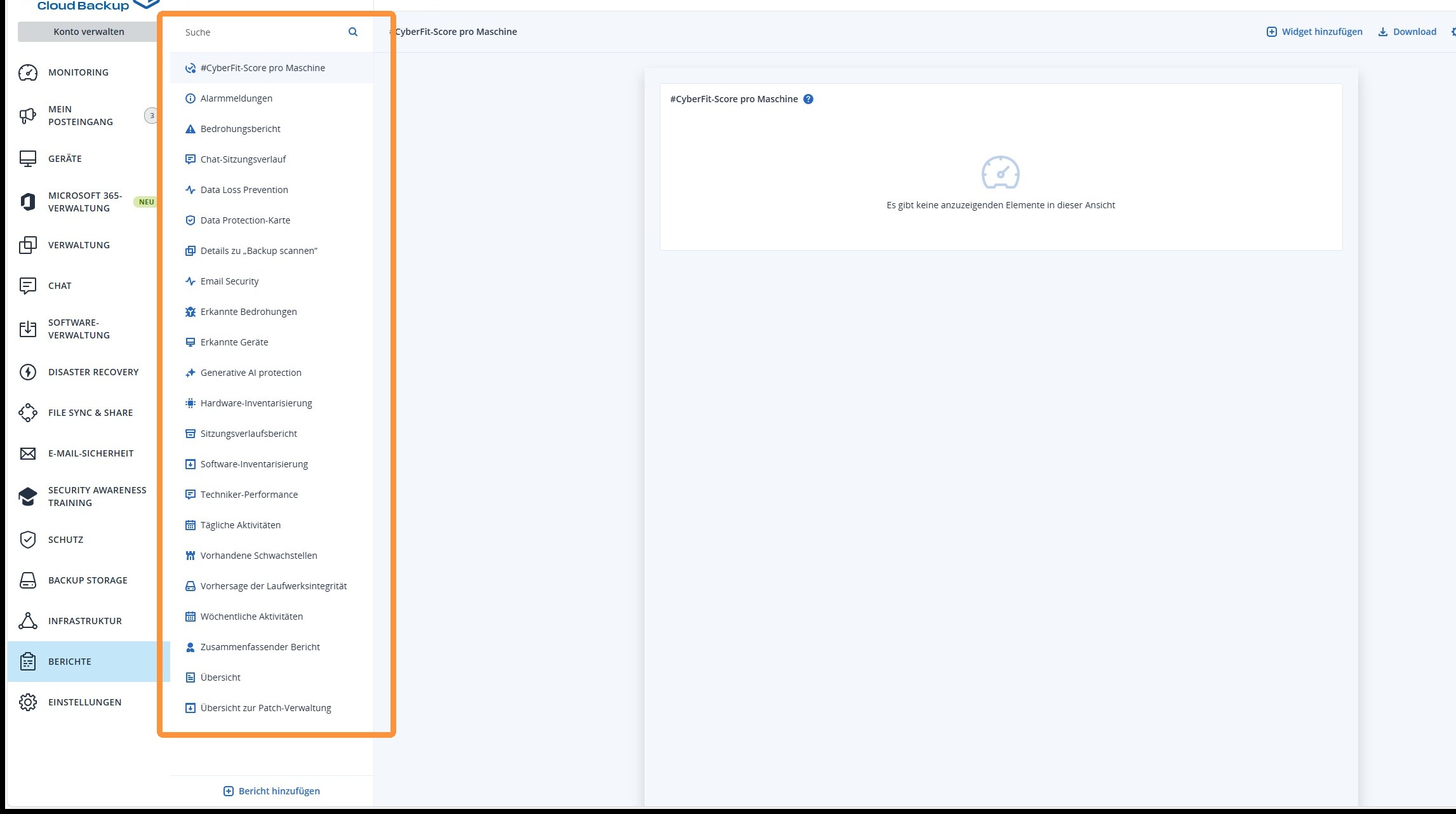
2. You then have a wide selection of different report types at your disposal, which you can create and evaluate as needed.
https://colony-recorder.s3.amazonaws.com/files/2026-01-16/bfba958e-bb70-4342-b8e3-49d42f46cf91/ascreenshot_12db277b40794d4bb5134c7ebcb43231_text_export.jpeg

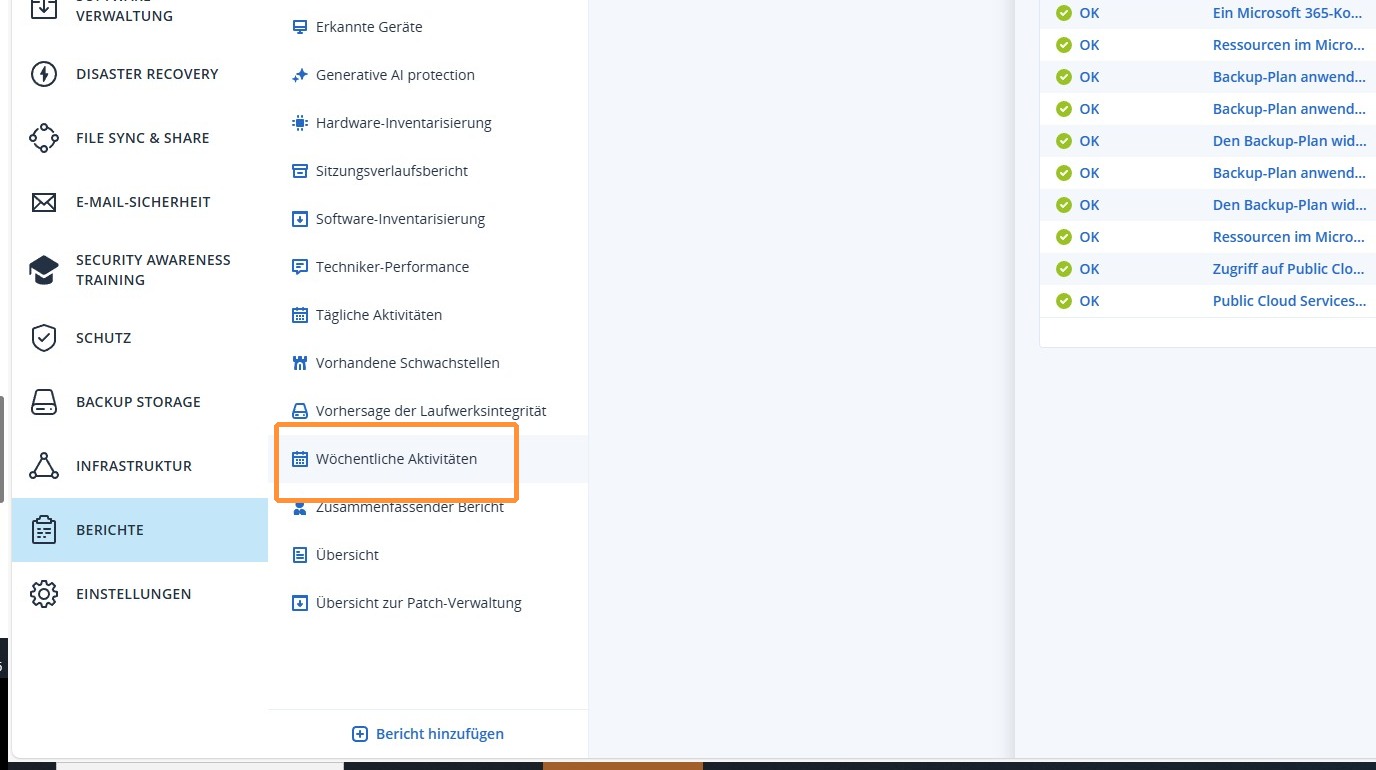
3. Select the report you want to create or schedule.
https://colony-recorder.s3.amazonaws.com/files/2026-01-16/a90b8cb6-198c-4e2f-8c71-0a149a31aa32/ascreenshot_6c52eecb9f5347ffab874df7b5b60c0c_text_export.jpeg

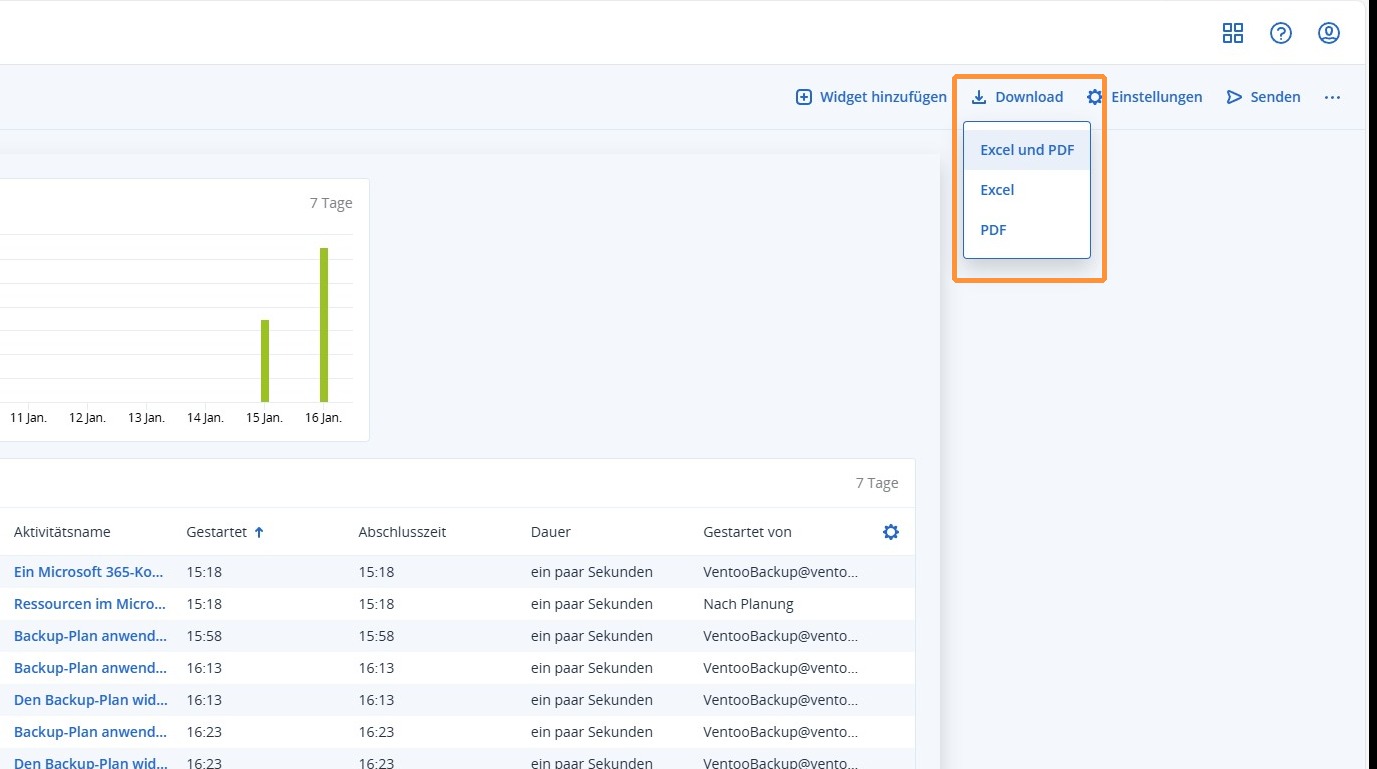
4. You can now generate and view the report directly under Download.
If you want to automate the report, you can do so in the same way as described above under Configure alarm messages.
https://colony-recorder.s3.amazonaws.com/files/2026-01-16/4fe1771f-752b-4460-8eae-8d586a8d0b8f/ascreenshot_83ed464e486b479ba1646f0d1ee249b0_text_export.jpeg

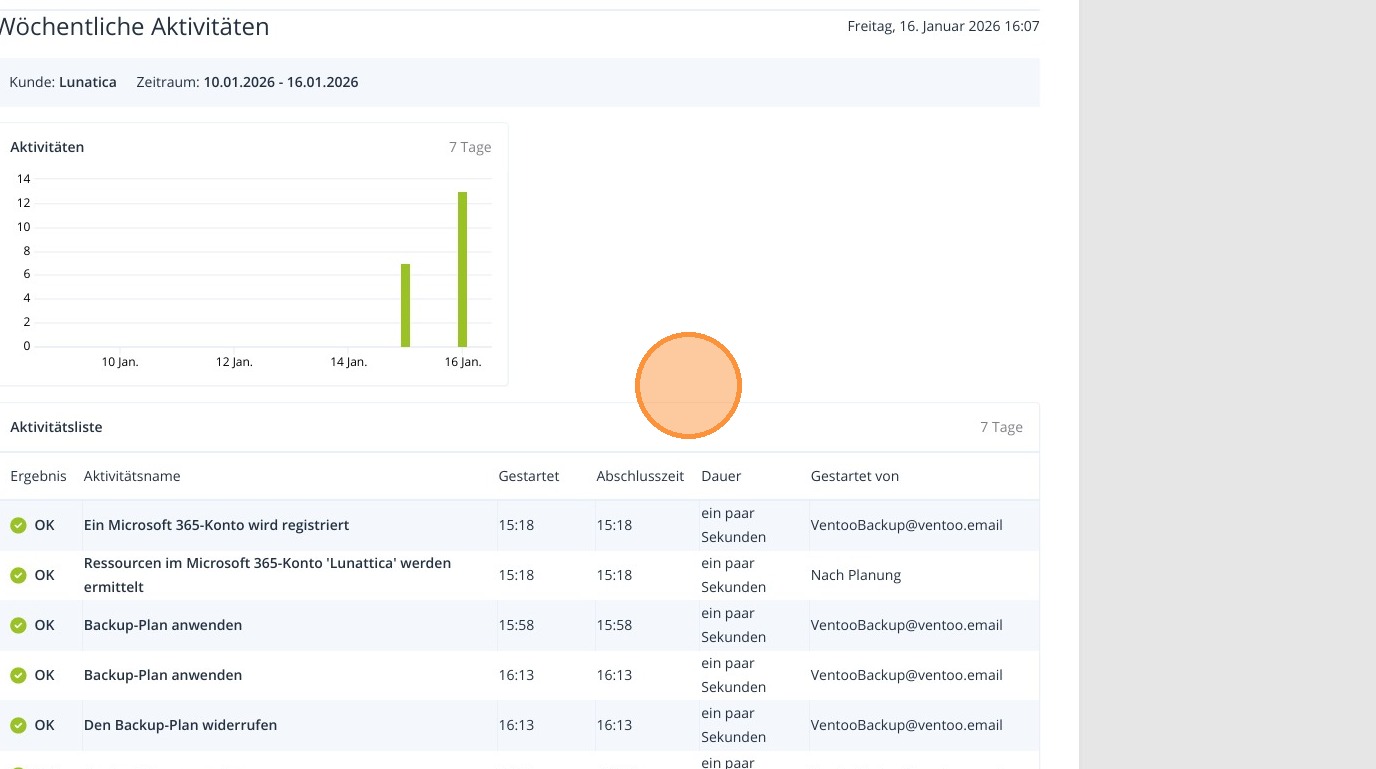
5. You will receive the report by mail or find it in the download folder, where you can view it.
https://colony-recorder.s3.amazonaws.com/files/2026-01-16/5b343604-f08a-46f4-be0d-e67a0a5c339d/ascreenshot_9a17a254272949948e21c374833da9cc_text_export.jpeg