Configure alarm messages

This section explains how to set up alarm messages. These will automatically notify you of important events such as failed backups, warnings, or critical conditions, allowing you to respond promptly.

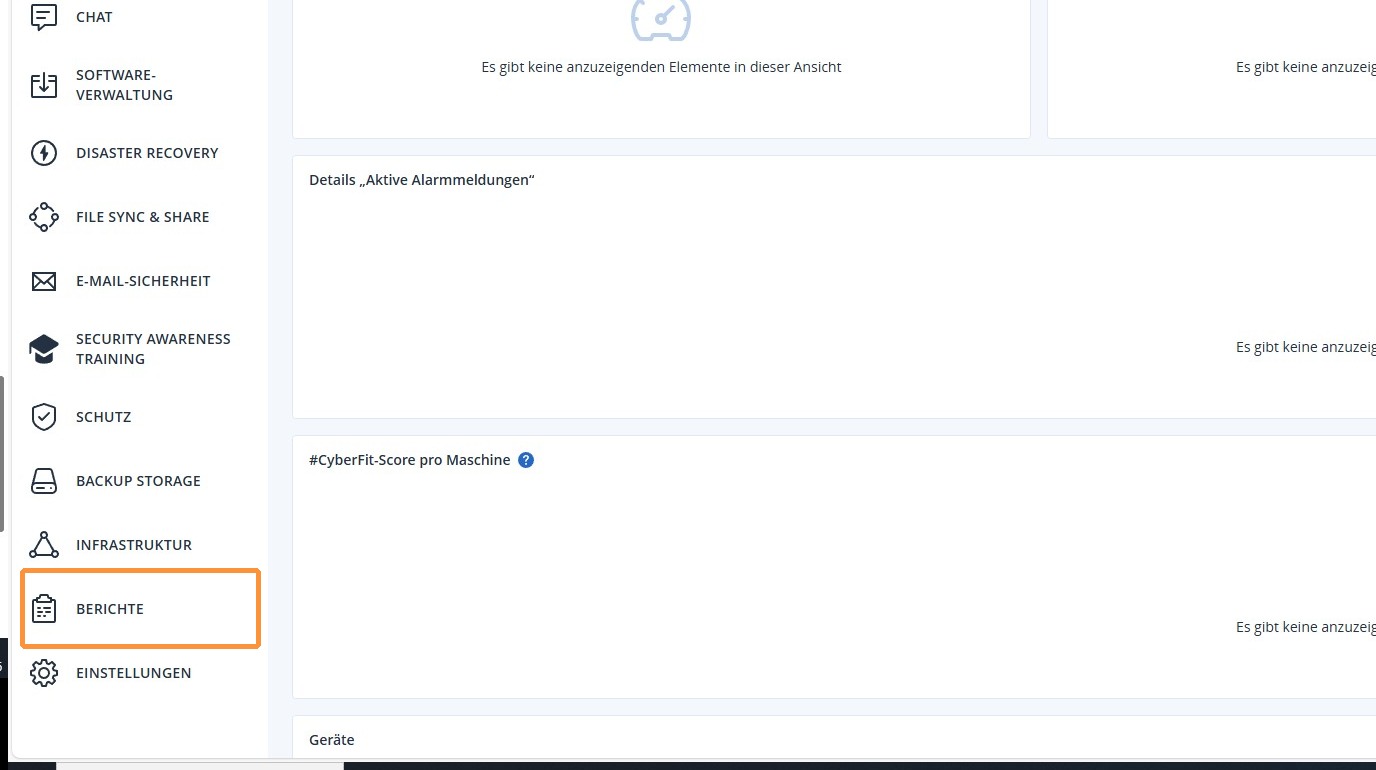
1. Select Reports from the menu bar on the left.
https://colony-recorder.s3.amazonaws.com/files/2026-01-16/7c04108b-b905-4843-a27a-b7d79cd92591/ascreenshot_b8039b30dc6d4727b3f4ab5556085efa_text_export.jpeg

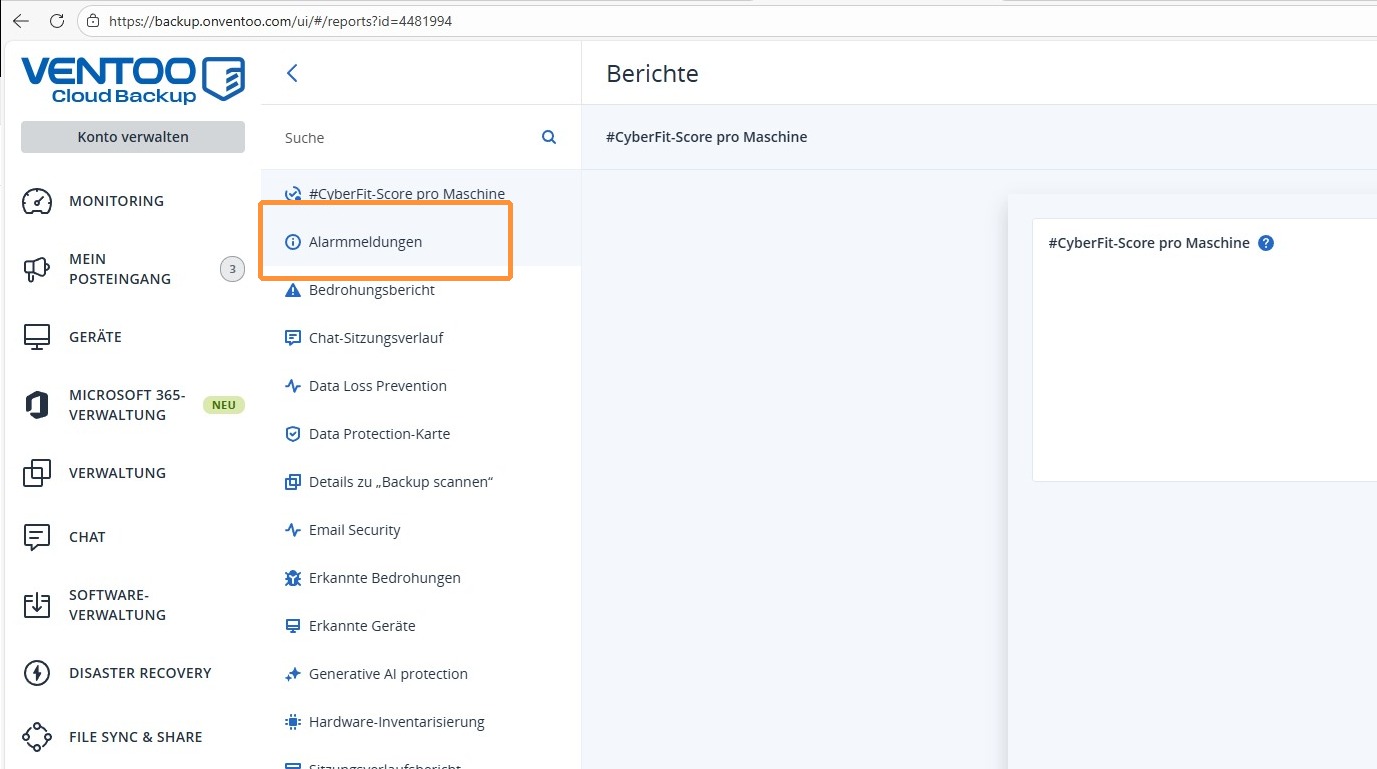
2. Now go to the Alarm Messages section.
https://colony-recorder.s3.amazonaws.com/files/2026-01-16/c67e8ae5-dd09-4ed3-9772-7e0c80a11426/ascreenshot_da09d49e552f4fc198b8a0cfd51f4fec_text_export.jpeg

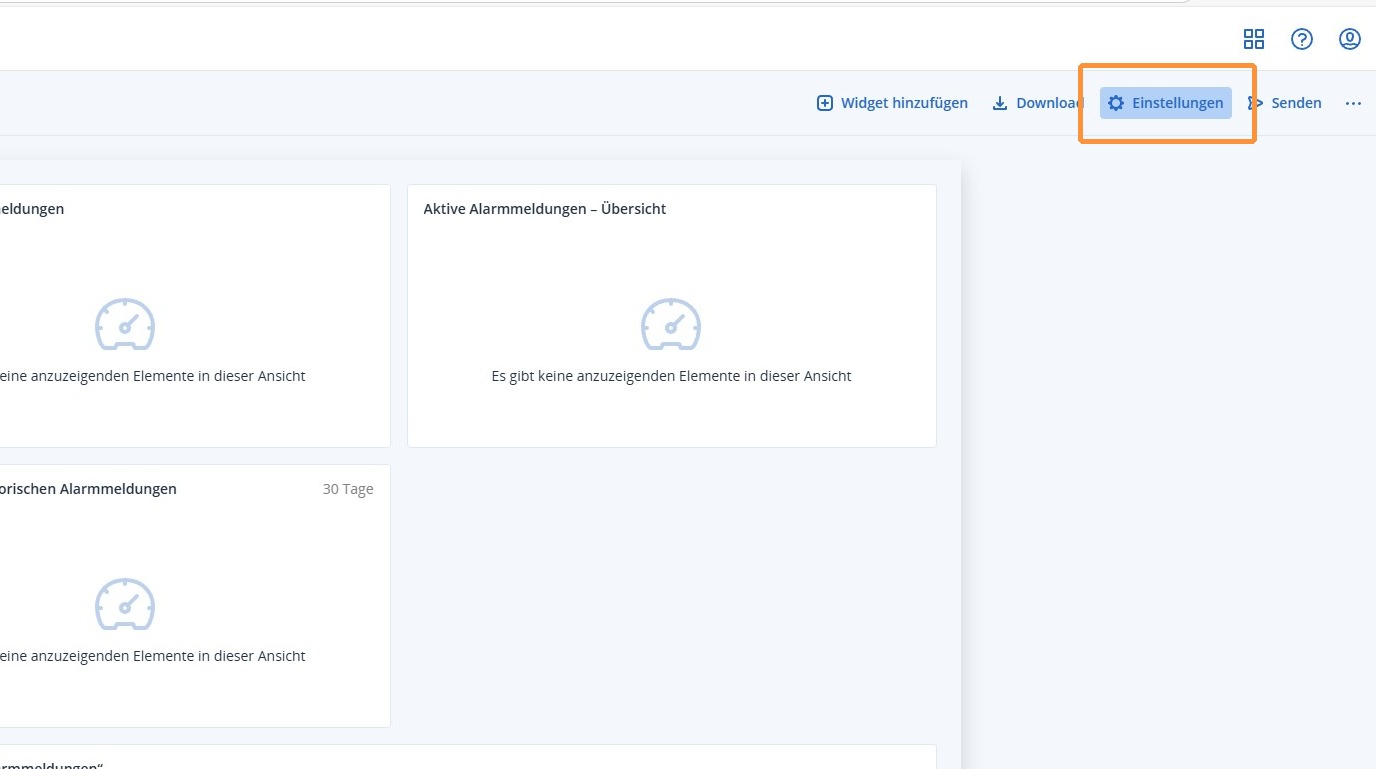
3. Then select the Settings option.

https://colony-recorder.s3.amazonaws.com/files/2026-01-16/308ff122-b4db-4a84-9db0-76b3ad3036bd/ascreenshot_f3c65802407d439fbc0eacbb6cdbdd96_text_export.jpeg

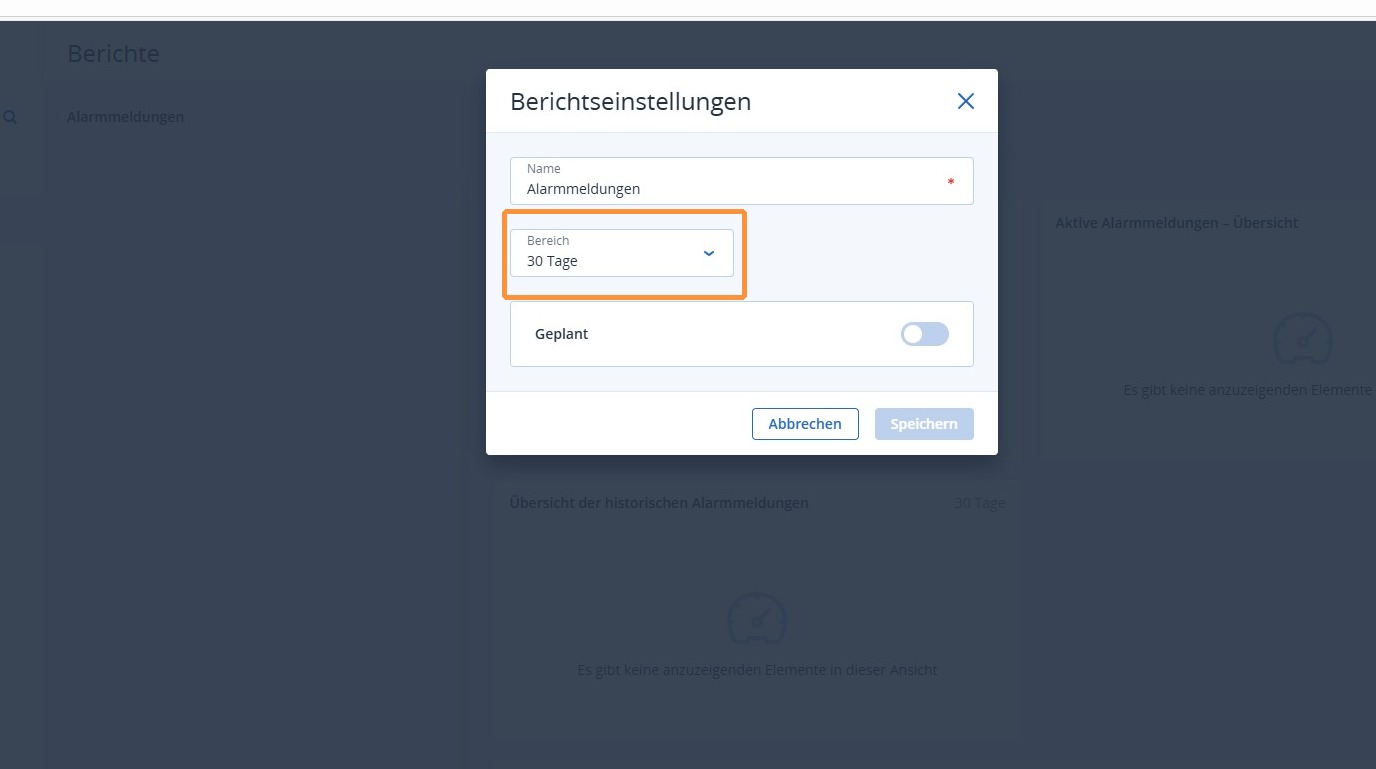
4. Now you can specify how many days back alarm messages should be included in the sent report.
https://colony-recorder.s3.amazonaws.com/files/2026-01-16/e7738e11-ab1d-4c28-89fb-6c5d461fdc37/ascreenshot_f5e16ffc4df54bbc8139467a421827ac_text_export.jpeg

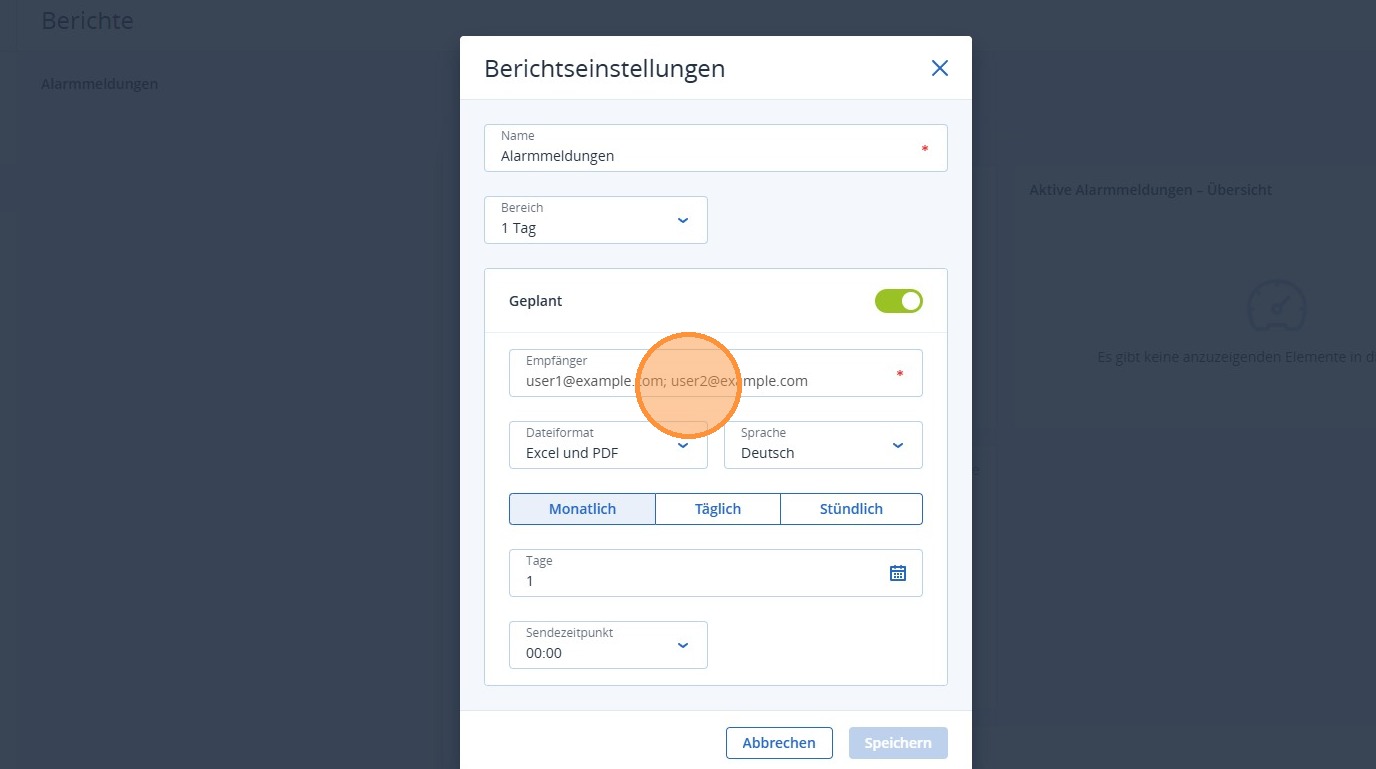
5. If you activate the Scheduled option, you can set a schedule for when you want to receive such a report automatically. You can also define the recipients of this report by email, and add multiple recipients. In addition, you can specify the intervals and times at which the report should be sent.
https://colony-recorder.s3.amazonaws.com/files/2026-01-16/67b149ab-673d-409b-88a2-972718d94934/ascreenshot_c487dc61c47747918cc6ee7758e97575_text_export.jpeg

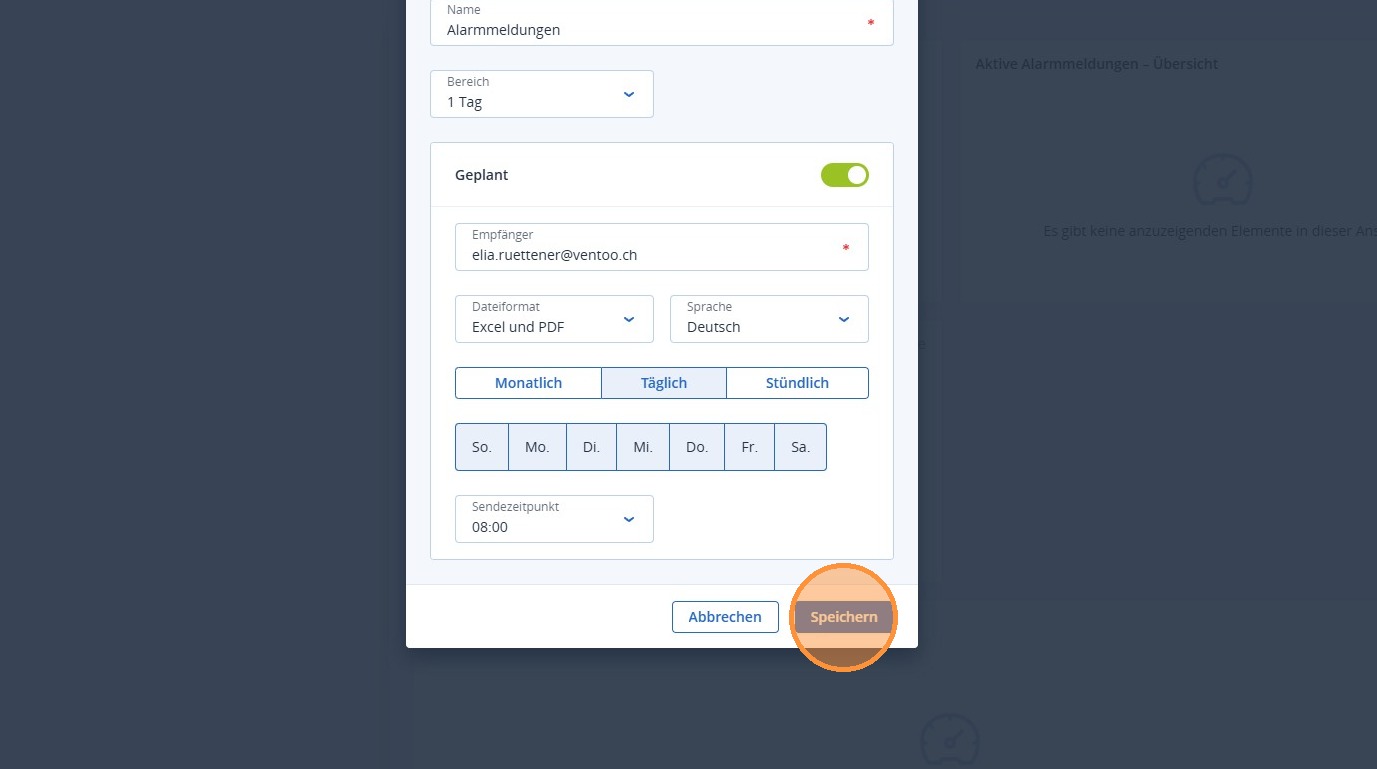
6. Once everything has been defined according to your requirements, you can confirm the settings by clicking Save.
https://colony-recorder.s3.amazonaws.com/files/2026-01-16/fd6b9a85-70e7-4797-bce6-76e17f67bdb1/ascreenshot_d610eab95e5e468b8cdc454f5589e7b8_text_export.jpeg