
Create backups for multiple users or objects

This section explains how to create a group backup. Multiple users or objects can be selected simultaneously and backed up with a uniform backup configuration. This enables efficient and centralized management of backups for entire groups or organizational units.

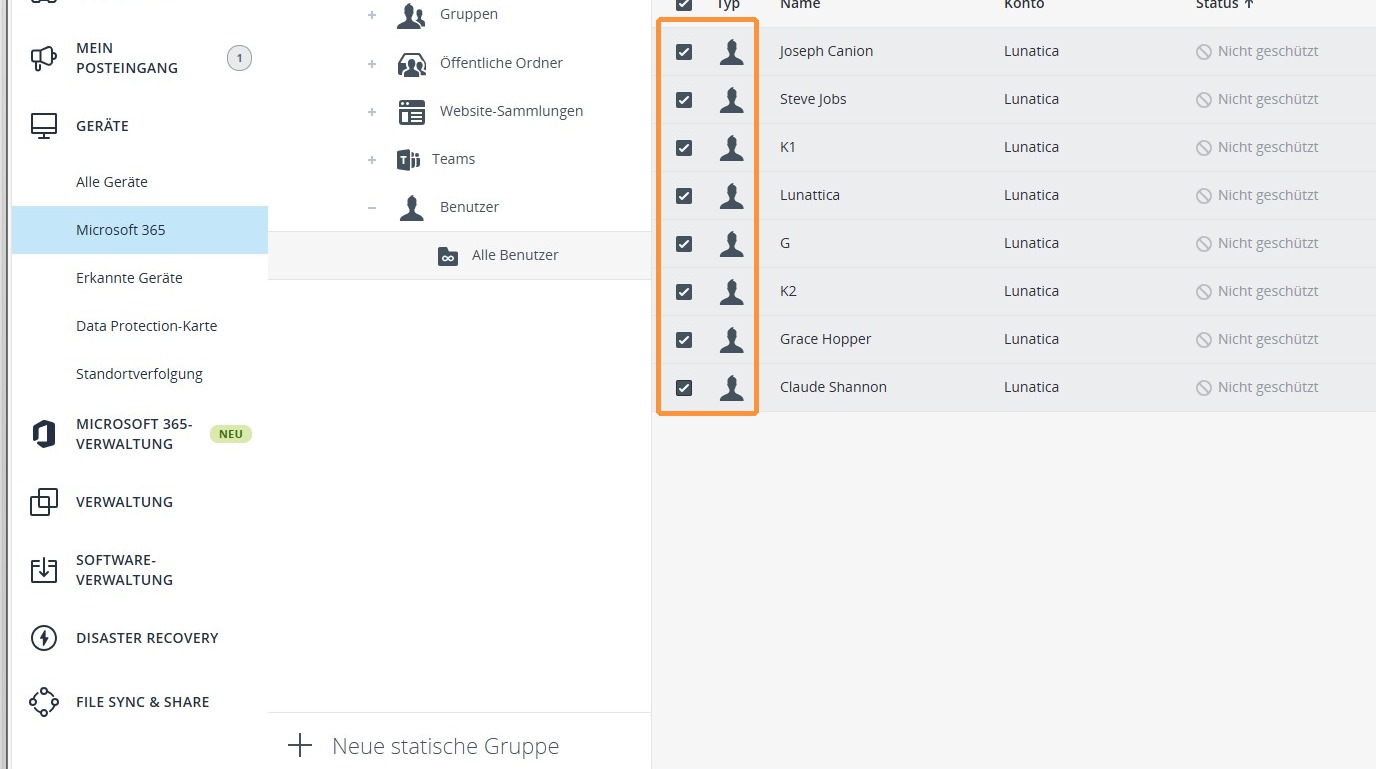
1. Select the users or objects to be backed up that should be included in the group backup.
https://colony-recorder.s3.amazonaws.com/files/2026-01-15/5db680a8-6b73-45e7-9091-494823035454/ascreenshot_3ef6125759de426da78ae1de34588242_text_export.jpeg

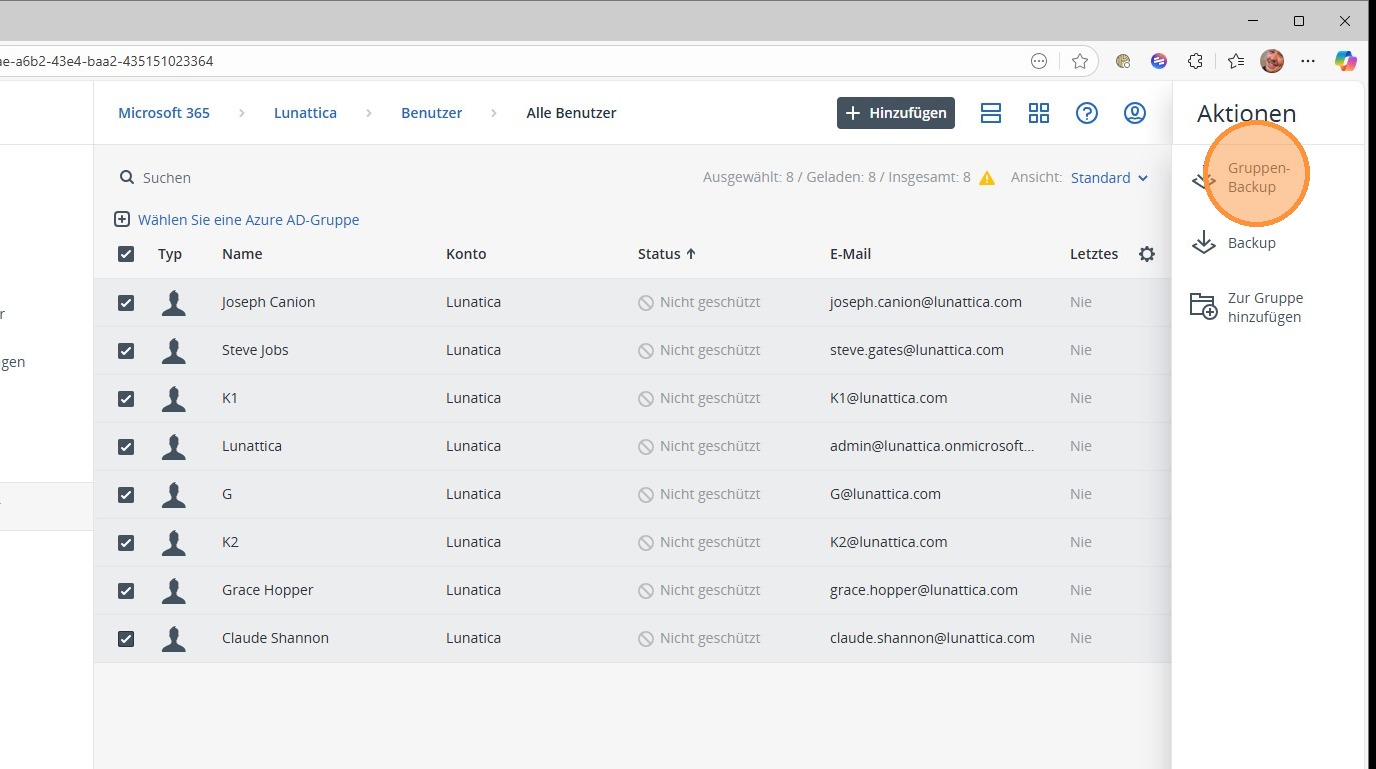
2. Select Group Backup to create a shared backup for the selected users or objects.
https://colony-recorder.s3.amazonaws.com/files/2026-01-15/81905442-702c-4b10-b67e-06007a5fe4ed/ascreenshot_c61771cbf241437cb1fc525c162c92ea_text_export.jpeg

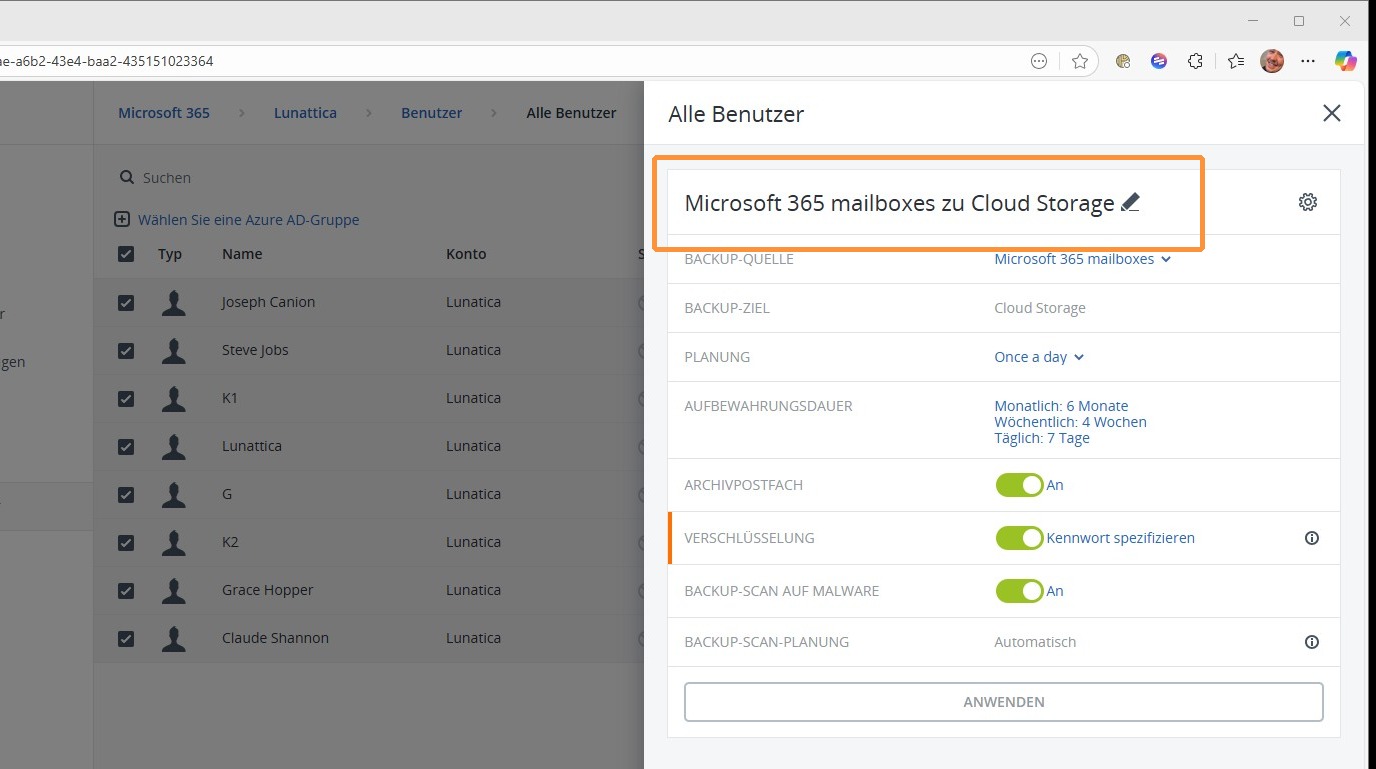
3. You can assign a suitable title to the group backup to clearly identify it and manage it in a clear manner.
https://colony-recorder.s3.amazonaws.com/files/2026-01-15/f41020c6-f08e-43d5-9925-fc0a52e03ea3/ascreenshot_7277f57372e74c289a6b4c59dc26fbb7_text_export.jpeg

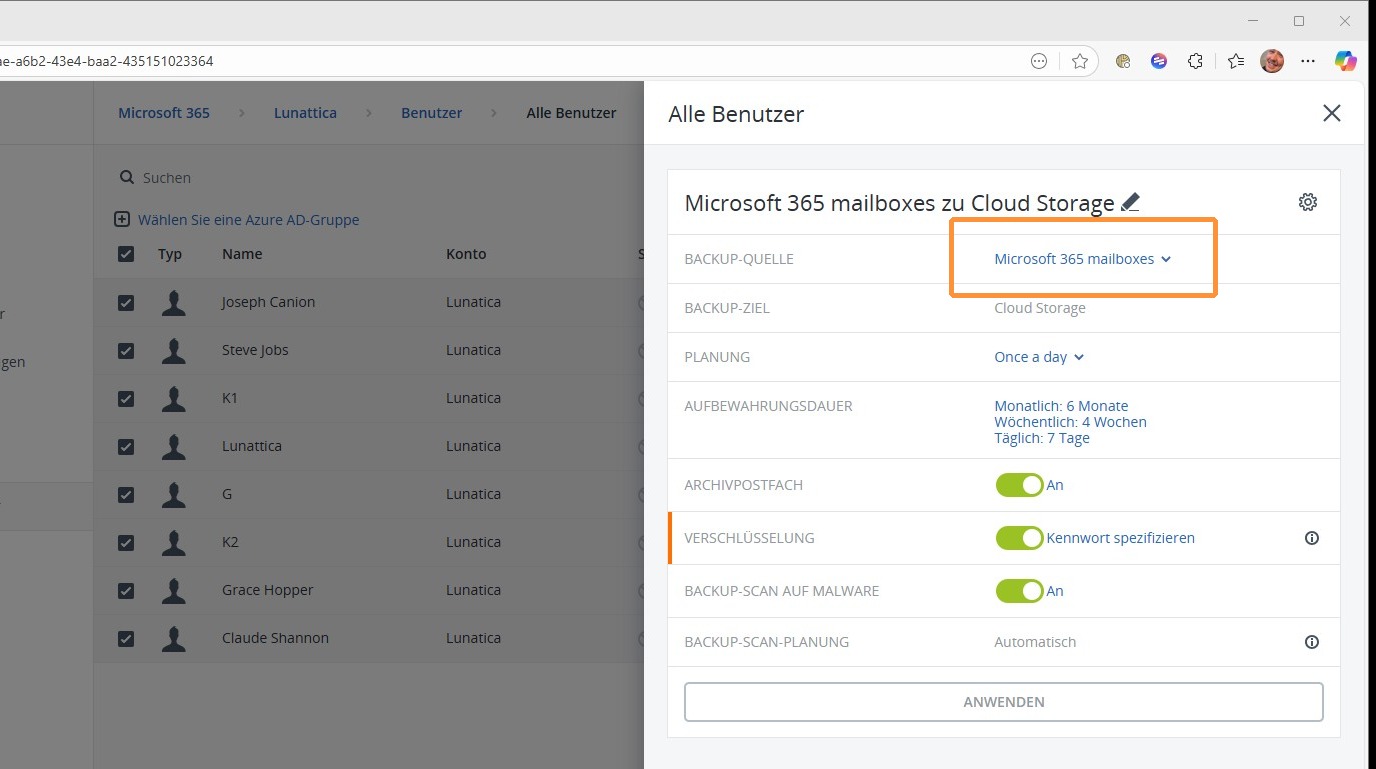
4. You can now choose between two backup types: Microsoft 365 Mailboxes or OneDrive. Only one type can be selected at a time. If both areas are to be backed up, an additional separate backup plan must be created.
Even if both areas are backed up, only one Microsoft 365 Seat license per user is required.
https://colony-recorder.s3.amazonaws.com/files/2026-01-15/4879700f-a49d-4323-9bee-f5b4f44809a4/ascreenshot_c4971bfe5a9a4cb0bd4b71d68bd59fba_text_export.jpeg

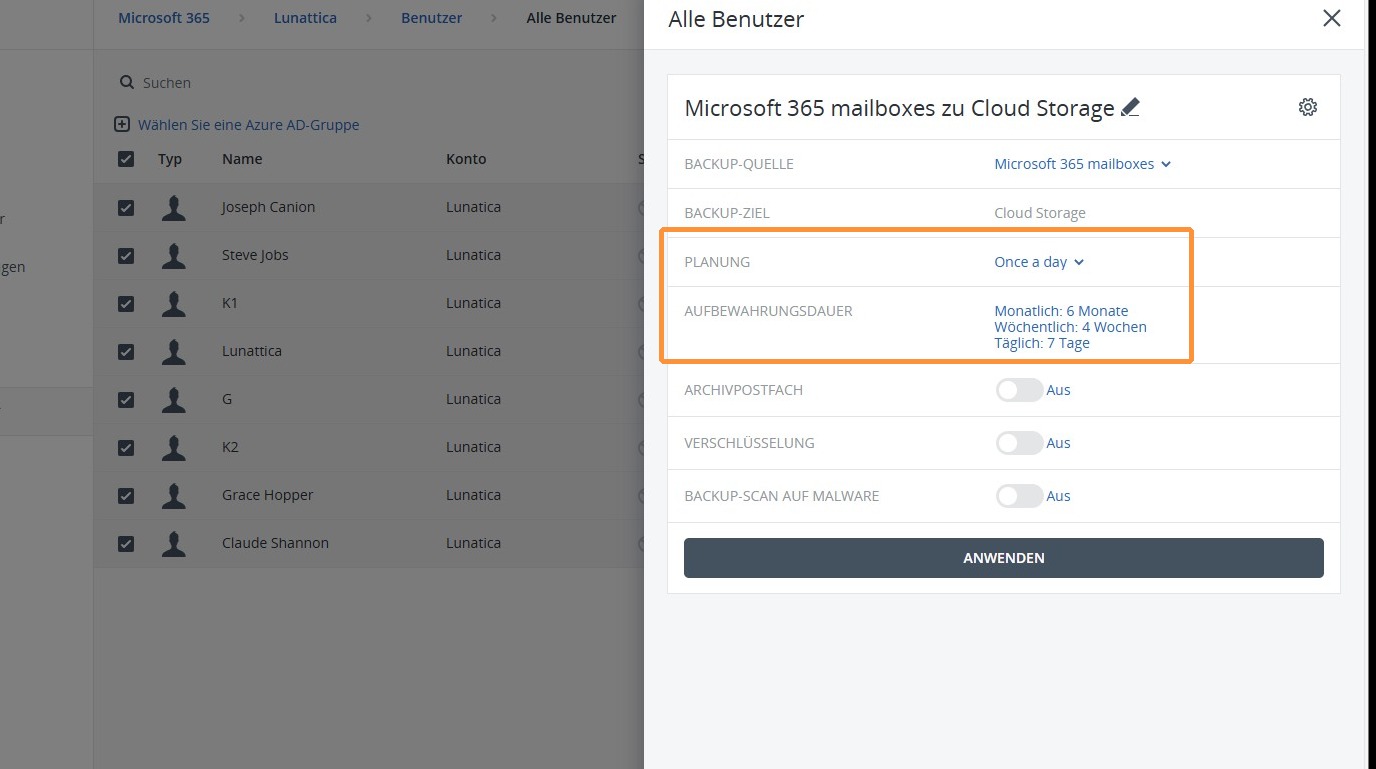
5. Now you can specify how often a backup is created and how long the backups should be kept.
https://colony-recorder.s3.amazonaws.com/files/2026-01-15/2febfab3-532d-4180-9413-4113d170a200/ascreenshot_ee37136b2dd74e4c909db502d0e4181a_text_export.jpeg

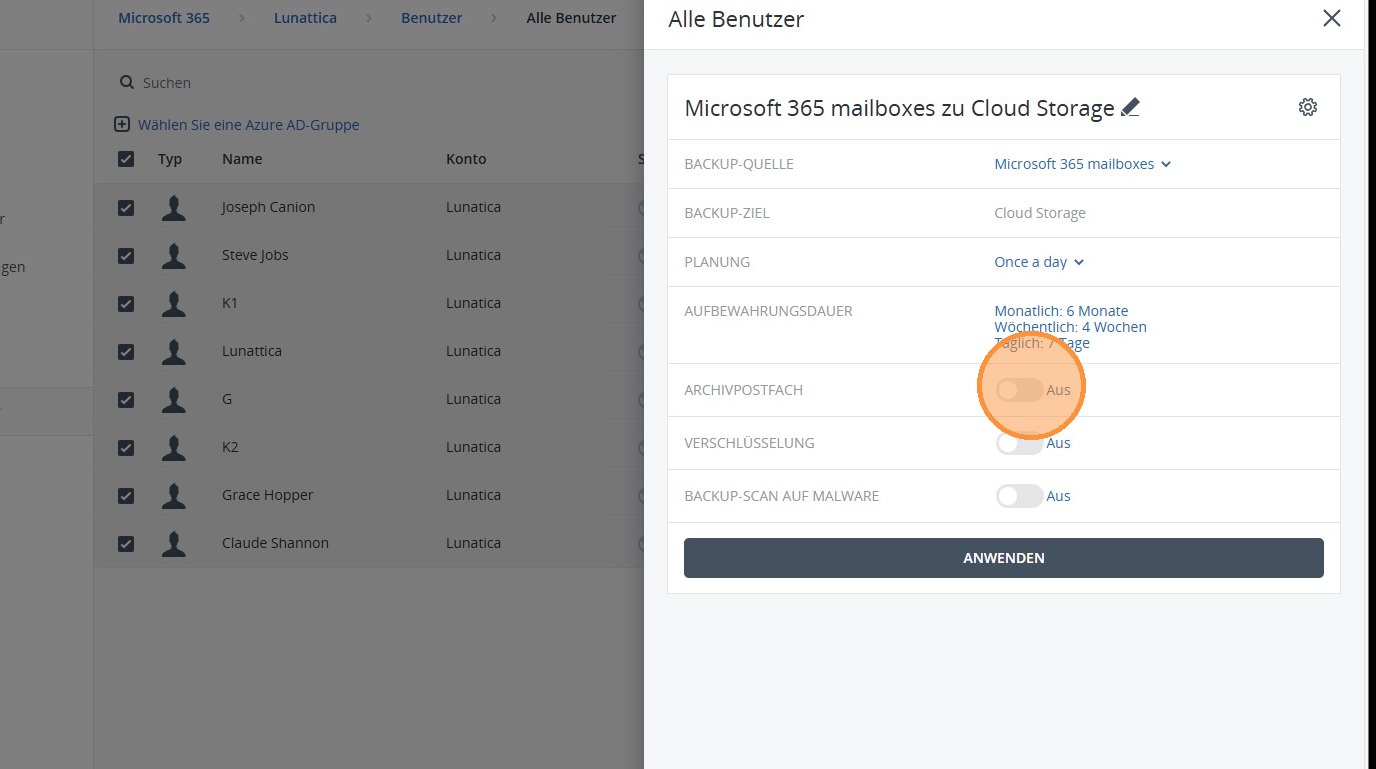
6. You can also specify whether archive mailboxes should also be backed up or not.
https://colony-recorder.s3.amazonaws.com/files/2026-01-15/e26dc757-50cf-425c-a44c-80ac523642fb/File_57e3ee45df7540ef9a8e790c64628eef_text_export.jpeg

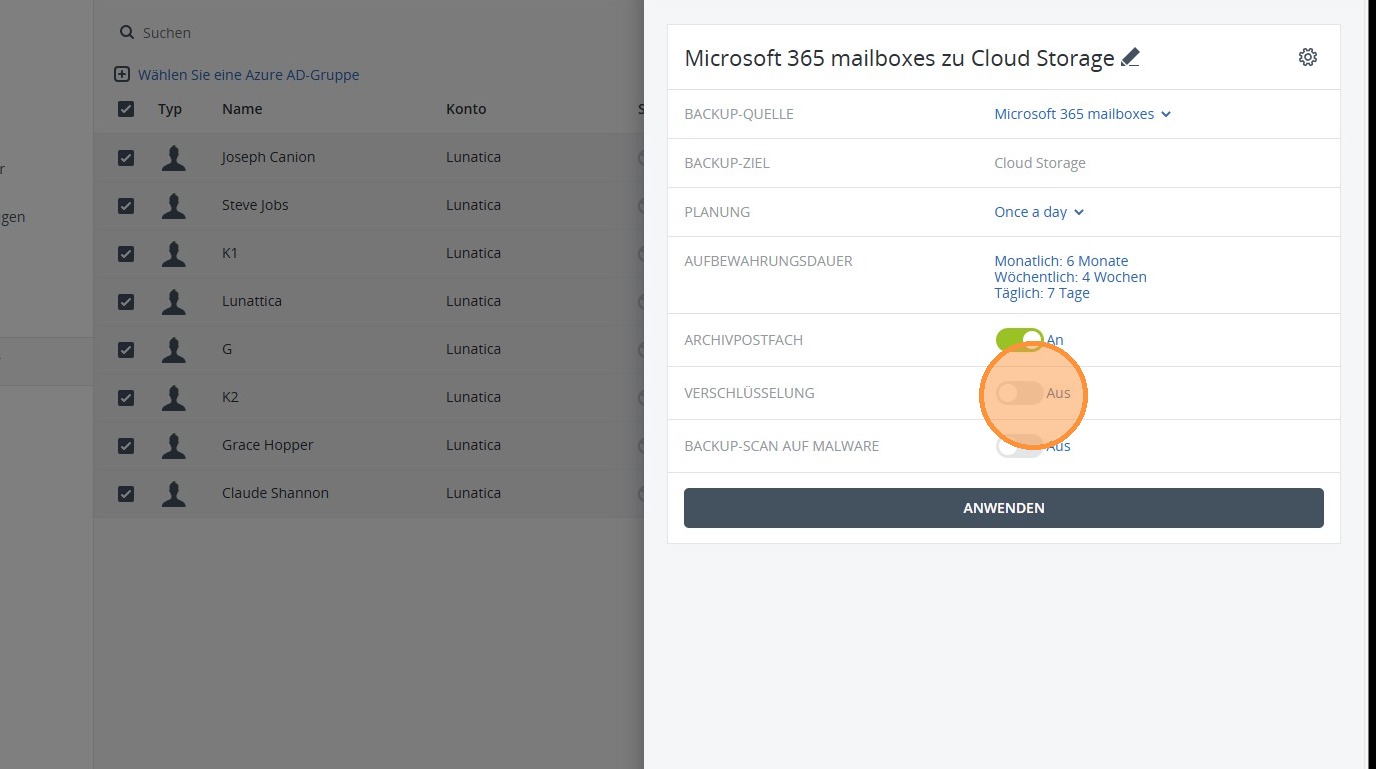
7. Under Encryption, you can enable encryption for the group backup to provide additional protection for the backed-up data.
https://colony-recorder.s3.amazonaws.com/files/2026-01-15/4f396ae3-0fa4-402b-8d65-5321511fe6a0/ascreenshot_e1b3982ca5034c71b497ab86be3859d0_text_export.jpeg

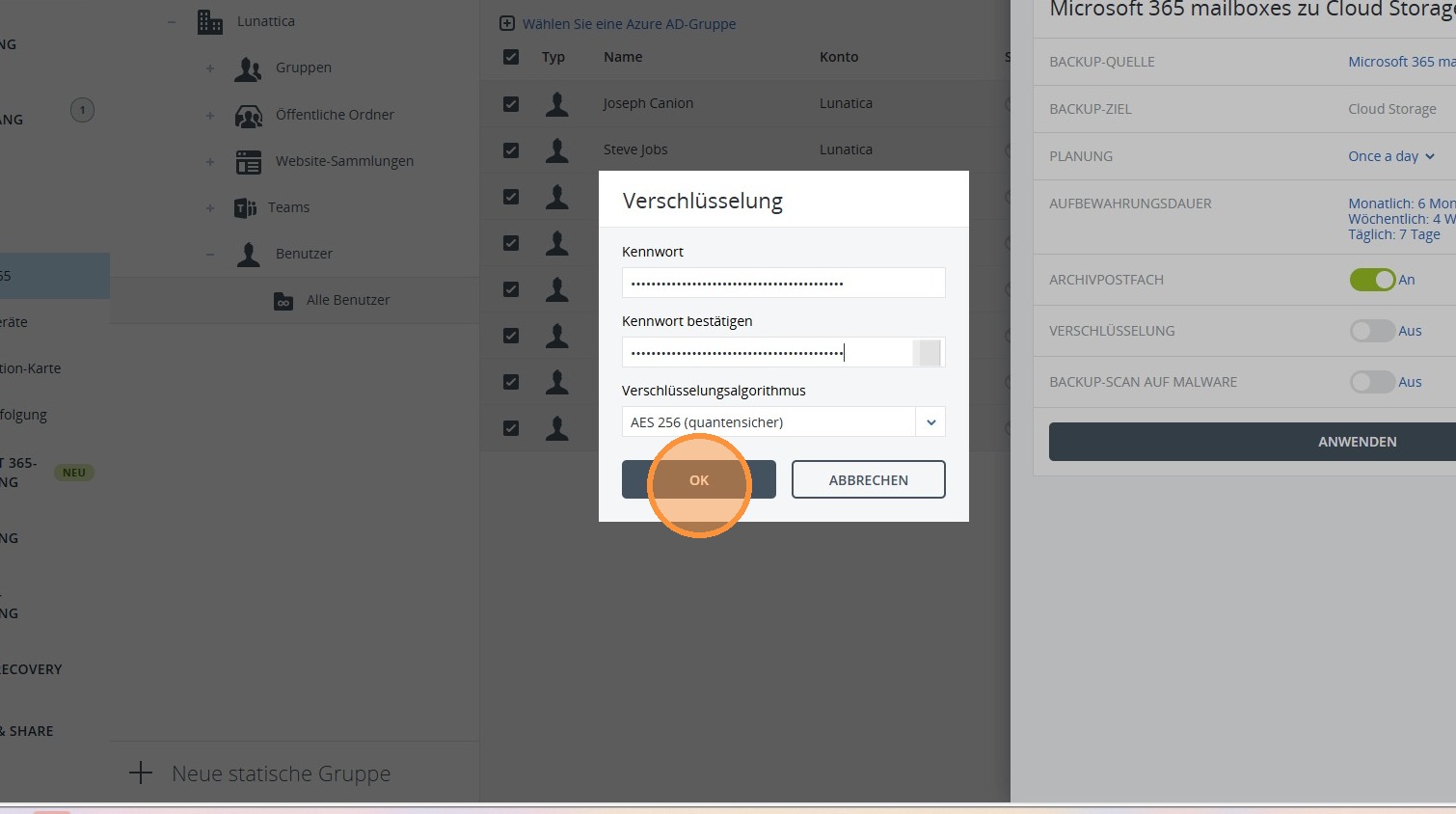
8. Select AES 256 as the encryption type and define a password with at least 45 characters. This ensures a high level of security for your backed-up data.
https://colony-recorder.s3.amazonaws.com/files/2026-01-16/755f49f0-3037-4d4c-80a7-2be8e91ef39f/user_cropped_screenshot_742f2df98c6f47ea9147604160cc81c4_text_export.jpeg

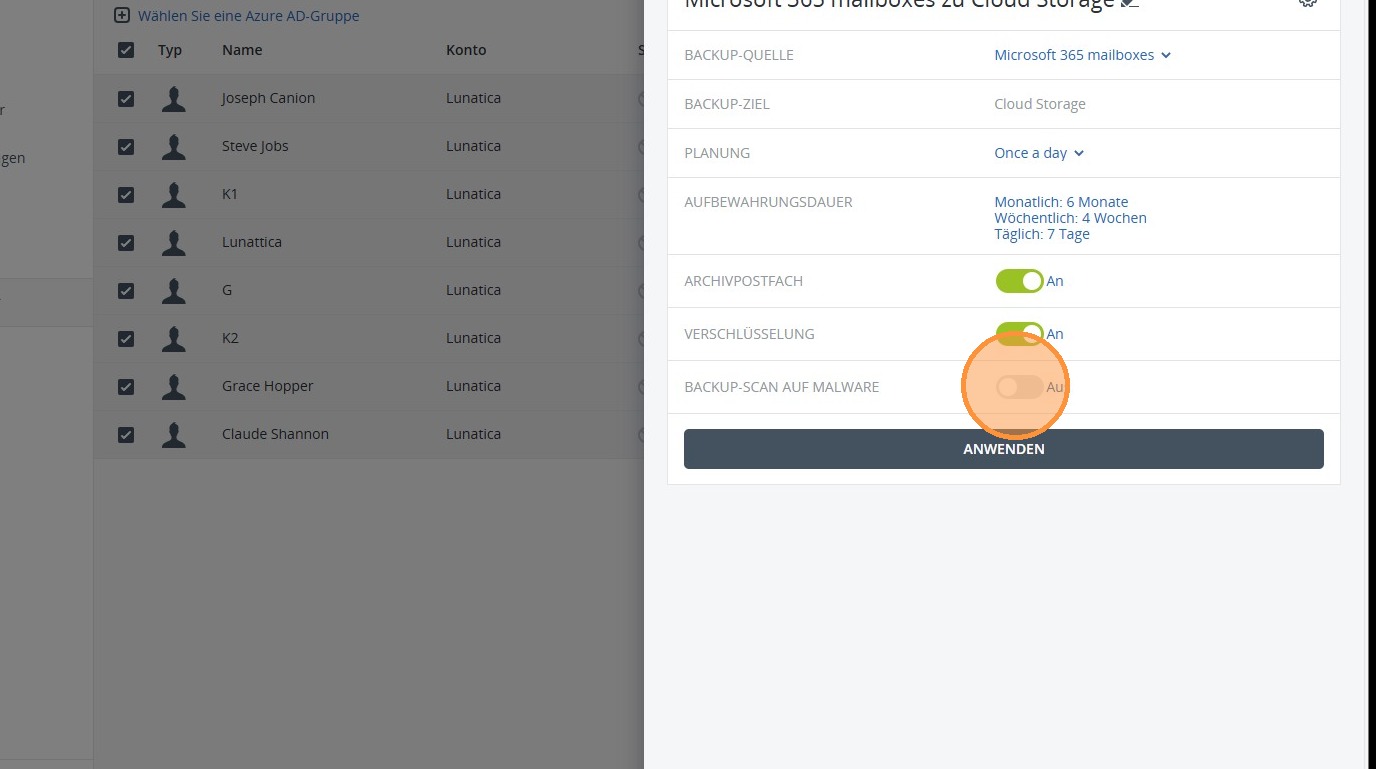
9. You can also enable mailbox backups to be scanned for malware. This provides an additional layer of security and helps to detect malicious content at an early stage.
https://colony-recorder.s3.amazonaws.com/files/2026-01-15/3d16b4bf-3c25-4922-b534-7f94962ac884/ascreenshot_5c148b911c994f20ad15a54c0e583625_text_export.jpeg
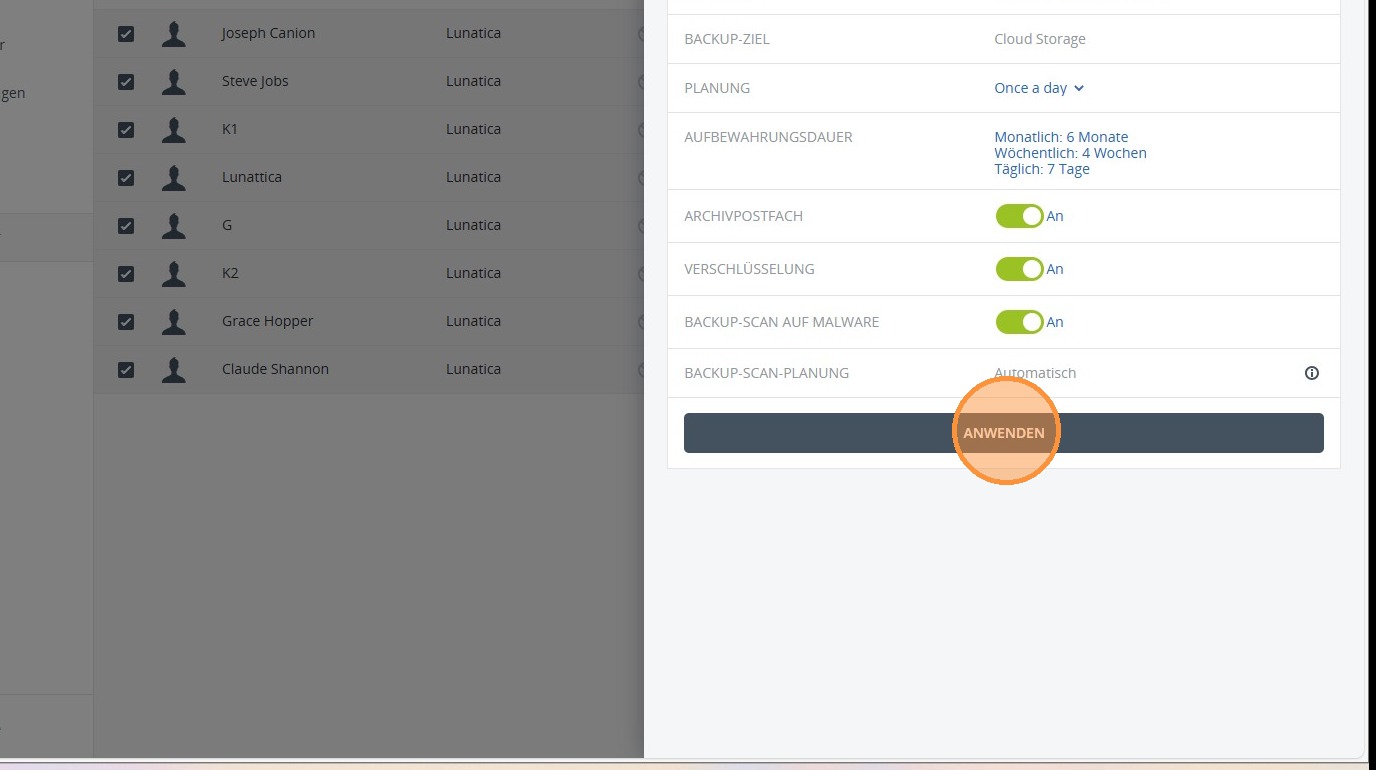
  1. Then click Apply and the backup will be created for the selected users or objects and scheduled according to the defined settings.
https://colony-recorder.s3.amazonaws.com/files/2026-01-15/9618a22b-1998-483a-a104-82bba6125586/ascreenshot_cc65d7dd57864f17aa53084f4f944cbd_text_export.jpeg