
Create backups for individual users or objects

This section builds on the previous configuration and shows how to create backups specifically for individual users or specific objects. This allows backups to be enabled and managed individually for users, groups, teams, or SharePoint content without having to back up the entire tenant.


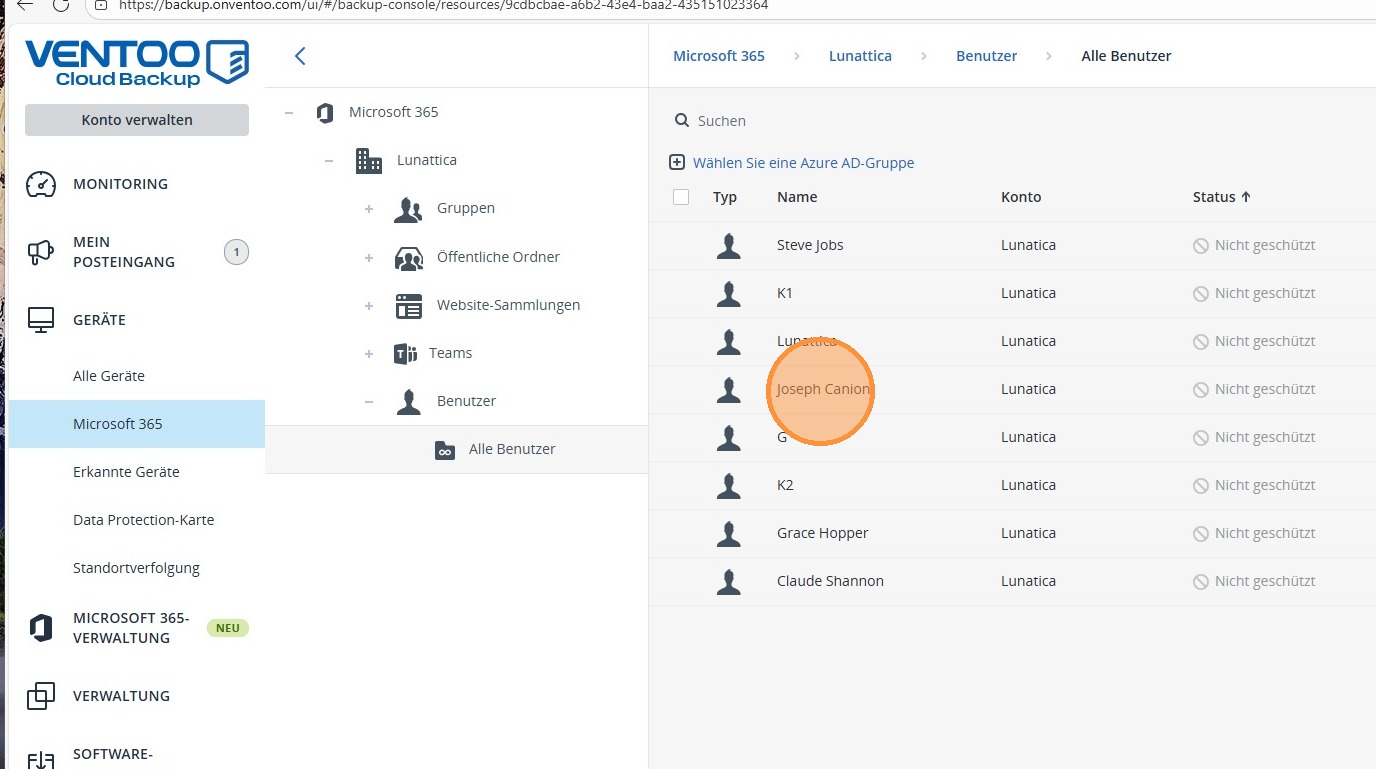
1. Navigate to Microsoft 365, select the All Users section, and then select the user you want to back up.
https://colony-recorder.s3.amazonaws.com/files/2026-01-15/1942b94f-1186-4abd-b6a2-a98bfbf01428/ascreenshot_ba942786a5654d2eaad997850d8e90b4_text_export.jpeg

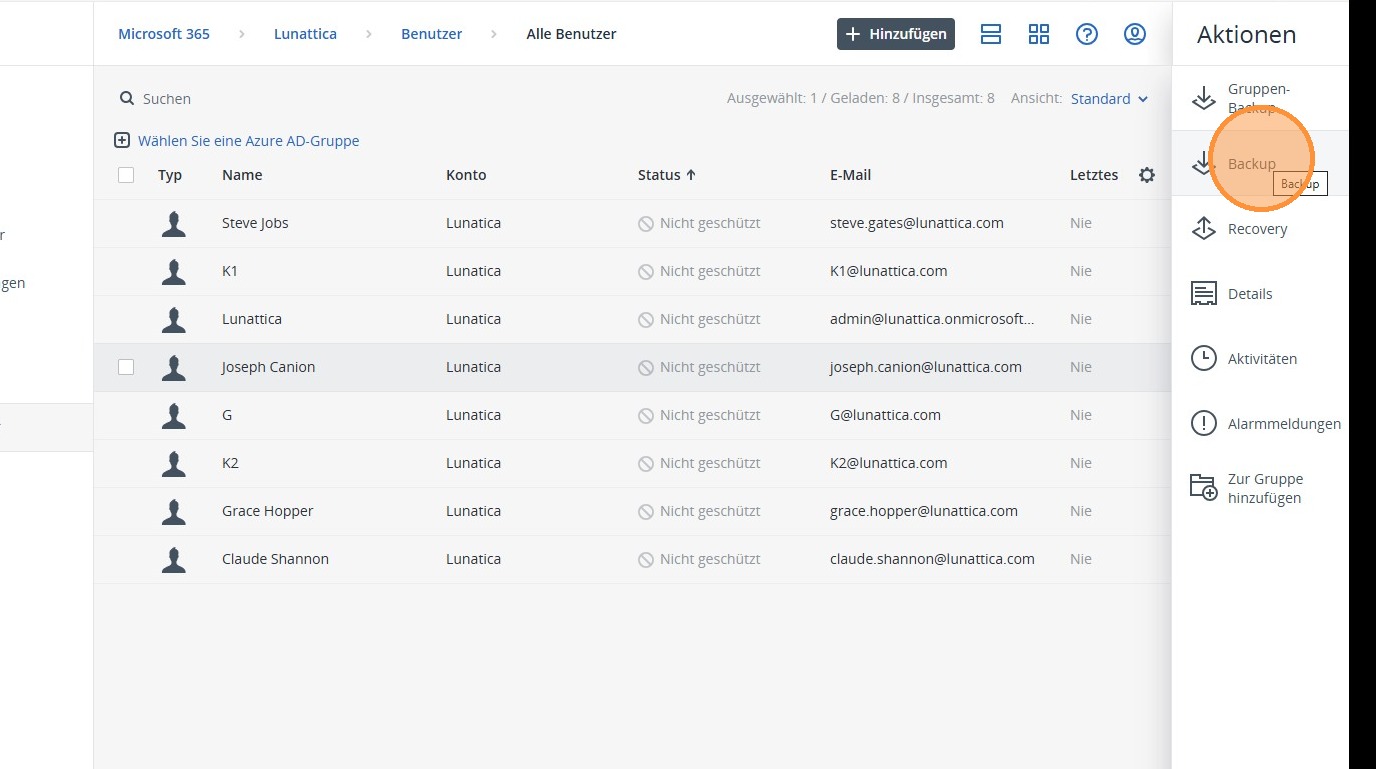
2. Then click Backup to activate the backup for the selected user.
https://colony-recorder.s3.amazonaws.com/files/2026-01-15/89ed9f91-322e-4300-ba71-8fa76c649a30/ascreenshot_ec24770186324e67bb8b5c303e722982_text_export.jpeg

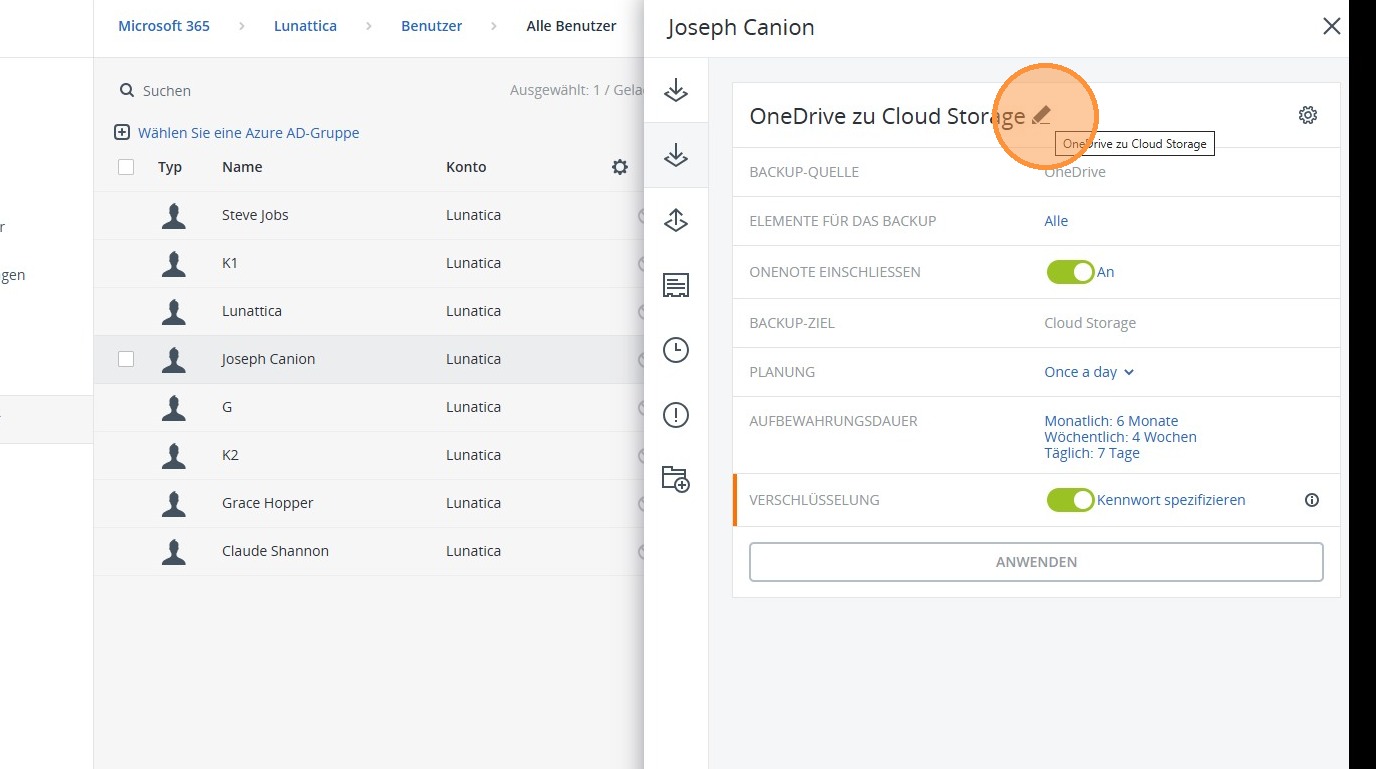
3. Here you can give the backup a suitable title.
https://colony-recorder.s3.amazonaws.com/files/2026-01-15/d09d587f-971d-4d7f-81eb-da020a42ffa0/ascreenshot_a471187cc62b4c799b0f5da4a4b9d618_text_export.jpeg

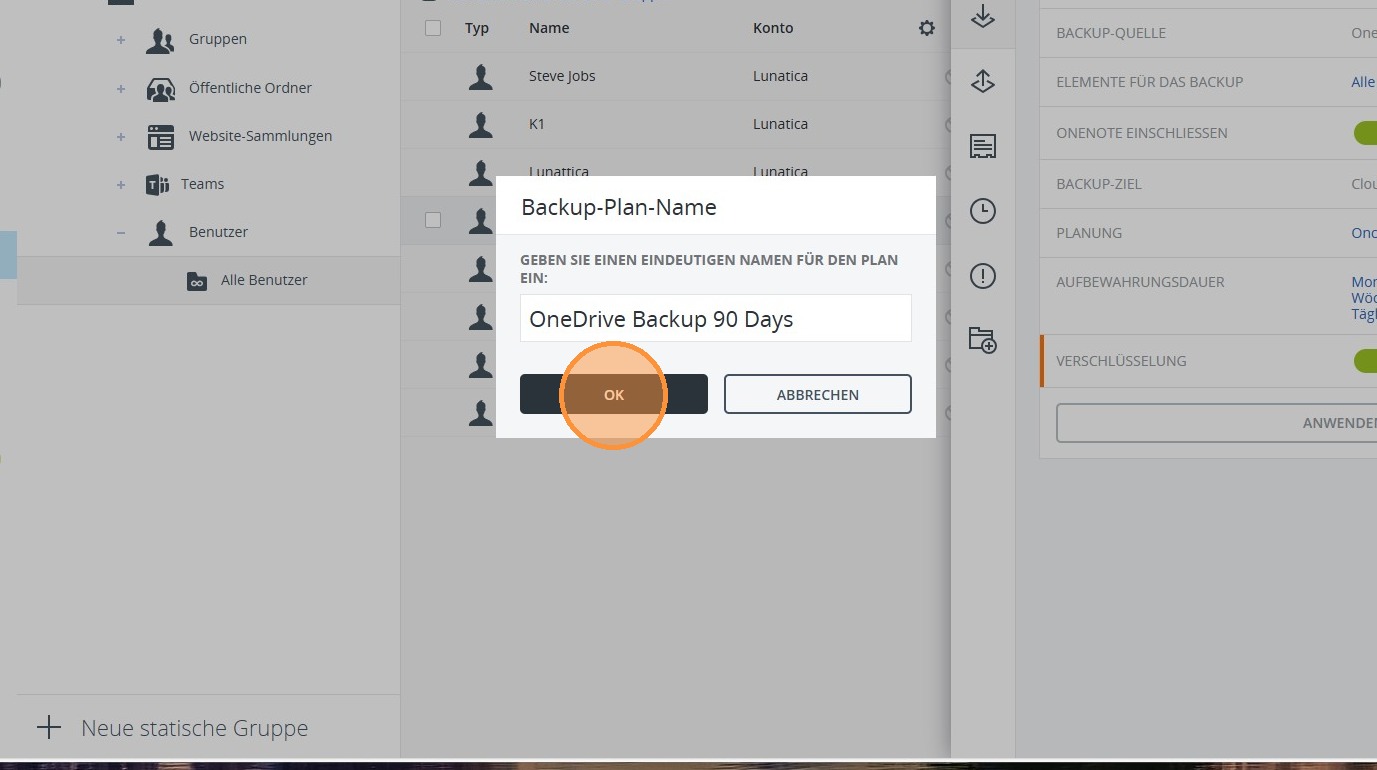
4. In our case, this is a backup for 90 days. You can use freely chosen backup names to maintain a clear and concise structure at all times.
https://colony-recorder.s3.amazonaws.com/files/2026-01-15/2408a931-625e-4a26-b094-f5b7decaa270/ascreenshot_01674a94be2b4fc5afd9e46b0394784c_text_export.jpeg

5. Now define the backup duration and specify how long the individual backups should be retained.
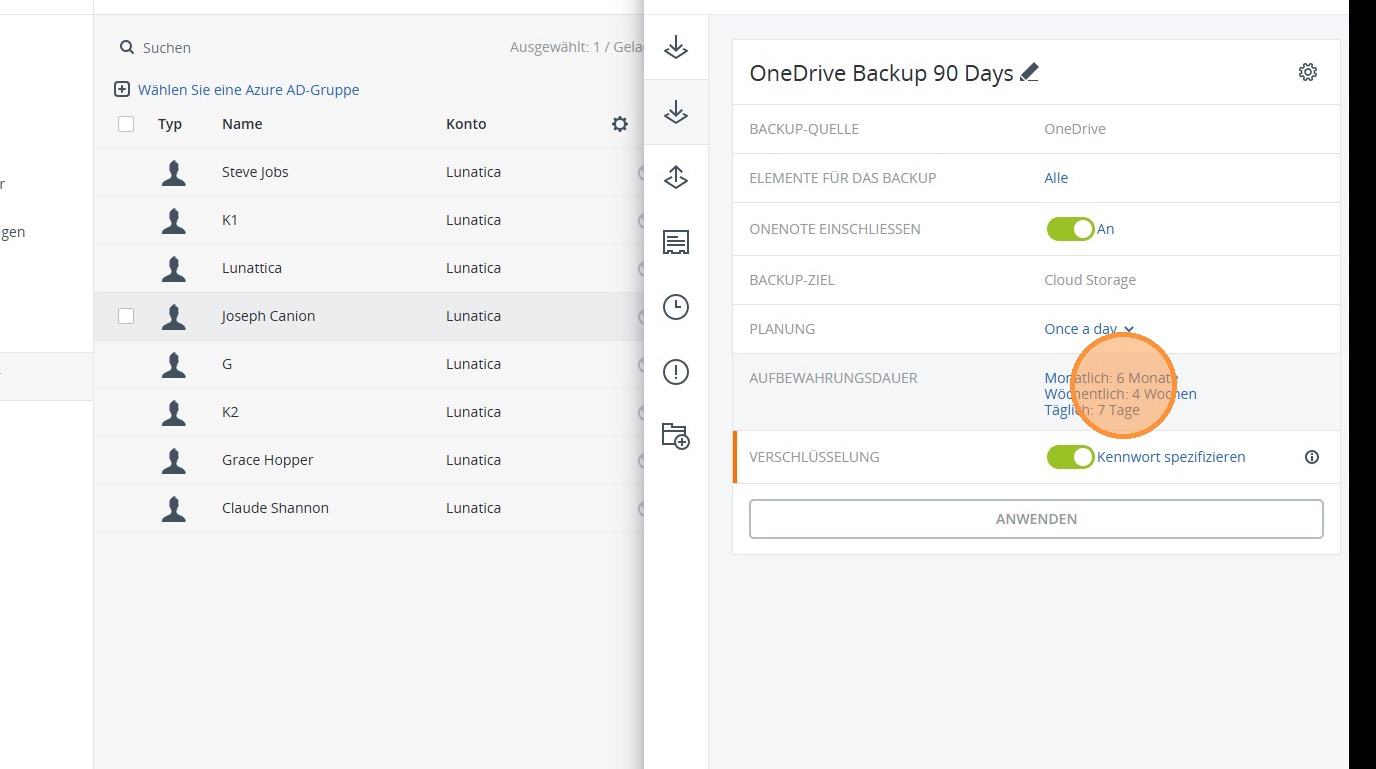
https://colony-recorder.s3.amazonaws.com/files/2026-01-15/779aaad5-ea3f-42b9-917f-7576cf2f4b20/ascreenshot_2dfc9748e8424259ab284b166c7d2c36_text_export.jpeg

6. Here, you can either work with daily, weekly, and monthly backups or alternatively specify that, for example, 60 backups are created and stored.
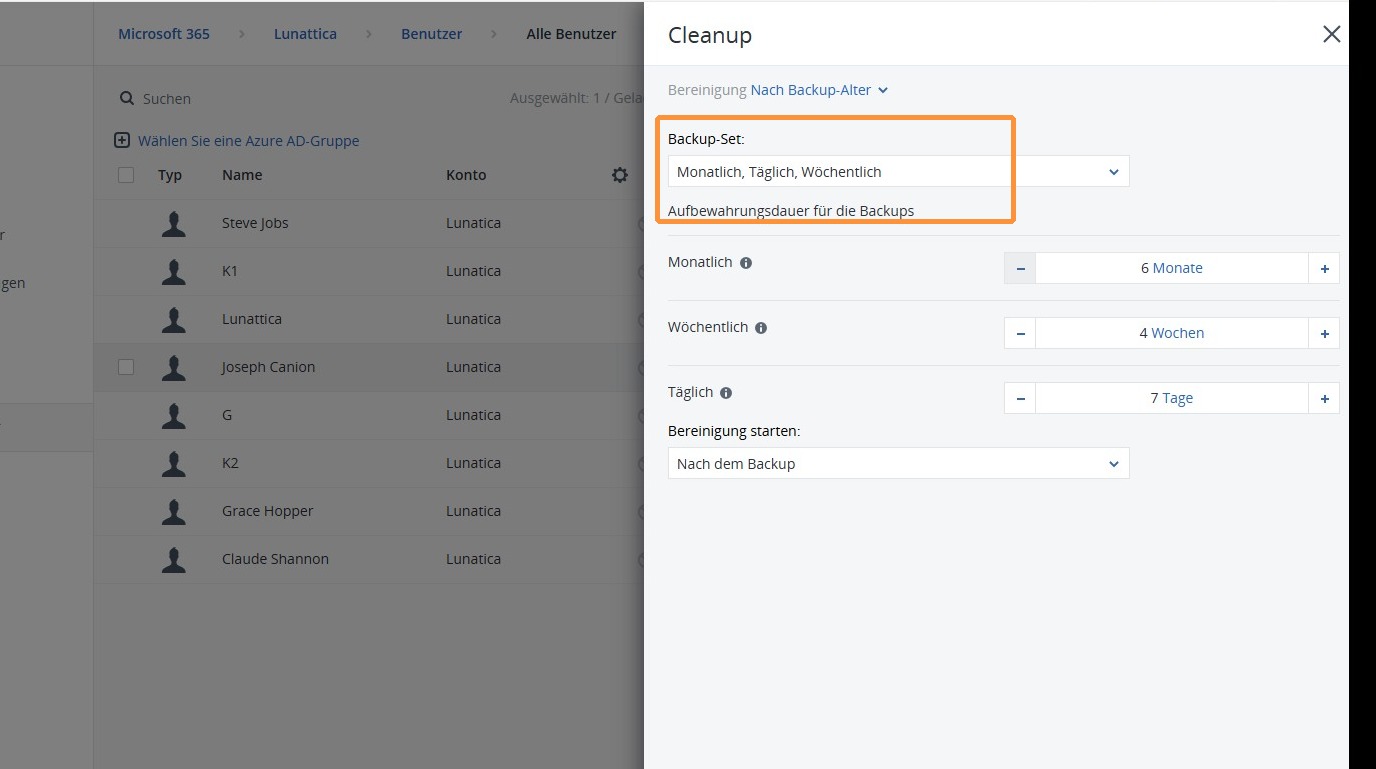
https://colony-recorder.s3.amazonaws.com/files/2026-01-15/024579cd-6a6f-4149-abc6-291a20d87bee/ascreenshot_9f18248e93e641c6ac06a29bd9c83f8f_text_export.jpeg

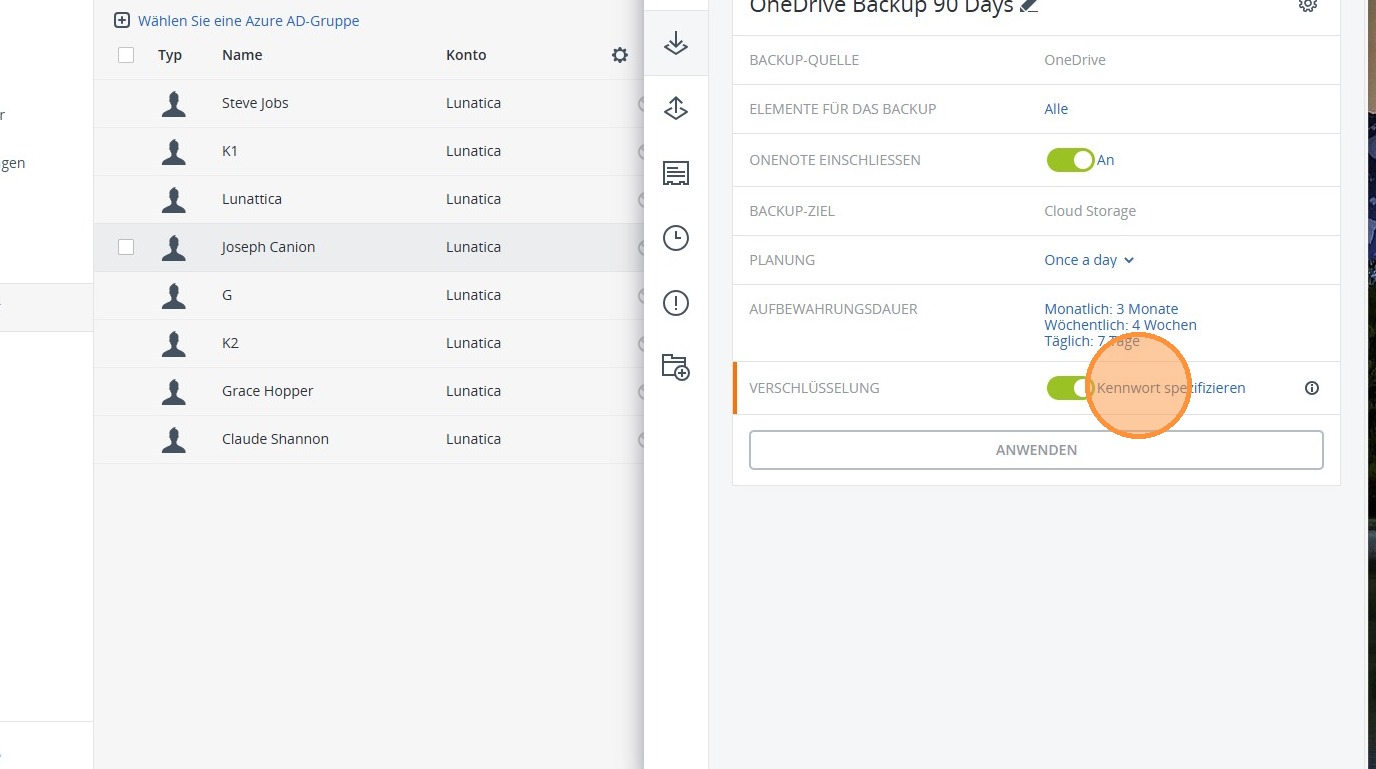
7. Under Encryption, you can enable encryption for the respective backup. This feature ensures that your backed-up data is additionally protected and can only be read with the corresponding password.

If desired, encryption can also be disabled at this point.
https://colony-recorder.s3.amazonaws.com/files/2026-01-15/805731ec-c65a-4218-994f-4ecd68a9b27c/ascreenshot_ca88f5376e664316a71ae4ca8be12de9_text_export.jpeg

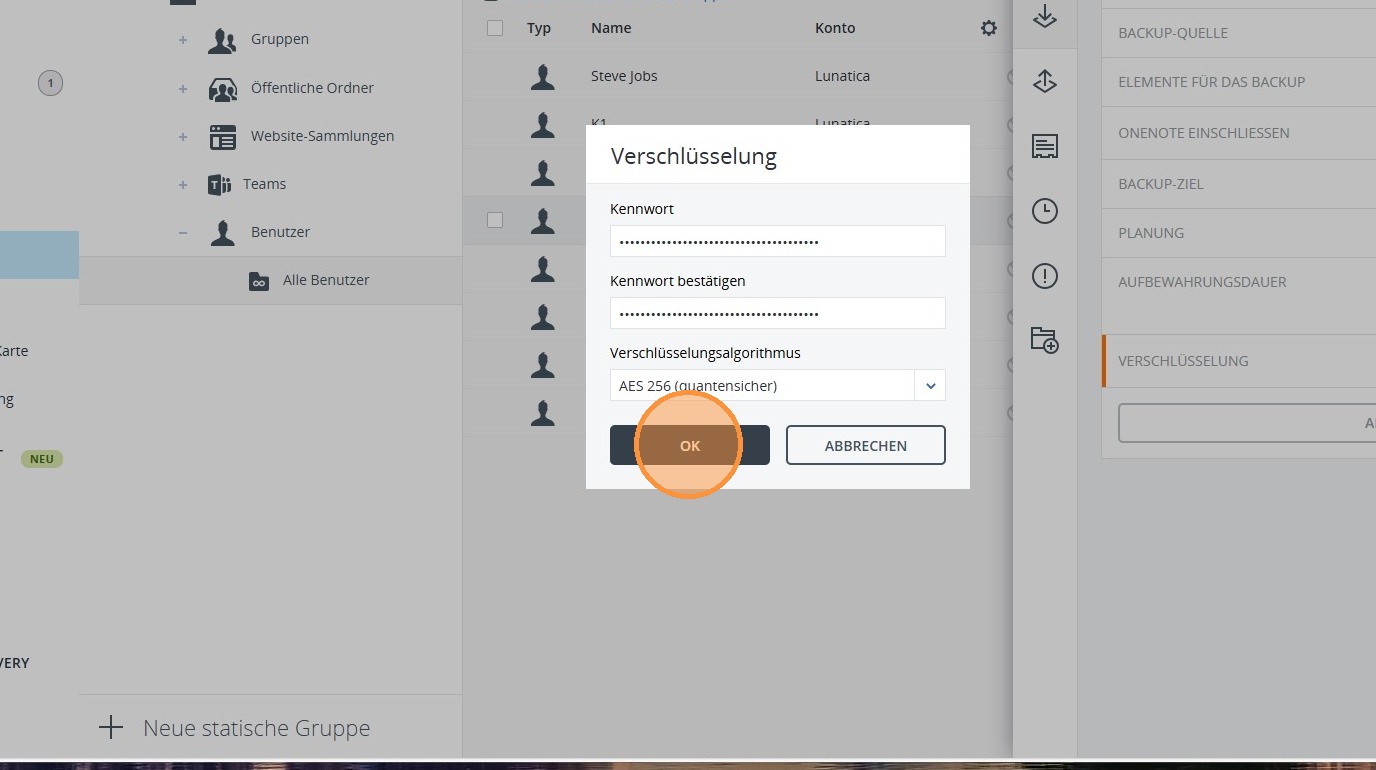
8. Select the desired encryption type and define a password. We generally recommend a password with at least 45 characters and AES-256.
https://colony-recorder.s3.amazonaws.com/files/2026-01-15/549a9c46-fe9c-4f0c-a655-d15b5c863dfe/ascreenshot_2c2a7843f10347cebe2374e6bae4fc5c_text_export.jpeg

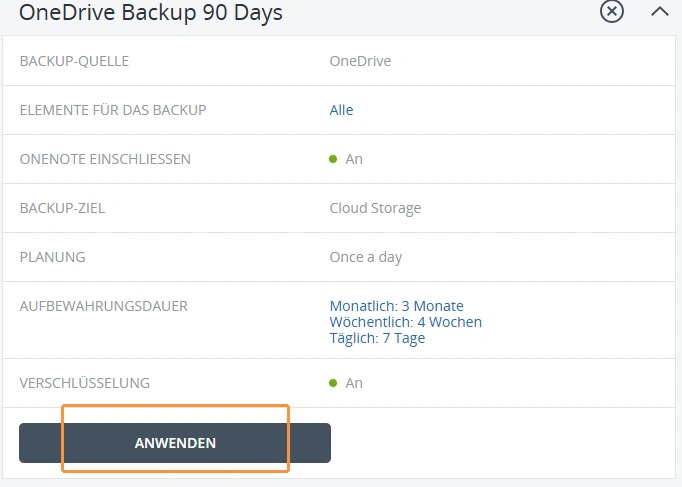
9. Once everything is set up according to your specifications, select Apply. The backup is now set up and will run automatically according to the defined settings.
https://colony-recorder.s3.amazonaws.com/files/2026-01-15/02f4aac2-0261-4061-a4df-754e31ac5e7e/screenshot_377b9460bfc946a1855c2eb6a9f93e36_text_export.jpeg