
Create additional users in the Acronis Management Portal

In this step, you create an additional user in the Acronis Management Portal. You can assign the necessary roles and permissions to control access to functions and backup resources in a targeted manner.


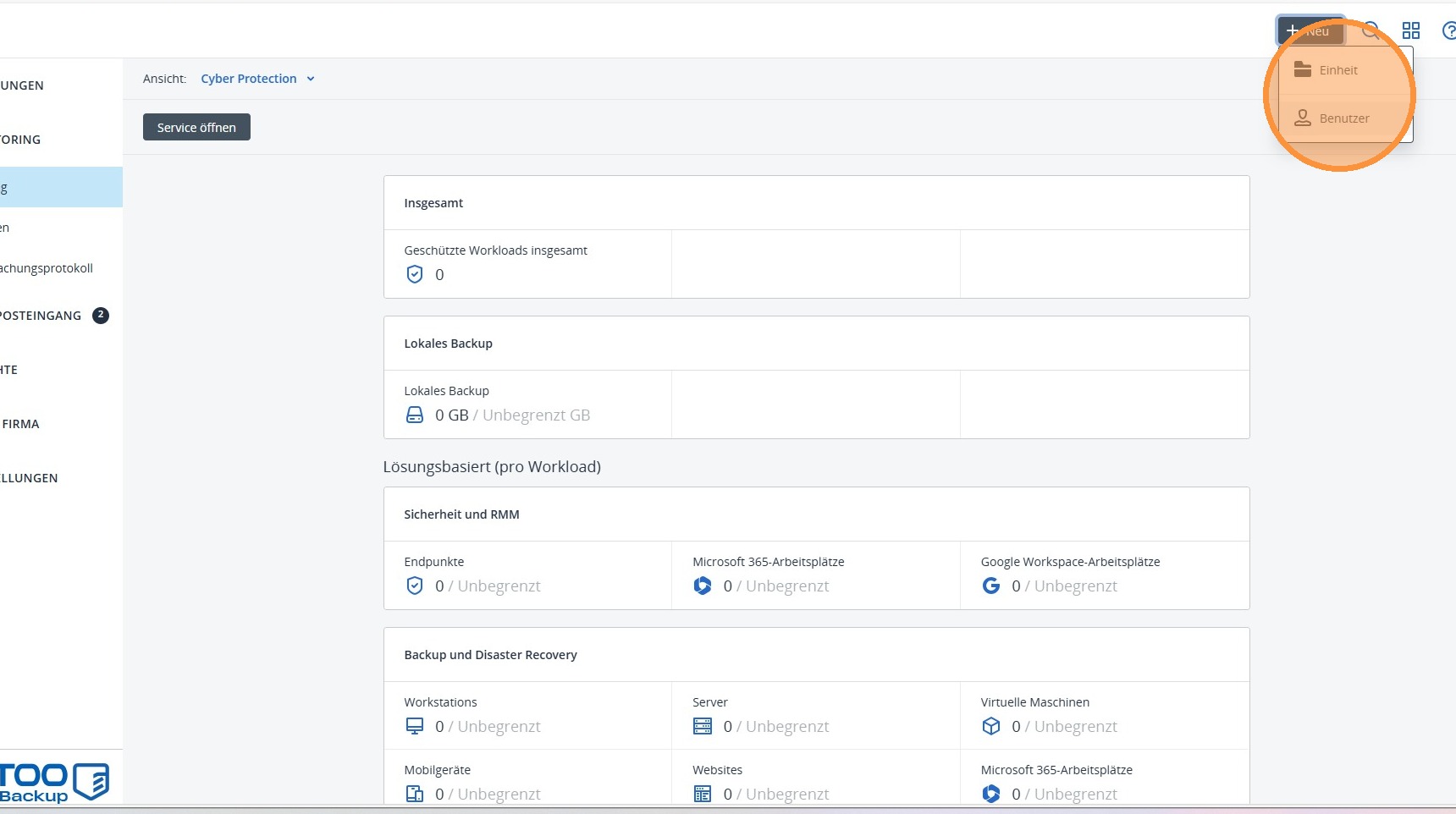
1. Click New in the upper right corner to create a new user and configure the desired settings.
https://colony-recorder.s3.amazonaws.com/files/2026-01-15/653de02d-58b9-4b5d-8964-b50bcc30ec89/ascreenshot_7e46e76886374bdb9d1fd78438dd7a94_text_export.jpeg

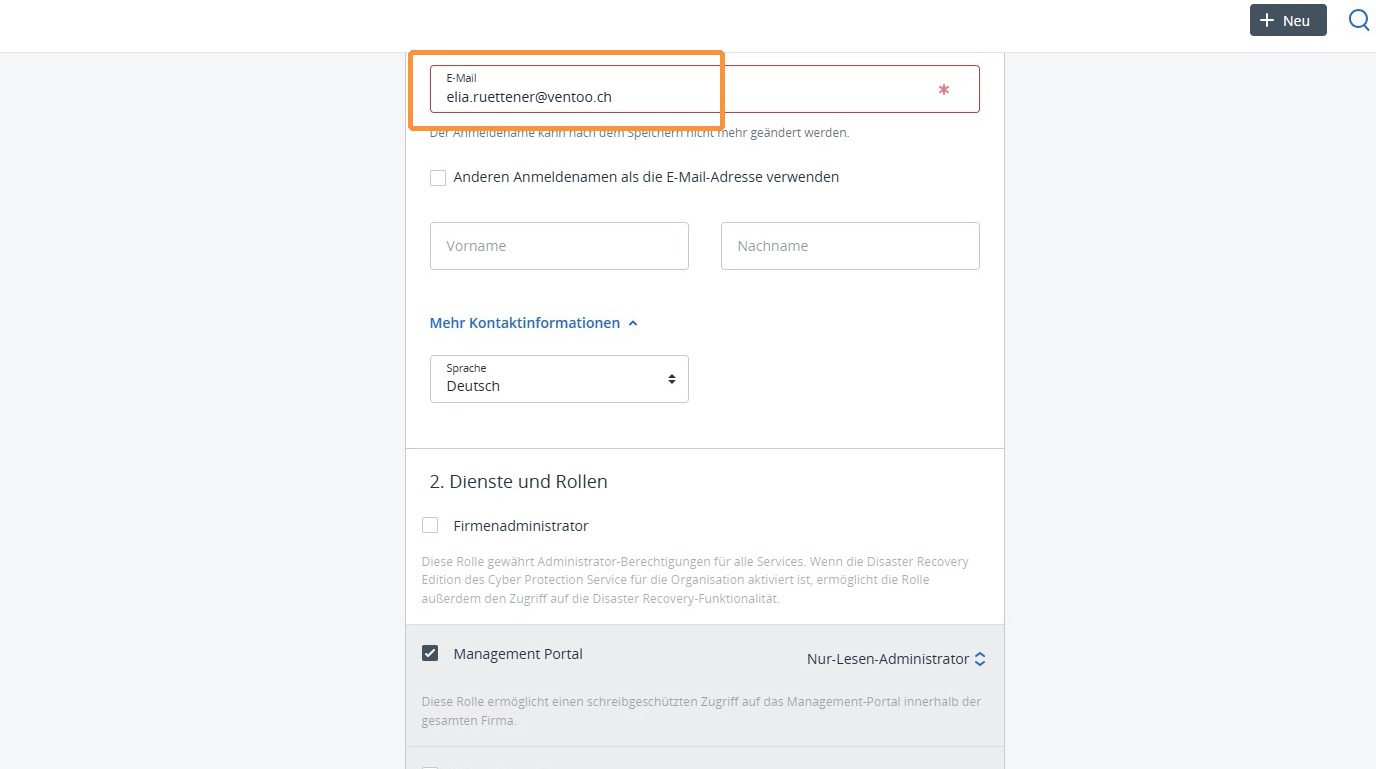
2. Click on Email. In the pop-up window that appears, enter the email address of the new user to create them and continue.
https://colony-recorder.s3.amazonaws.com/files/2026-01-15/136be525-6aa6-4dc7-9b11-7cd5dc7bb93e/ascreenshot_13f6de95bc3942938417dff6357b19a6_text_export.jpeg

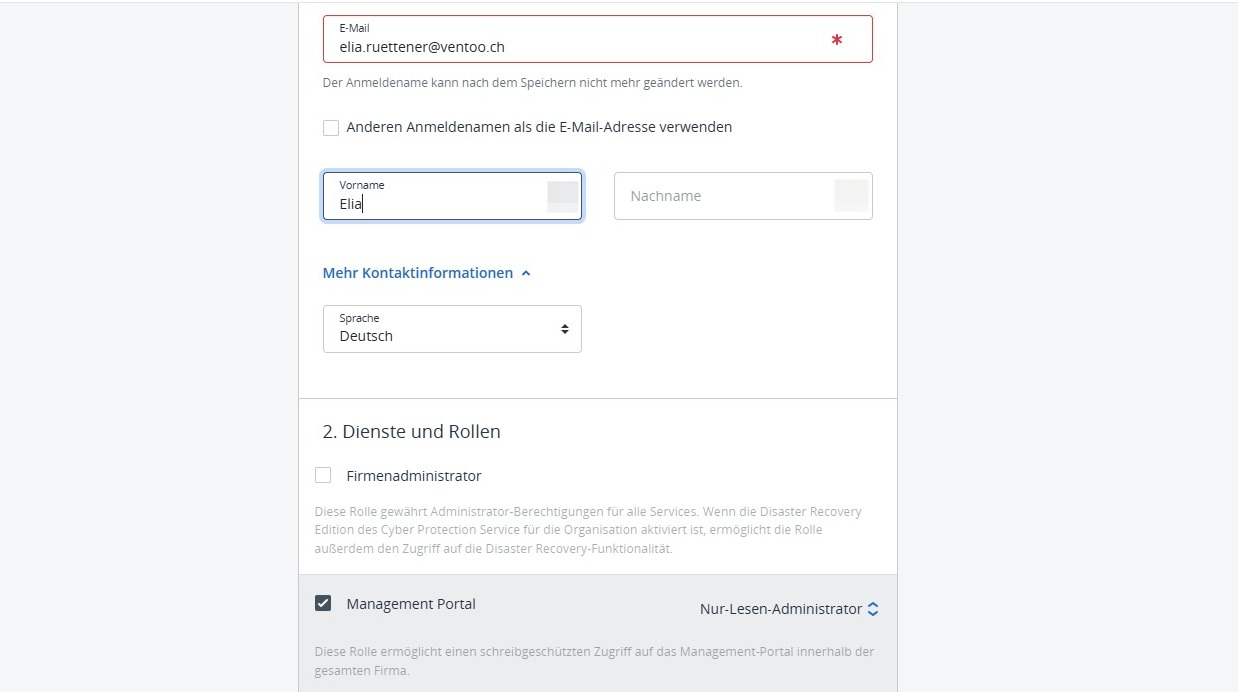
3. Enter the first name and last name, then select the desired language for the user.
https://colony-recorder.s3.amazonaws.com/files/2026-01-16/b6f4b12d-503b-4371-8da1-107543a3ea97/user_cropped_screenshot_466e90ac713b4902a939467b404561e0_text_export.jpeg

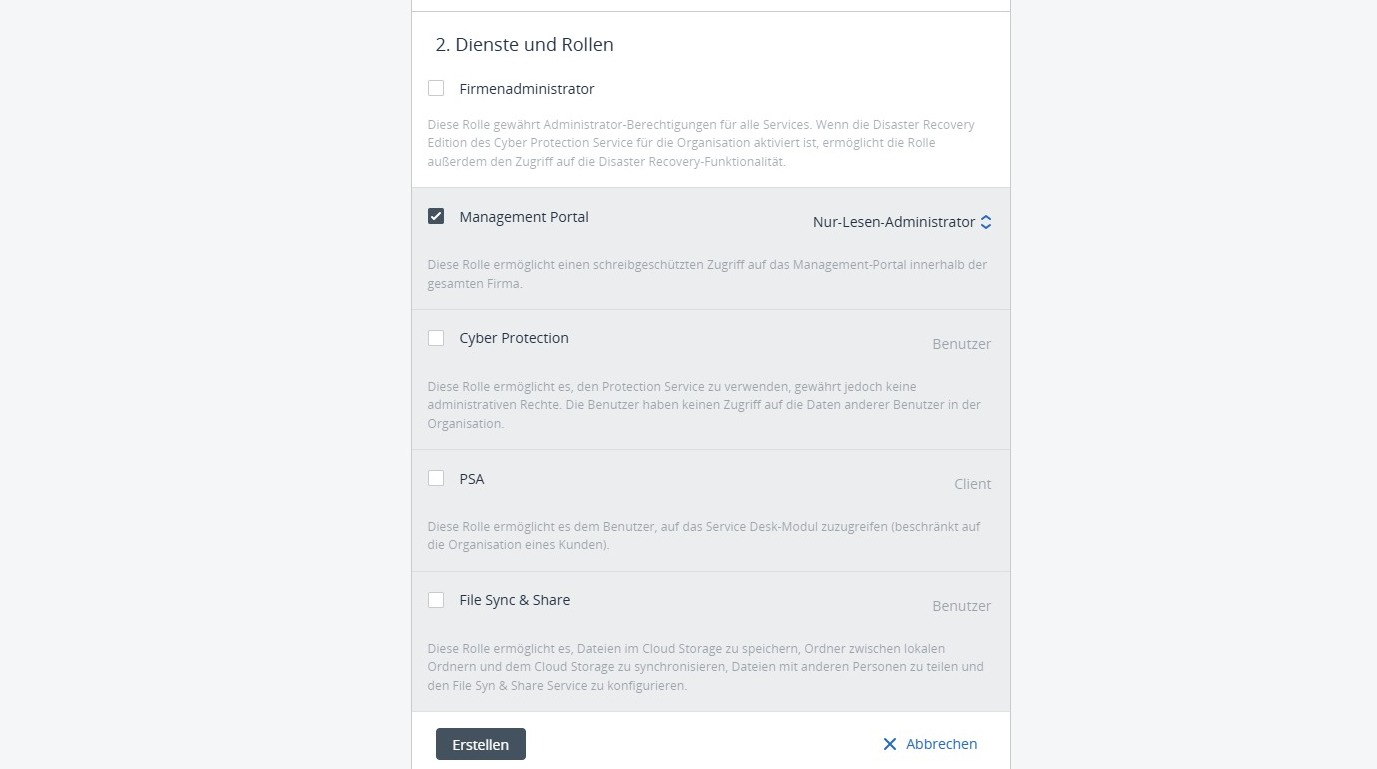
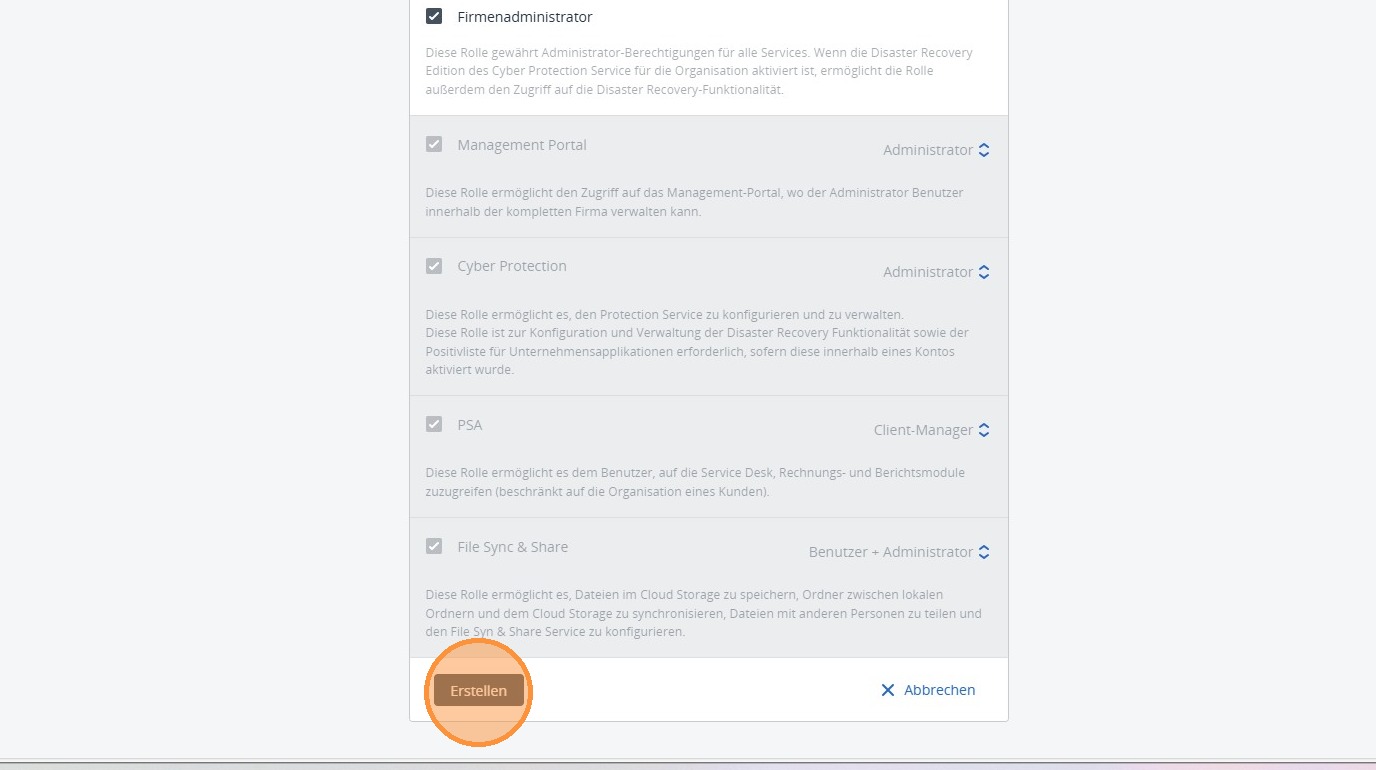
4. Now you can define the permissions and specify which functions and areas the user will have access to.
https://colony-recorder.s3.amazonaws.com/files/2026-01-15/3c0d1b80-2085-4c7f-a4ae-da49621ee56b/ascreenshot_a5dba9462917446bad99dd5af601eb06_text_export.jpeg

5. Then click Create to create the new user with the defined permissions.
https://colony-recorder.s3.amazonaws.com/files/2026-01-15/db421f31-b7d3-47d3-882e-ae8fe18e6dae/ascreenshot_caddf85f04fc4c91b34dafec500eb861_text_export.jpeg

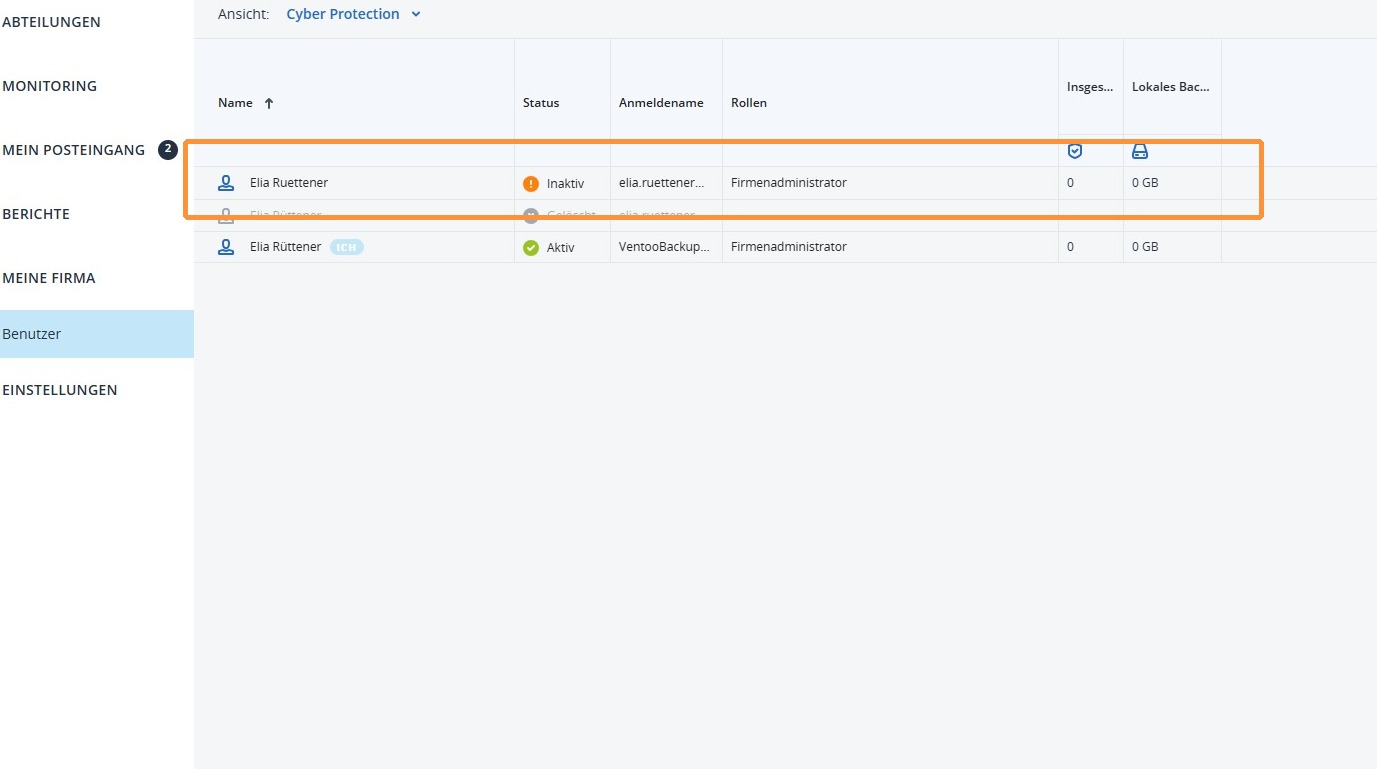
6. You will now see the newly created user in the overview. They will automatically receive an email with which they can activate their account and complete the access process.
https://colony-recorder.s3.amazonaws.com/files/2026-01-15/00d27f09-9427-4df3-82d8-9d2ac607a17c/ascreenshot_1962091dac474ecc84c97f62a5053ce7_text_export.jpeg