
Backup for workstations

This section explains how to prepare and set up backups for workstations. This ensures that local devices such as PCs or laptops are reliably backed up and that important data can be restored at any time in the event of a failure or data loss.


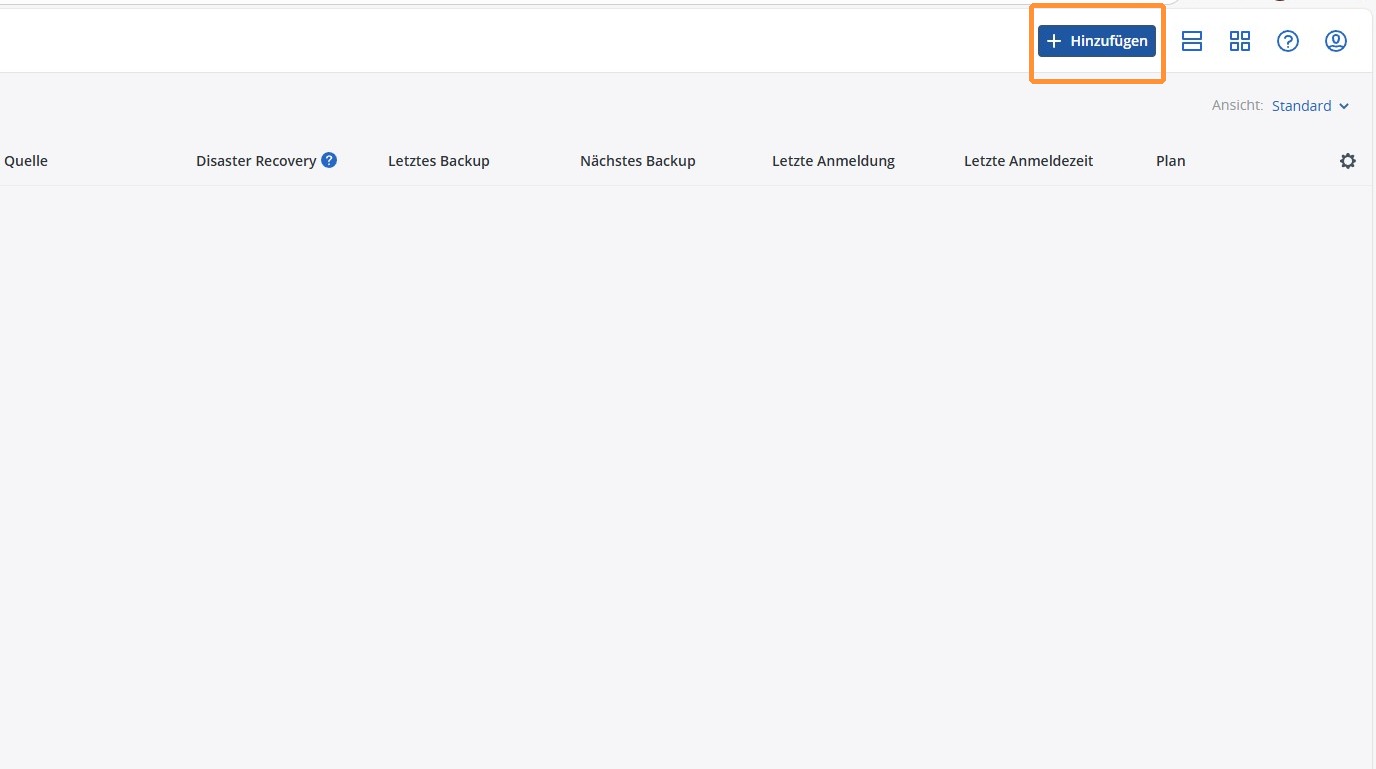
1. Click Add in the upper right corner to add a new workstation for backup and start the setup.
https://colony-recorder.s3.amazonaws.com/files/2026-01-16/710c10d2-e38d-4cbe-bacf-57fab6e906dc/ascreenshot_ef351cec073e47338af8faf50f8d8e2a_text_export.jpeg

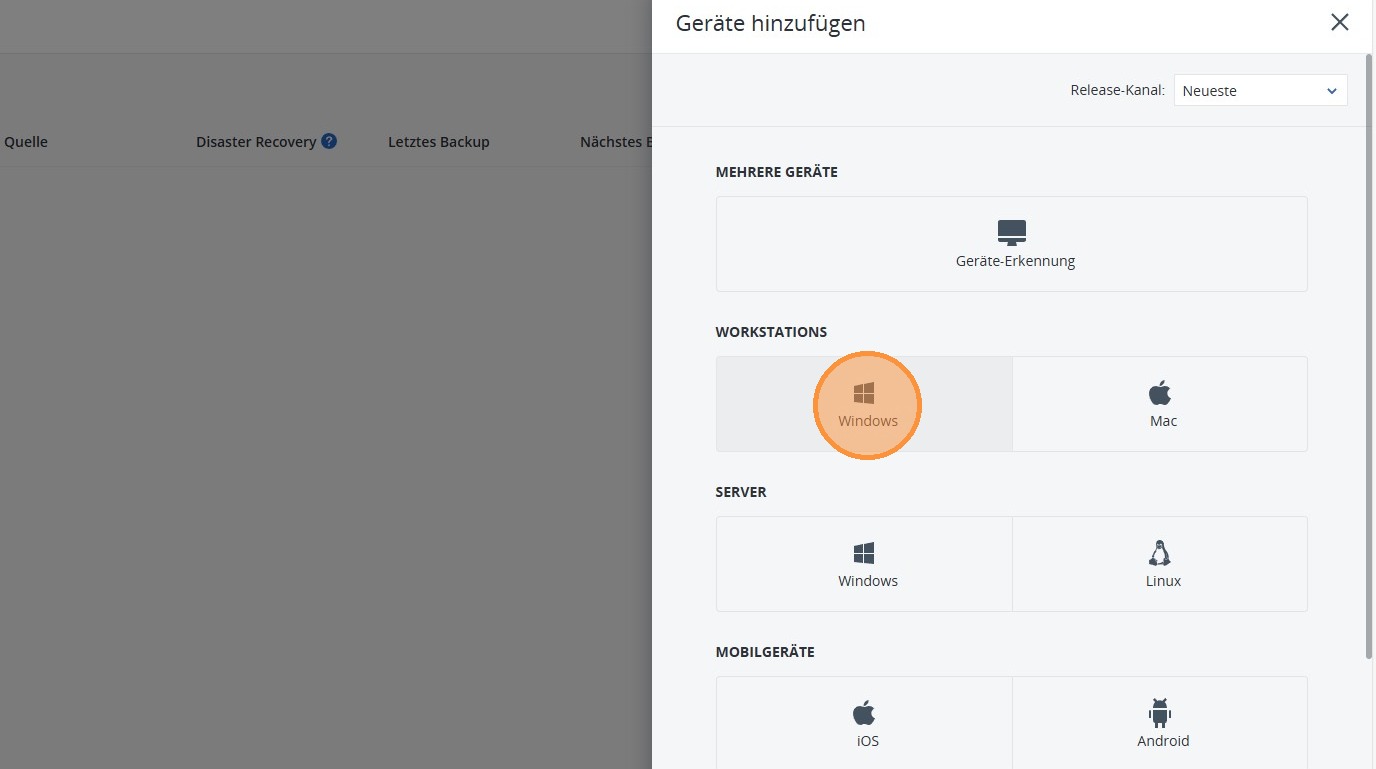
2. Now select Windows under Workstations to add a Windows workstation for backup.
https://colony-recorder.s3.amazonaws.com/files/2026-01-16/2e891ea3-4ff2-455d-9cac-e58a5a2cd119/ascreenshot_f43d5202badc419e894263d8d0f28c4a_text_export.jpeg

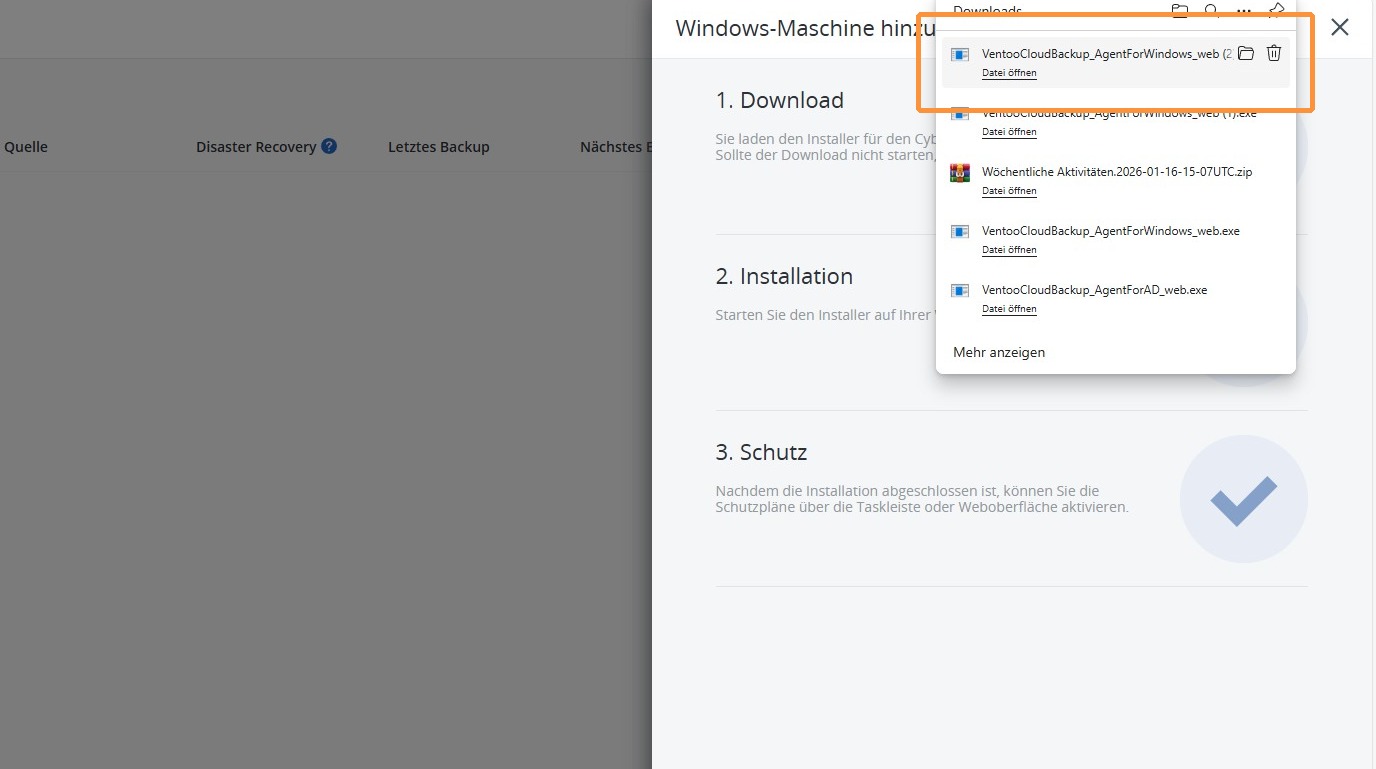
3. A file will now be downloaded. Save it to a USB stick and then install it on the workstation you want to back up.
Follow the instructions provided in the tool on the workstation to complete the setup correctly.
https://colony-recorder.s3.amazonaws.com/files/2026-01-16/ccaf4b26-5979-499f-9ff5-7b2fcb7d6f97/ascreenshot_a9102e238c3e4701b79610c350a85eb2_text_export.jpeg

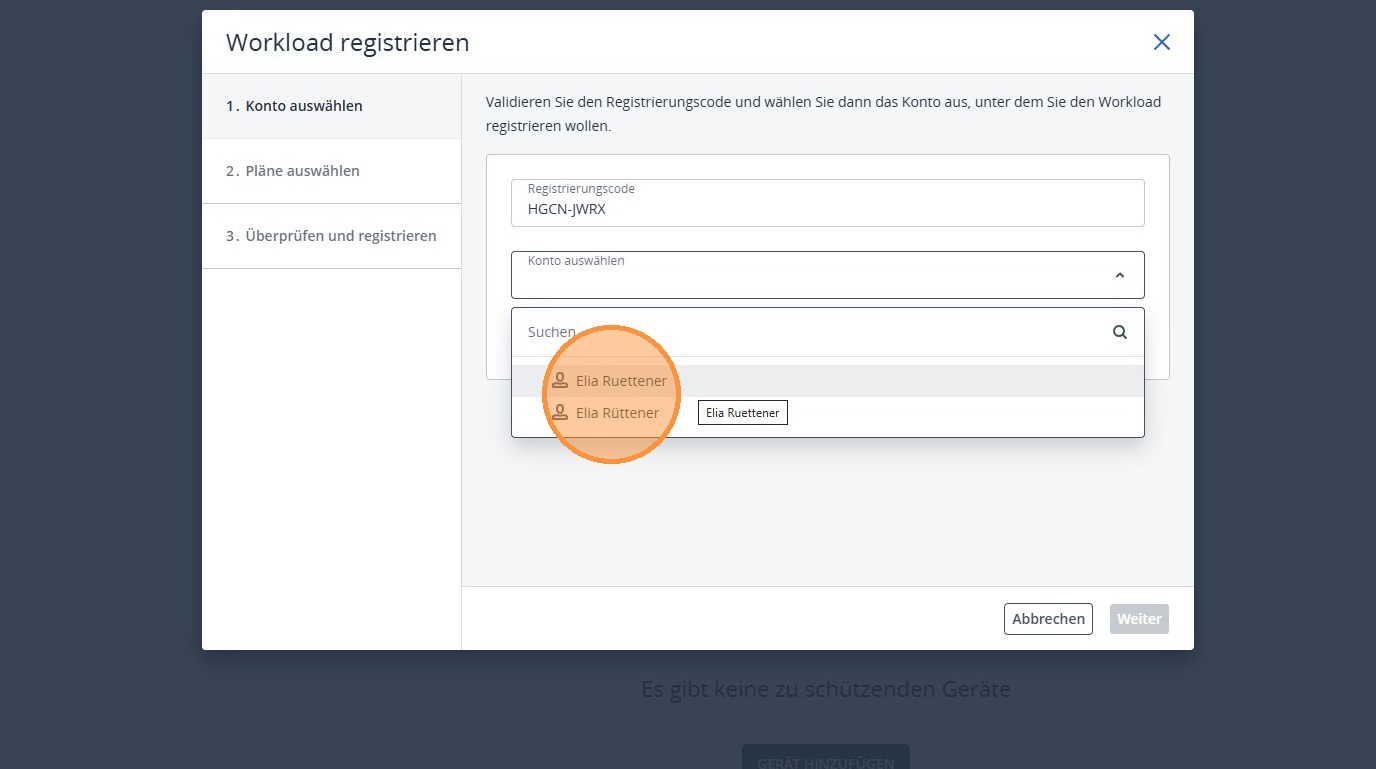
4. Now select the correct account in the browser to complete the login and connect the workstation.
https://colony-recorder.s3.amazonaws.com/files/2026-01-16/359b452c-3590-46a3-a8fc-a80e2a3b7926/ascreenshot_acef620147ec419e8e58f78ea73224a4_text_export.jpeg

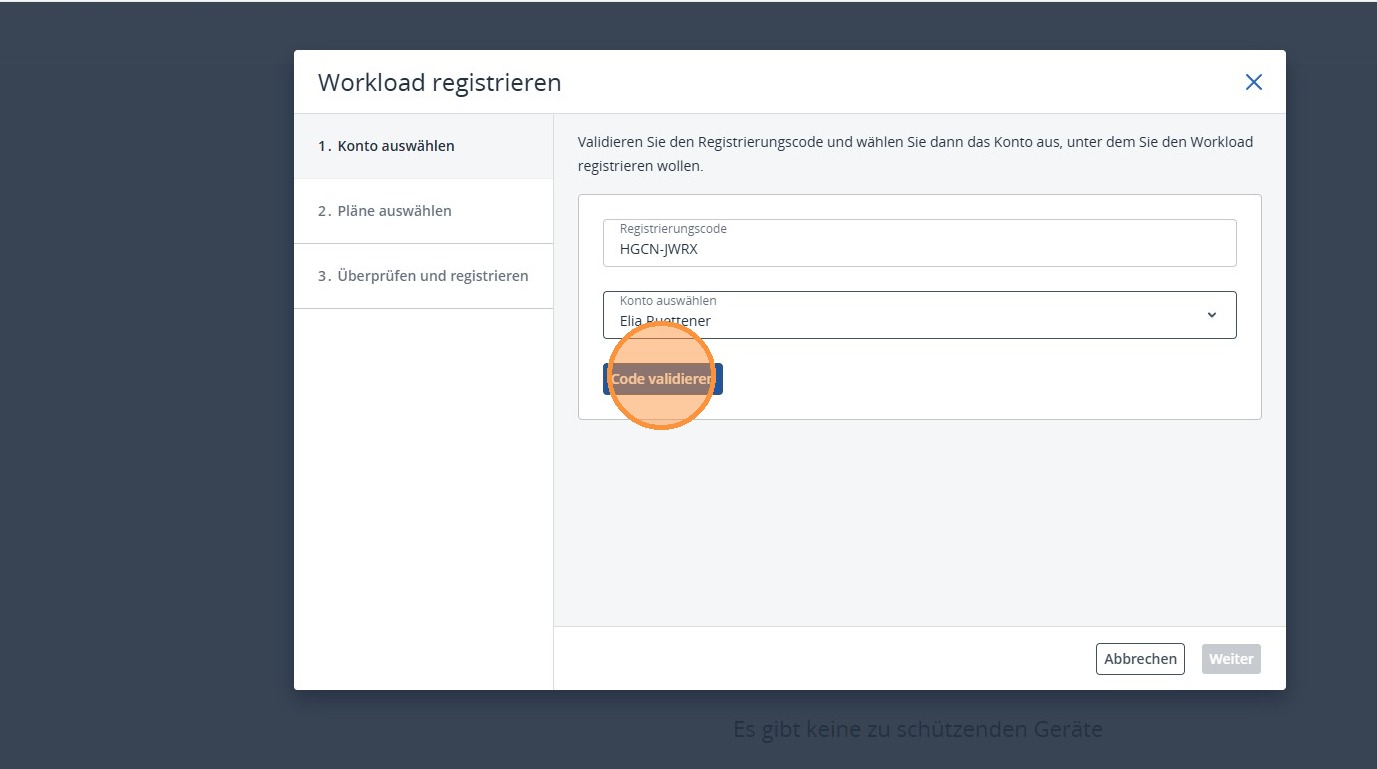
5. Then click on Validate code to check that all the information is correct and that the connection has been successfully established.
https://colony-recorder.s3.amazonaws.com/files/2026-01-16/7d086808-bb3f-4f30-b12b-f345a3a9603d/ascreenshot_a05543a146d8428c8642464ceac16980_text_export.jpeg

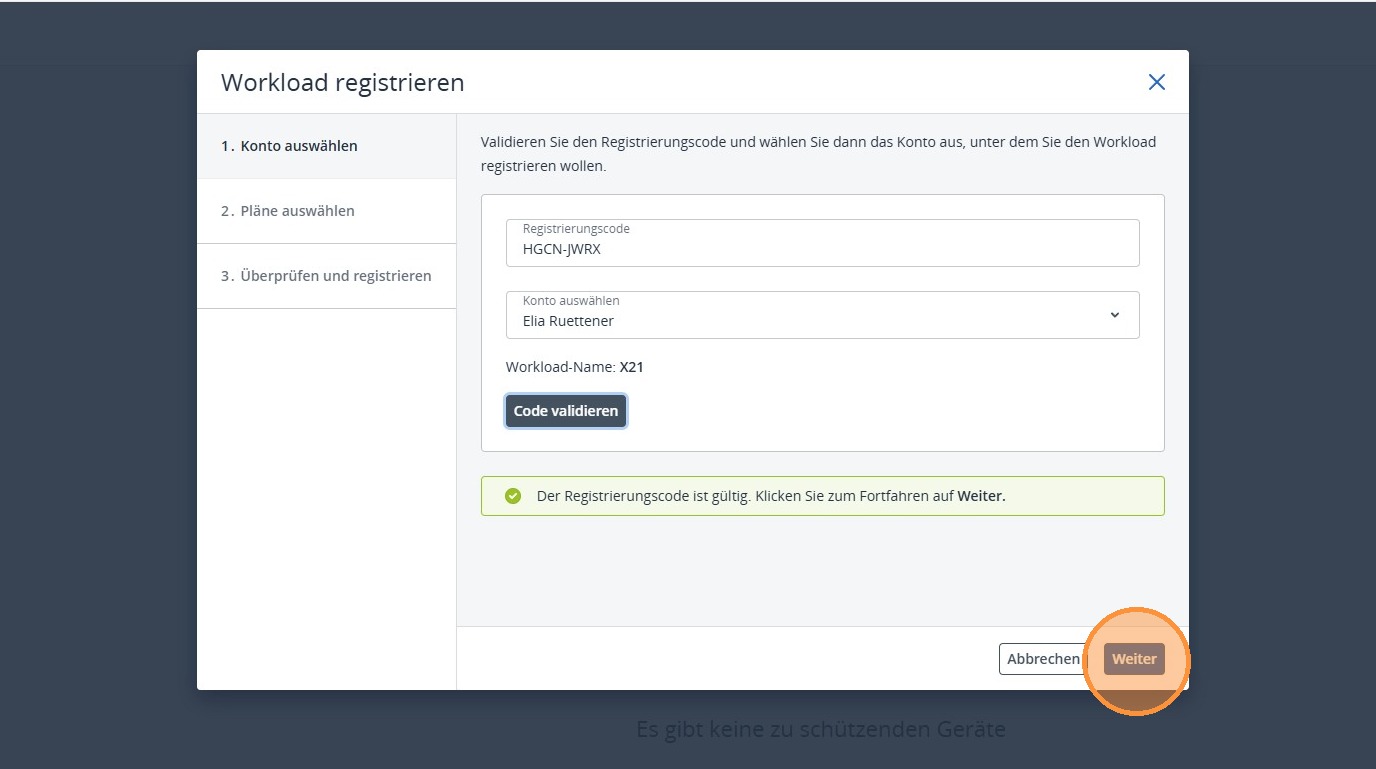
6. Once everything is correct, you can proceed by clicking Continue.
https://colony-recorder.s3.amazonaws.com/files/2026-01-16/c72092a3-0a81-44fe-ba0a-9ee0d7504972/ascreenshot_b1289f87f07b490baa6ec350c5995981_text_export.jpeg

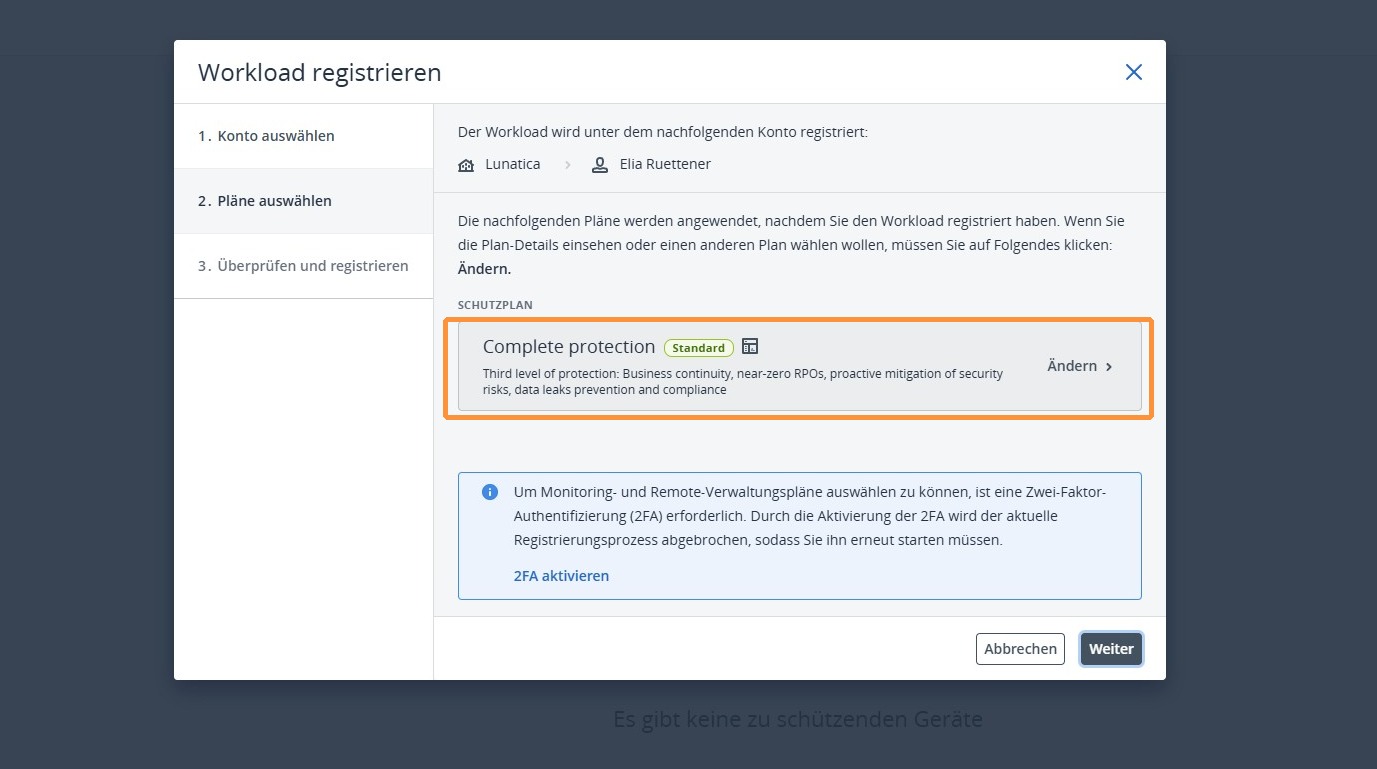
7. Now select a predefined protection plan or customize it to suit your requirements.
https://colony-recorder.s3.amazonaws.com/files/2026-01-16/82256cdd-5df5-4532-a850-1edff37d0110/ascreenshot_8e35d51db4874828a15cf64414f2932e_text_export.jpeg

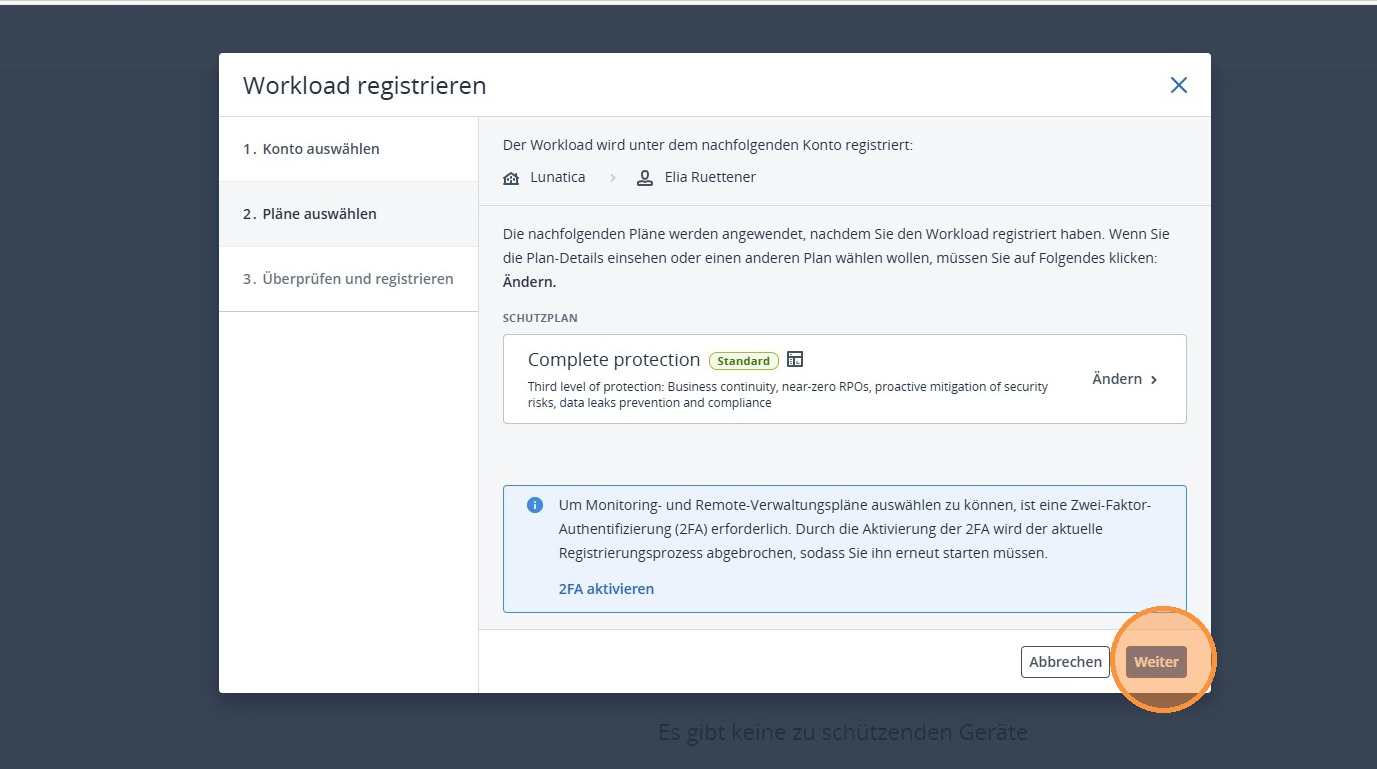
8. Once everything is defined, you can proceed by clicking Next.
https://colony-recorder.s3.amazonaws.com/files/2026-01-16/d54e0248-c0af-4b30-9800-757f548986b4/ascreenshot_231b565e45c3421c8be782422b85ef41_text_export.jpeg

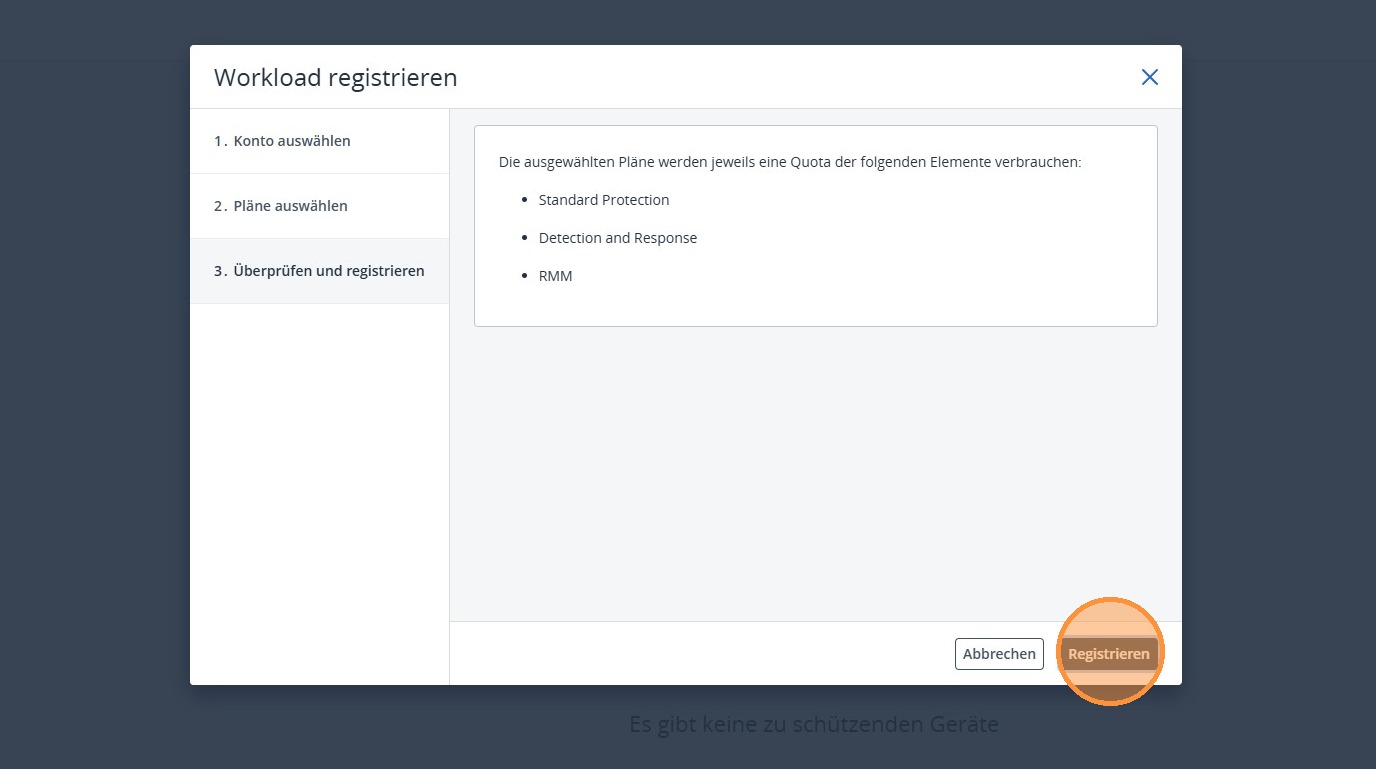
9. Now complete the registration by selecting Register.
https://colony-recorder.s3.amazonaws.com/files/2026-01-16/b175d925-0963-4cc4-a837-73394186b079/ascreenshot_064d07e6f2304f94a070fc2e1427e169_text_export.jpeg

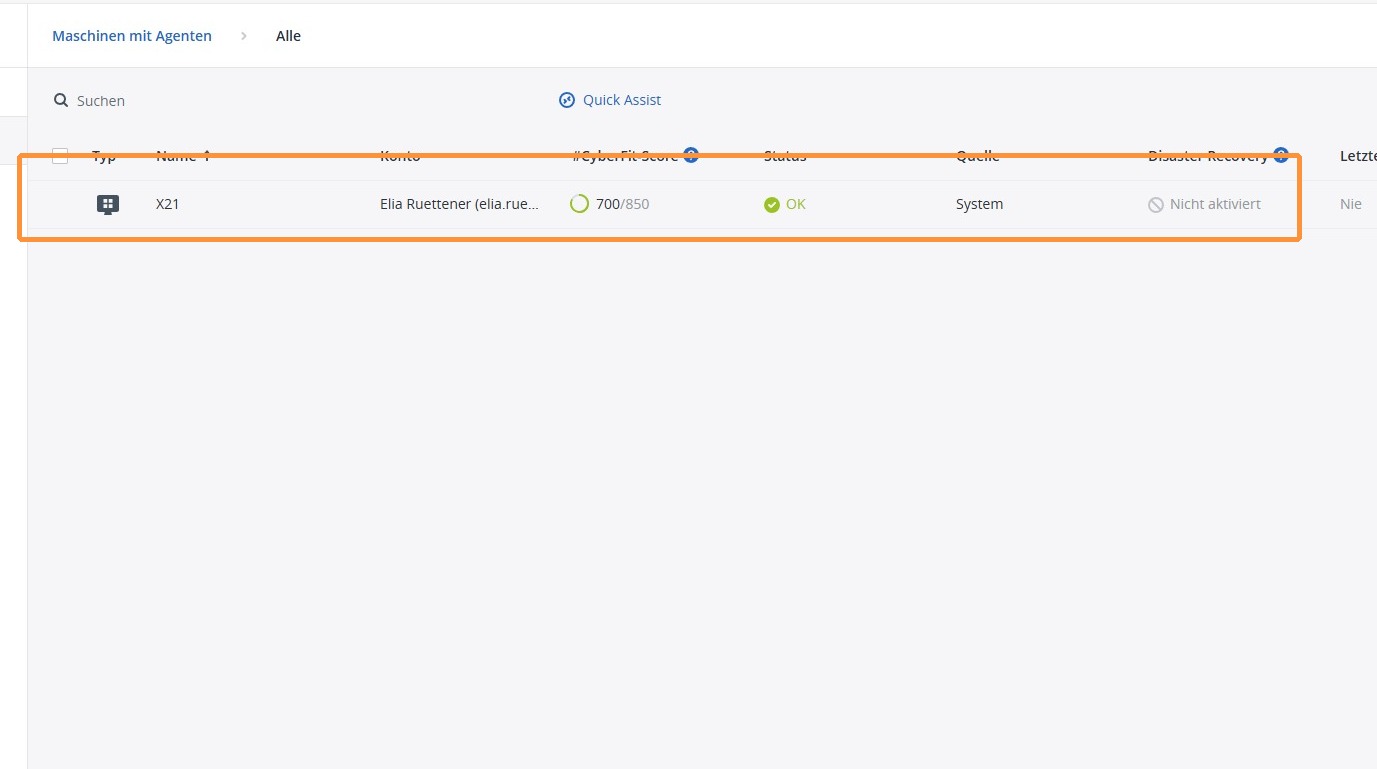
10. You will now see the corresponding workstation in your Acronis Cyber Protect management console.
https://colony-recorder.s3.amazonaws.com/files/2026-01-16/cddfc184-ef40-4262-ba31-25e478194194/ascreenshot_f660b4b93a83428692292197ab245d35_text_export.jpeg