This guide shows you step by step how to activate your Ventoo Cloud Backup and protect your data quickly and securely. You will get an overview of the initial setup, the most important functions, and the relevant terms of use and privacy policy. An active Ventoo subscription is required. This makes getting started easy, efficient, and reliable.
1. Open the email you received from Acronis. This message contains all the information you need to start setting up your cloud backup.
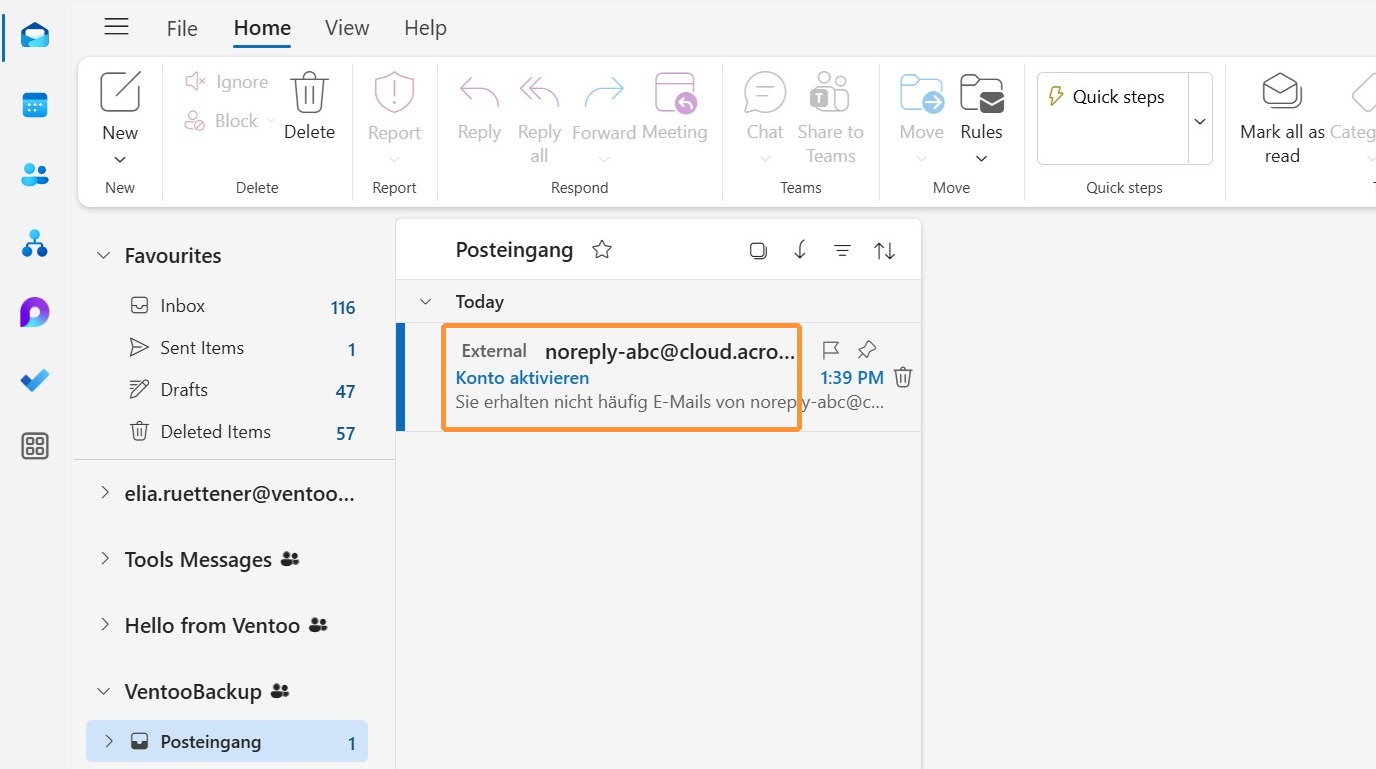
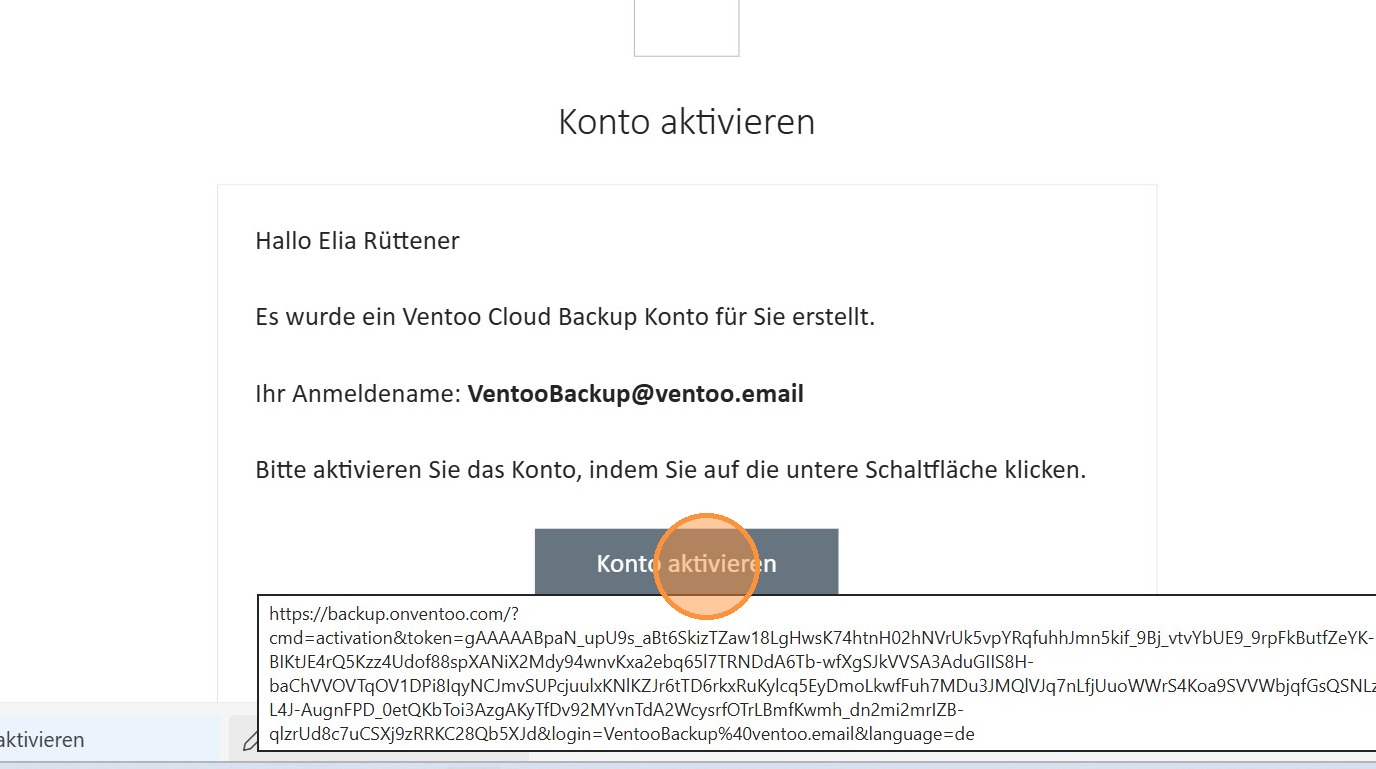
2. Select the Activate Account option in the email to start the activation process for your Cloud Backup account.
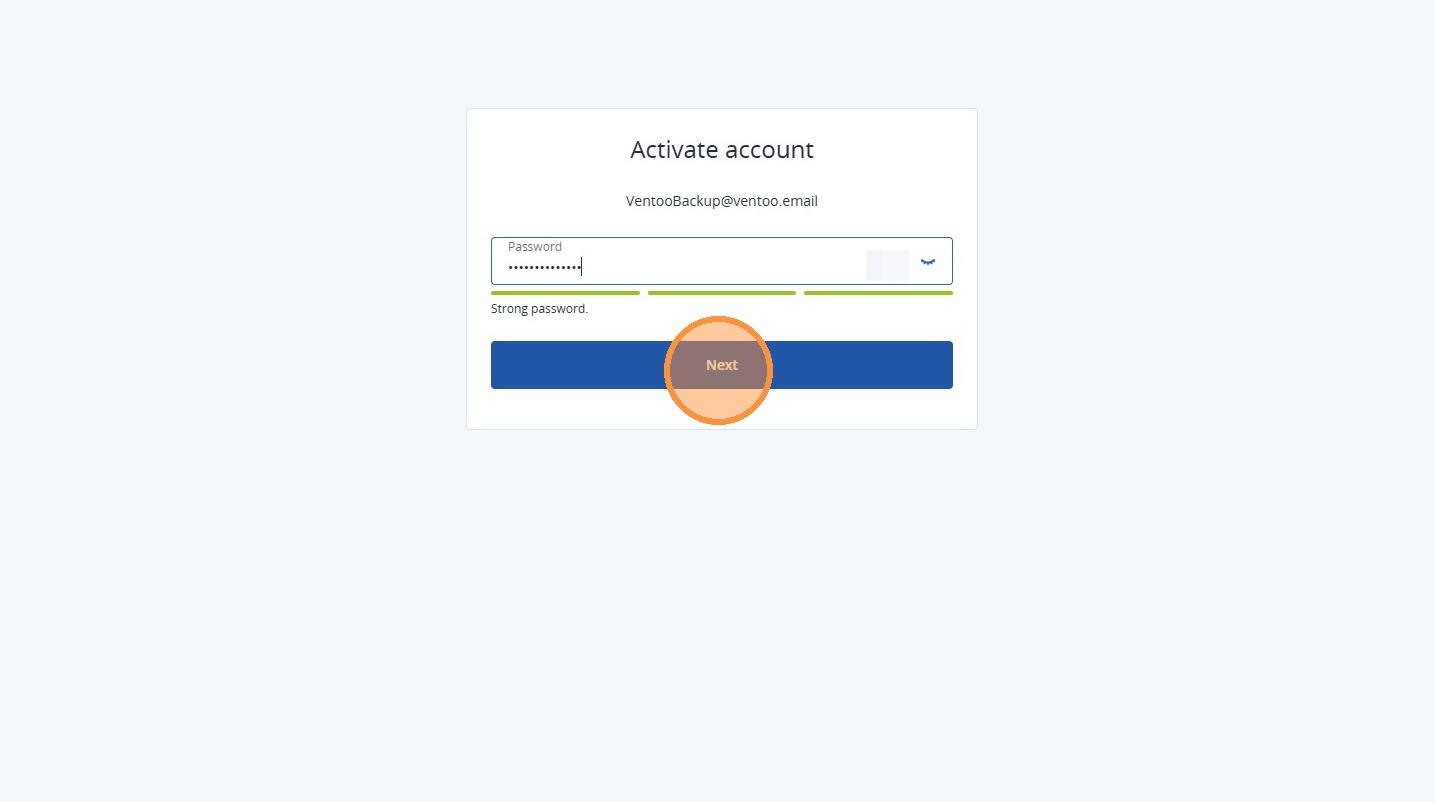
3. Set a secure password that you will use to access your Cloud Backup account in the future. Be sure to choose a strong password to protect your data as best as possible.
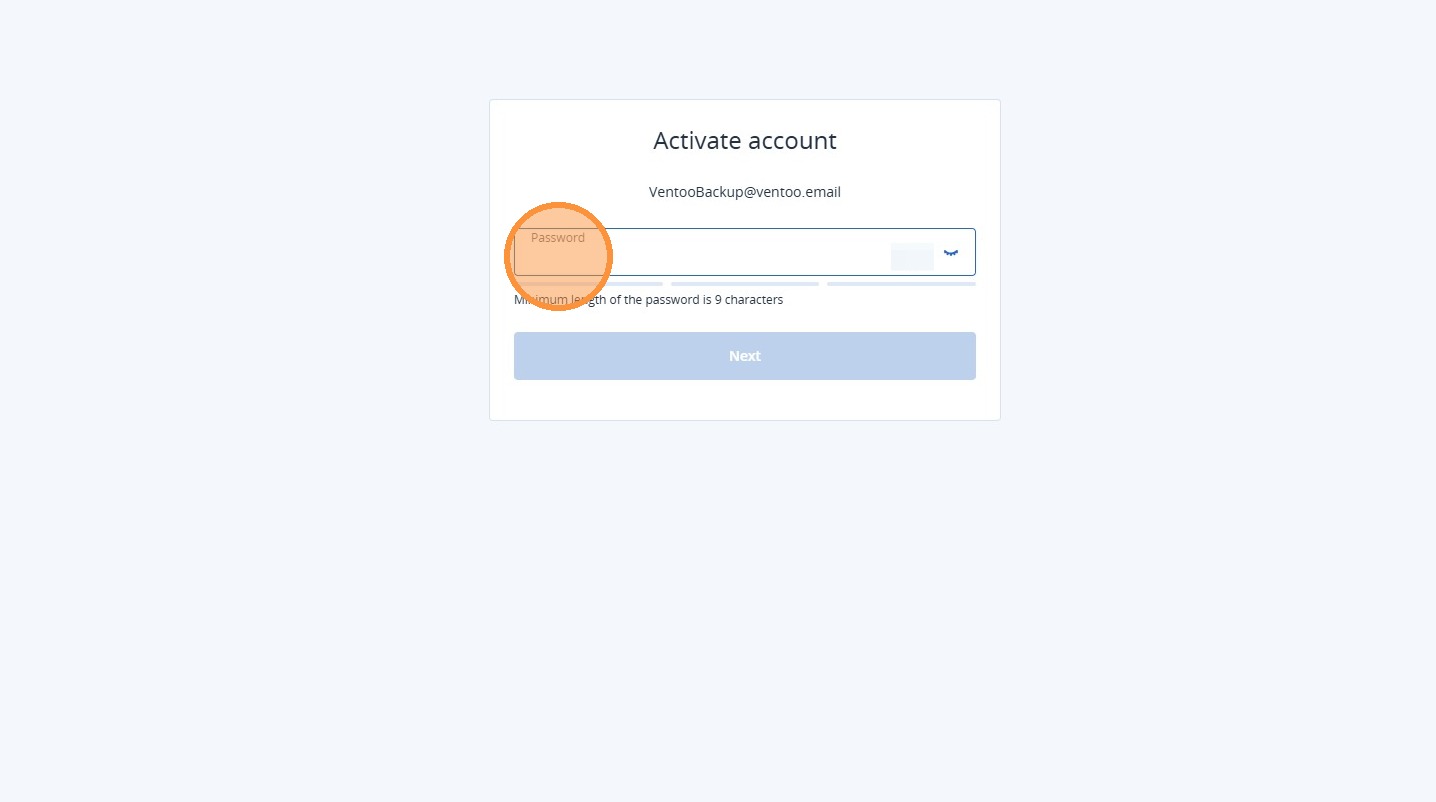
4. After successfully setting your password, click Next to proceed to the next step of the setup process.
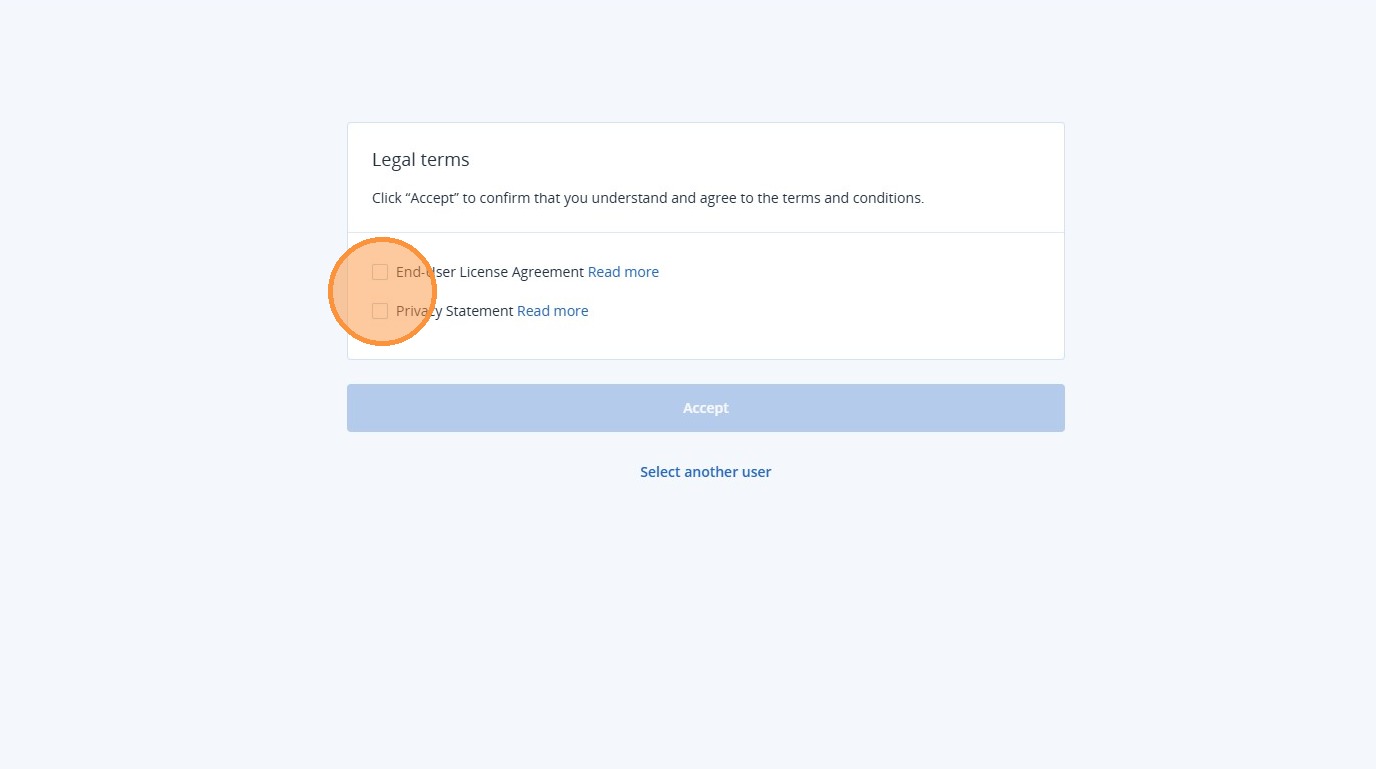
5. Click on End User License Agreement Read more and Privacy Statement. Read the contents carefully if necessary. You must then confirm both points by indicating that you accept the terms and conditions and the privacy policy.
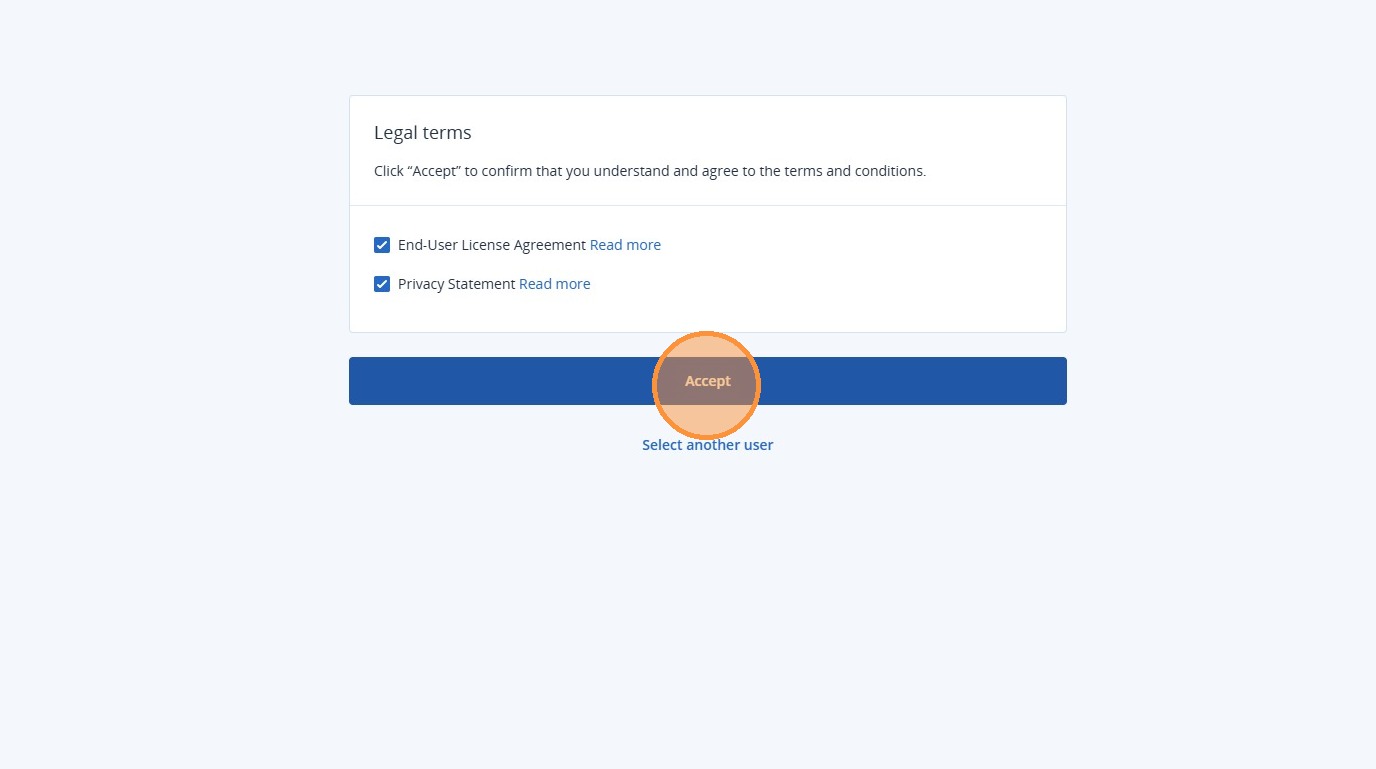
6. Click Accept to accept the license terms and privacy policy and complete the process.
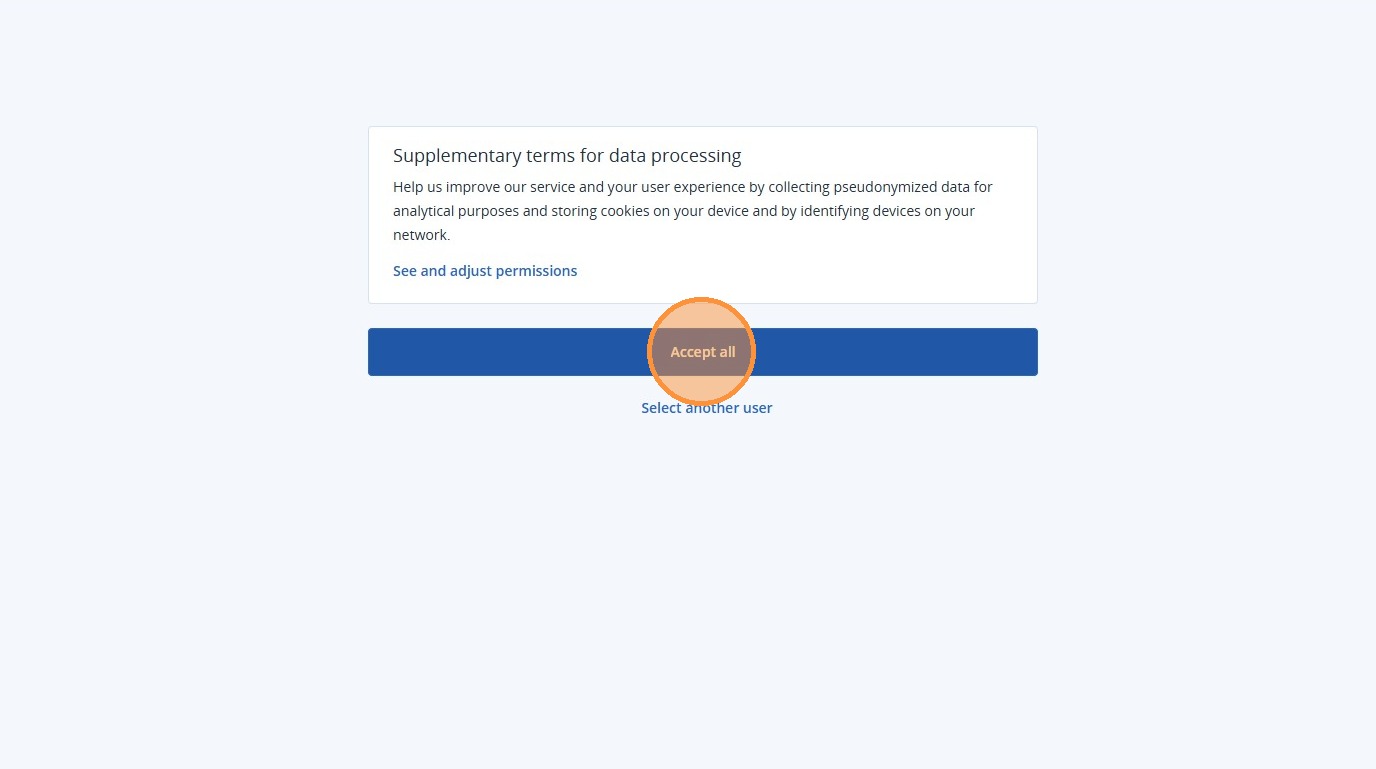
7. The next step displays the Supplementary Terms for Data Processing. These can be viewed and adjusted under See and adjust permissions. Then click Accept all to accept all terms and conditions and continue.
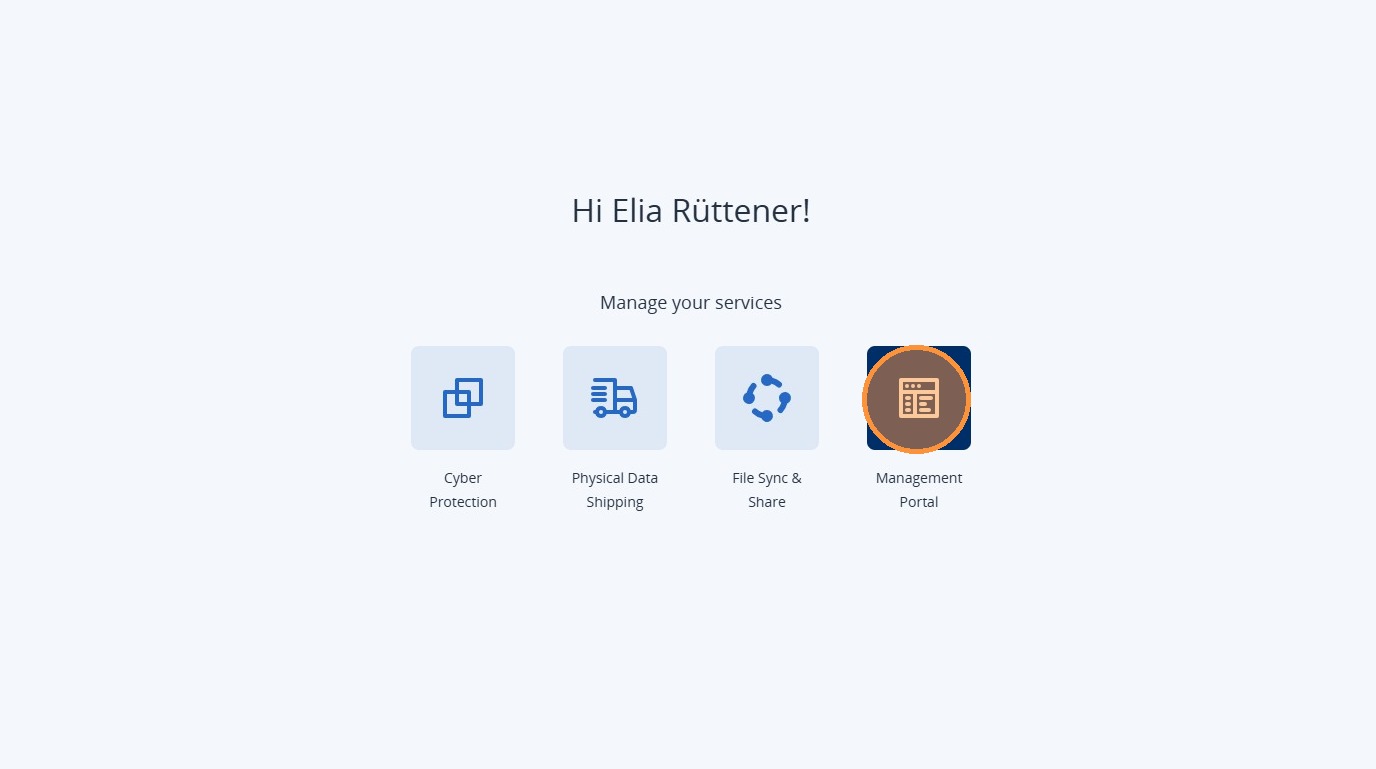
8. Your account has now been successfully created. Click on Management Portal to open the Management Portal and start managing your cloud backup.