
This article explains the key concepts you should understand to work effectively with Ventoo Phone Lookup.
Automatic Search Trigger via Phone System Link
Ventoo Phone Lookup is designed to be triggered directly by the phone system — no manual input is required.
When a call comes in, the phone system (e.g. a CTI integration or softphone) generates a link containing the caller's number as a URL filter parameter. When this link is opened, Business Central automatically reads the number and starts the search immediately.
Depending on the result, the following happens:
-
Exactly one match → The customer, vendor, or contact card opens directly.
-
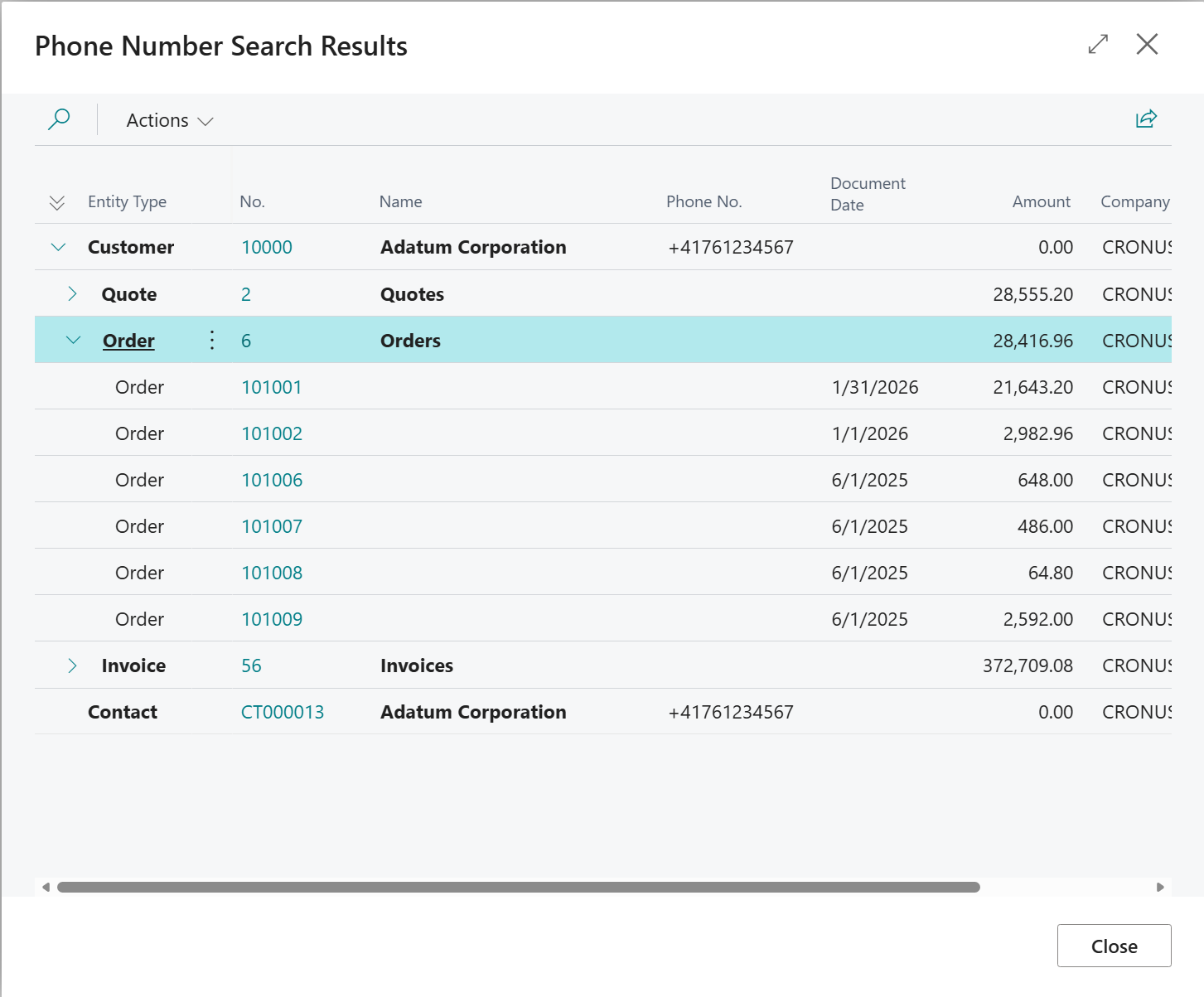
Multiple matches → The results page with a tree view of all matches is displayed.
-
Similar matches → Suggestions are displayed as a tree view.
-
No match → An informational message is displayed.
Note: For the automatic search trigger to work, the phone system must be configured to pass the caller's number as a filter parameter in the URL. Configuration of the phone system is not part of Ventoo Phone Lookup.
Phone System Link Format
Configure your phone system to open a URL that targets the Phone Lookup page (page 70679704) and passes the caller's number in the PhoneNo filter:
https://businesscentral.dynamics.com/{tenant}/{environment}?company={company}&page=70679704&dc=0&filter=%27PhoneNo%27%20IS%20%27{phone}%27
|
Placeholder |
Description |
Example |
|---|---|---|
|
{tenant} |
Your Business Central tenant |
contoso.onmicrosoft.com |
|
{environment} |
Environment name |
Production |
|
{company} |
Company name, URL-encoded |
CRONUS%20CH |
|
{phone} |
Caller's number (E.164 format recommended, e.g. +41…) |
+41761234567 |
Example:
https://businesscentral.dynamics.com/contoso.onmicrosoft.com/Production?company=CRONUS%20CH&page=70679704&dc=0&filter=%27PhoneNo%27%20IS%20%27+41761234567%27
Contacts with multiple numbers: If the phone system passes several numbers at once (e.g. +41791112233+41794445566), Ventoo Phone Lookup automatically splits them, searches each number, and then either opens the matching record or shows the selection list.
Phone Number Normalization
Phone numbers in Business Central are often stored in different formats. Ventoo Phone Lookup automatically normalizes all numbers to the international format +CC#####, so that searches work reliably — regardless of how a number was originally entered.
Normalization happens at two points:
-
On save — When a customer, vendor, or contact is saved, the system automatically normalizes the phone number and updates the phone directory.
-
On search — The number passed by the phone system is also normalized before matching.
Examples:
|
Input |
Country Code |
Result |
|---|---|---|
|
0123 456 789 |
DE |
+49123456789 |
|
+49 123 456-789 |
DE |
+49123456789 |
|
0049123456789 |
DE |
+49123456789 |
|
(555) 123-4567 |
US |
+15551234567 |
The Phone Directory
Ventoo Phone Lookup maintains an internal phone directory — an indexed table of all normalized phone numbers from customers, vendors, and contacts. This directory is the actual search target.
The directory is:
-
Built once manually via Phone Lookup Setup → Refresh Data.
-
Updated automatically when a customer, vendor, or contact record is saved.
Note: After bulk imports or changes to country prefixes, the directory must be rebuilt manually, as automatic updates are only triggered on individual save operations.
Exact and Similar Matches
The search uses two phases:
Phase 1 — Exact match The system compares the normalized input directly against the phone directory. Exact matches are given priority.
Phase 2 — Similarity search (only if no exact match was found) The system compares the input character by character against all entries in the directory. Entries that match at least 7 out of 10 characters are suggested as possible matches.
Note: Similarity matches are suggestions, not confirmed matches. They are only shown when no exact match was found.
The Tree View
Search results with multiple matches are displayed as a three-level, expandable tree view:
|
Level |
Content |
Example |
|---|---|---|
|
0 — Customer / Vendor / Contact |
Matched partner |
Contoso AG |
|
1 — Document category |
Document type with count and total amount |
Invoices (3) — CHF 12,450.00 |
|
2 — Individual document |
Document with date and amount |
SI-00123 — 01/12/2025 — CHF 4,150.00 |
Categories without documents are not shown. Clicking a row at level 0 or level 2 navigates you directly to the corresponding record in Business Central.
Related Information
-
Setup and Configuration
-
Set Up Country Prefixes
-
Set Up Company Selection