Ventoo Phone Lookup
Ventoo Phone Lookup is a Business Central AppSource app by Ventoo that automatically identifies incoming calls. When an employee receives a call and opens the link from their phone system, it passes the caller's number directly to Business Central — the matching customer, vendor, or contact is opened instantly, without any manual input.
Overview
With Ventoo Phone Lookup you can:
-
Automatically identify callers — The phone system passes the caller's number to Business Central via a link. The search starts automatically when the page opens — no manual input required.
-
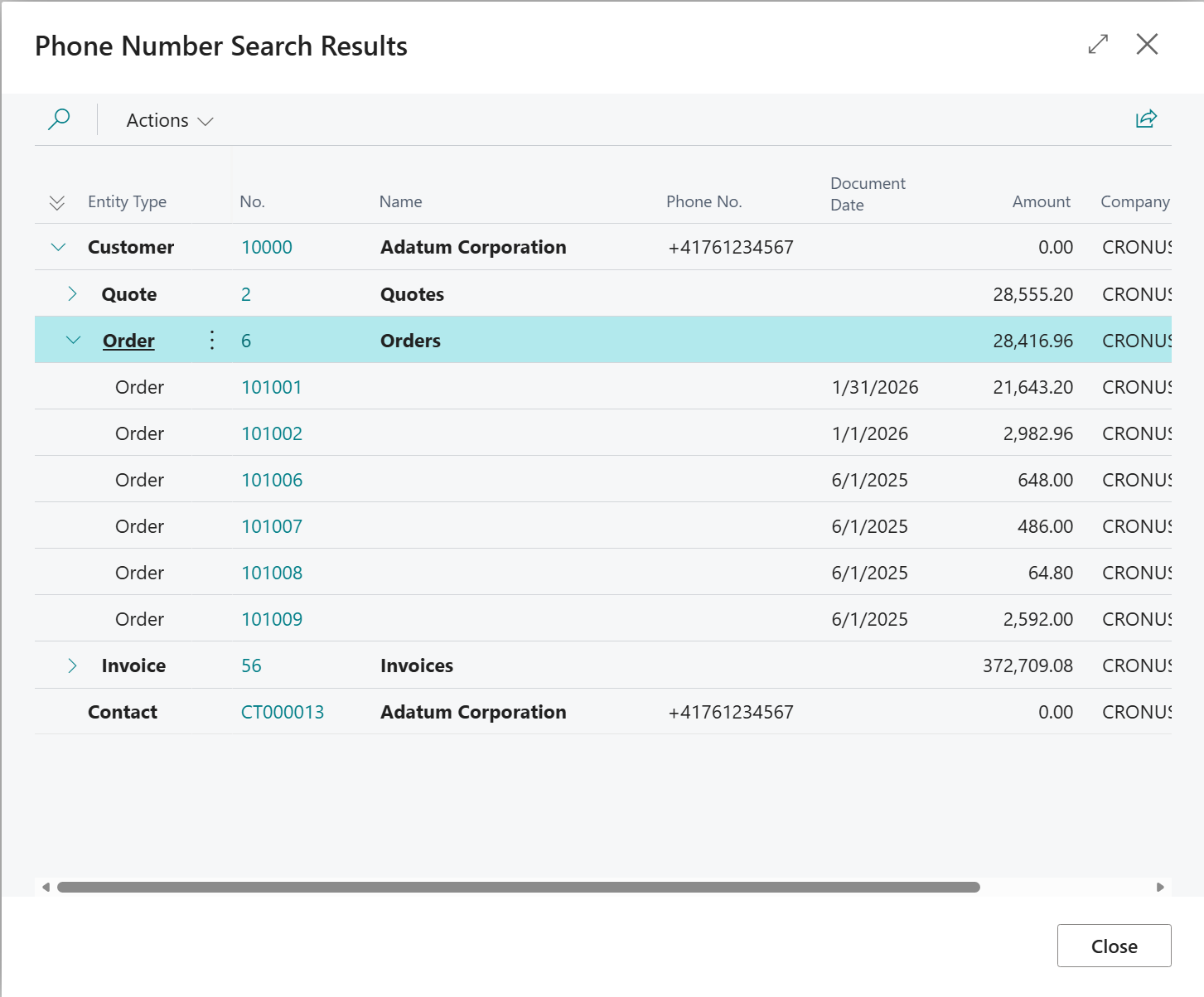
Open records directly — If there is exactly one match, the customer, vendor, or contact card opens immediately. If there are multiple matches, a result list is displayed.
-
View document history at a glance — Open orders, invoices, credit memos, and reminders for the caller are displayed as an expandable tree view.
-
Automatically normalize phone numbers — Numbers are automatically converted to a standardized international format when saved, regardless of how they were originally entered.
-
Find similar numbers — If no exact match is found, the system suggests similar numbers as possible matches.
-
Search across companies — Search multiple Business Central companies simultaneously and navigate directly to records in other companies.
-
Control visibility — Configure which document types and which time period are shown in the results.
Supported Document Types
|
Area |
Document Types |
|---|---|
|
Sales |
Quote, Order, Invoice, Credit Memo, Issued Reminder |
|
Purchase |
Request for Quote, Purchase Order, Invoice, Credit Memo |
|
Master Data |
Customers, Vendors, Contacts |
How It Works
Ventoo Phone Lookup uses an automatic search triggered by the phone system:
Step 1 — Incoming call: The phone system (e.g. a CTI integration or softphone) generates a link when a call comes in, containing the caller's number as a parameter.
Step 2 — Open the link: The employee opens this link. Business Central opens the phone lookup page and automatically reads the number from the URL filter.
Step 3 — Search starts automatically: The system normalizes the number and searches the internal phone directory — first for an exact match, then for similar numbers.
Step 4 — Result is displayed:
-
1 match → The customer, vendor, or contact card opens directly.
-
Multiple matches → A result list is displayed as a tree view.
-
Similar matches → Suggestions are displayed as a tree view.
-
No match → An informational message is displayed.