
The search results show all customers, vendors, and contacts that match the caller's number, along with their document history in an expandable tree view.
Where Results Appear
The Phone Number Search Results page opens automatically based on the following situations:
|
Situation |
Behavior |
|---|---|
|
Exactly one match found |
The customer, vendor, or contact card opens directly — without the results page. |
|
Multiple matches found |
The results page with all matches displayed as a tree view is shown. |
|
No exact matches, similar matches found |
The results page with suggestions displayed as a tree view is shown. |
|
No matches |
An informational message "No phone number was found" is displayed. |
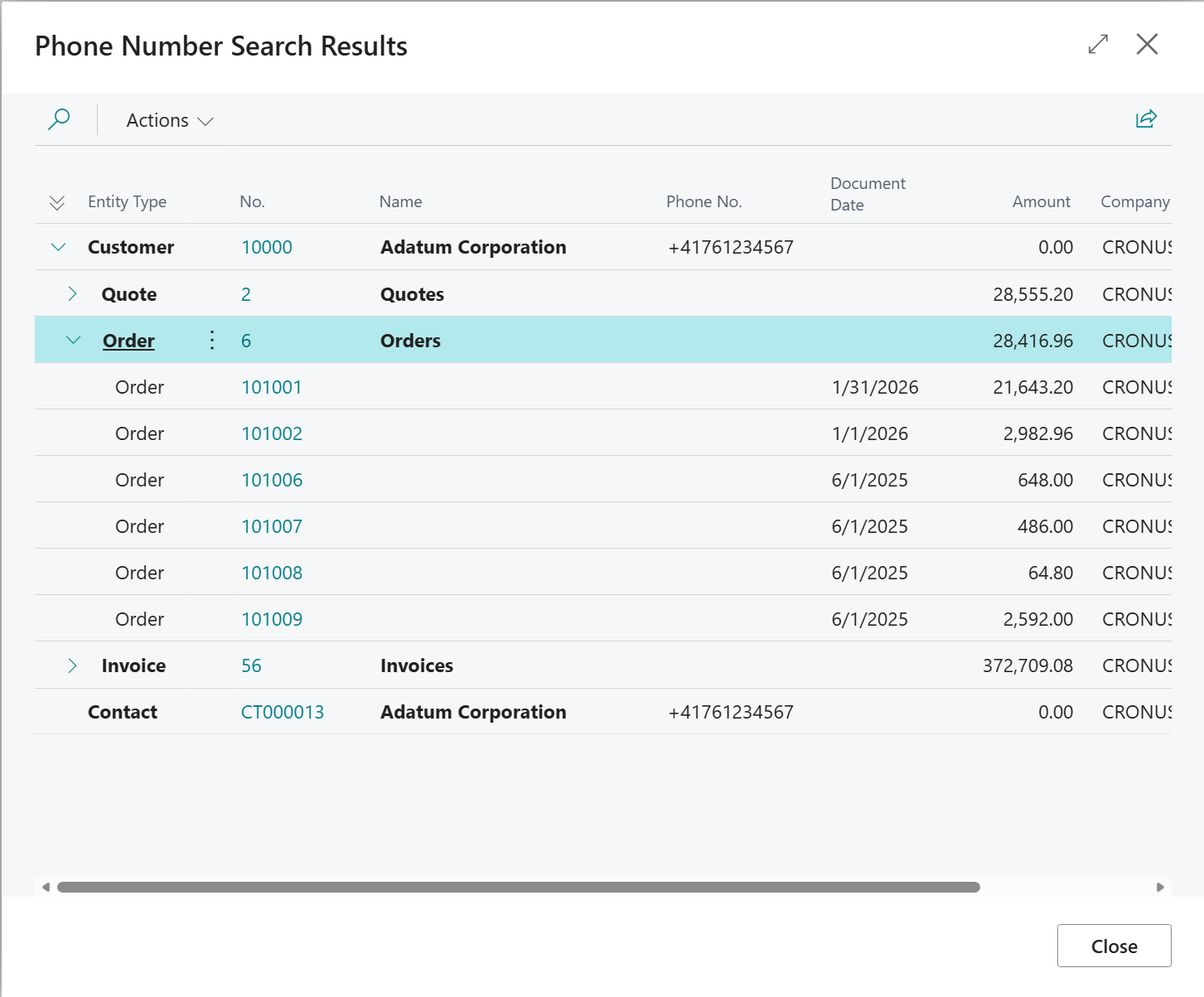
Structure of the Tree View
Results are organized in three levels:
|
Level |
Content |
Display |
|---|---|---|
|
0 — Entity |
Customer, vendor, or contact |
Bold, with phone number and company name |
|
1 — Document category |
Document type with count and total amount |
e.g. Invoices (3) — CHF 12,450.00 |
|
2 — Individual document |
Single document with date and amount |
e.g. SI-00123 — 01/12/2025 — CHF 4,150.00 |
Categories without documents are not shown. Which document types appear depends on the configuration on the Phone Lookup Setup page.
Note: The tree view starts fully collapsed. Click on an entity to expand its related document categories.
Navigate to a Record
Clicking the No. column of a row navigates you directly to the corresponding record in Business Central:
|
Level |
Action on Click |
|---|---|
|
Level 0 — Entity |
Opens the customer, vendor, or contact card. |
|
Level 1 — Document category |
No drill-down — category rows are not clickable. |
|
Level 2 — Individual document |
Opens the respective document (e.g. sales order, invoice). |
Cross-Company Navigation
If results contain records from other companies, the Company Name column shows the source company. Clicking on the record opens it directly in the correct company via a hyperlink.
Note: To access records in other companies, the user must have the appropriate access rights in that company.
Refresh Results
On the results page, select the Refresh Data action to rebuild the tree view based on the current data.